The Power of This DVD Burning Software

Burn Any Video to Playable DVD

  • Create DVD from over 300 formats like MP4, AVI, MOV, MKV, WMV, MPEG, 3GP, FLV, M2TS, MTS, TS, SWF, MPG, DAT, NSV, ISO, etc.
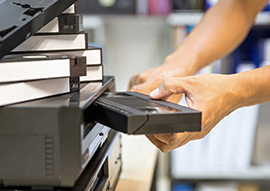
  • Accept videos from old videotapes, web downloads, iMovie, PowerPoint, phones, camcorders, etc.
  • Handle 360p, 480p, 720p, 1080p, 4K, or higher source materials
  • Quickly burn multiple videos onto a single DVD to build your ultimate collection with fast speed and high quality
Learn more

Control TV Settings & DVD Types & Quality

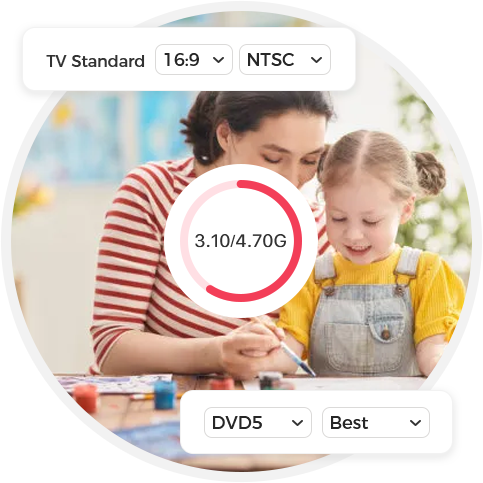
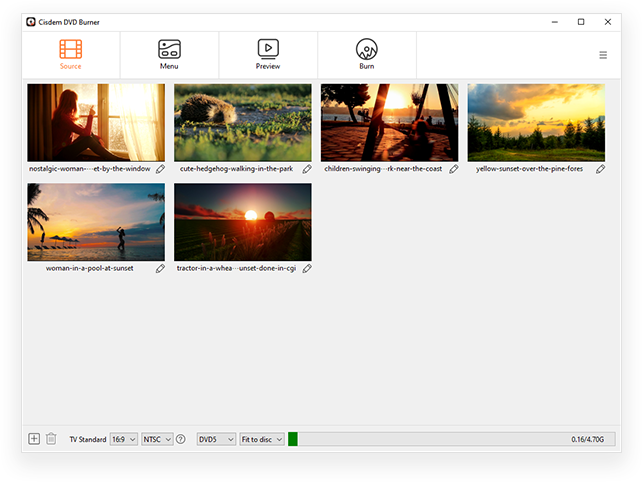
  • Set TV aspect ratio (16:9 for widescreen or 4:3 for fullscreen) and TV standard (NTSC or PAL)
  • Pick DVD-5, DVD-9, or DVD-10 to fit your content
  • Select a quality level: Fit to Disc (the best choice to balance quality and capacity), Best, High, Normal, Low, Lowest
  • Show used capacity, also update in real time as you change disc types or quality level
Learn more

Edit and Enhance Videos for Special DVD

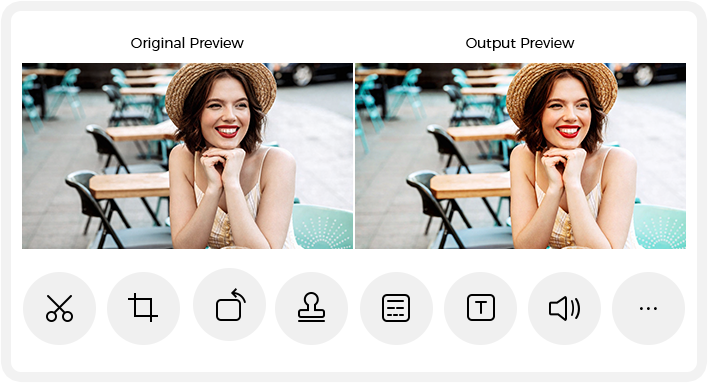
  • Trim, crop, and rotate videos with intuitive controls
  • Fine-tune video effects like brightness and contrast for optimal viewing
  • Embed permanent subtitles and flexible watermarks
  • Add chapter markers for seamless navigation
  • Adjust volume and apply smooth fade transitions
  • Enhance editing experience with side-by-side preview and one-click reset/apply
Learn more

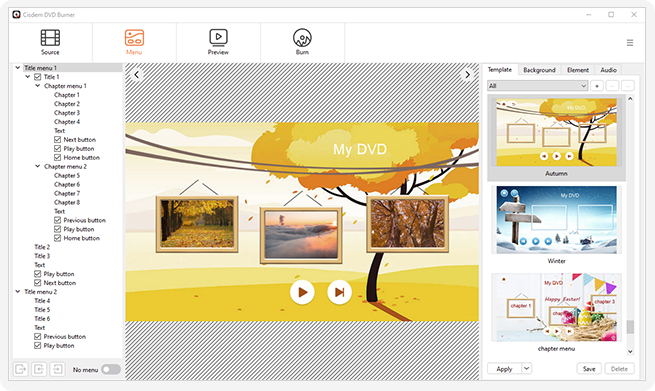
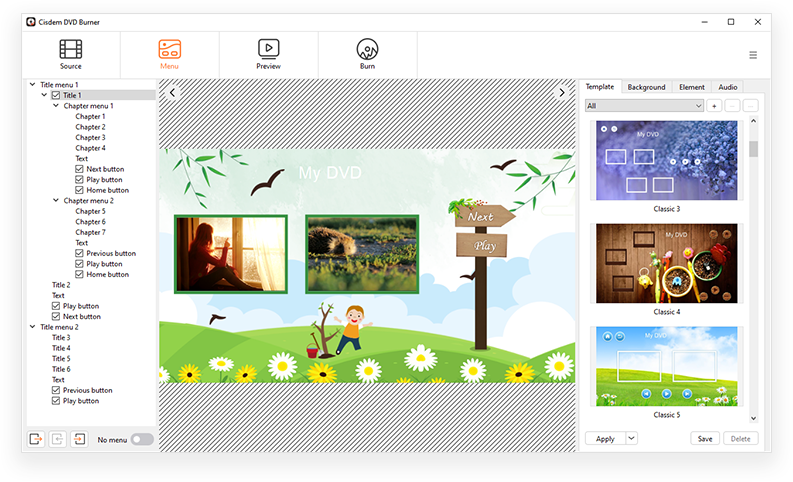
Make Stylish Menus for Every Occasion

  • Select DVD menu from 50+ professionally designed templates
  • Customize the background image by choosing an image from resource, using a solid color, or uploading your own
  • Design every detail including layout, text, frames, and buttons
  • Add background music externally to set the mood
  • Offer 3 distinct menu modes (with menu & chapters, menu only, no menu) to enhance flexibility in playback
Learn more

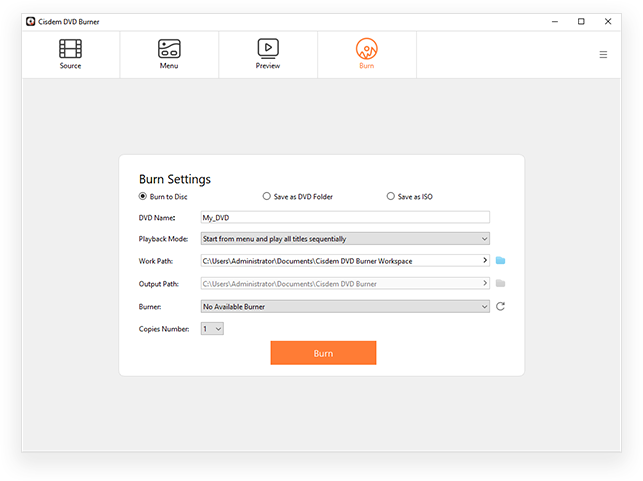
1-Click to Make DVD Instantly

  • Preview all menus, titles, and chapters just like on a real DVD player before burning
  • Burn high quality DVD Disc, DVD Folder, and ISO File
  • Save unfinished projects with all changes and continue anytime
  • Offer 4 playback modes (sequential play, loop all, manual play, single loop) to control exactly how DVD plays
  • Burn multiple DVD copies in one go
Learn more

Cisdem DVD Burner Use Cases

Join Over 1,000,000 Happy Users Worldwide

With over 1,000,000 users trusting Cisdem DVD Burner, it’s a proven choice for reliable disc burning. Read what users and experts are saying about it!

""

MajorGeeks.com

""

Softpedia.com

Read More Tech Reviews

Tony, SG

Great product. Does precisely what it is intended to do as advertised. Recently had a support issue that was addressed and resolved efficiently and very promptly. Highly recommended.

Brandon Horn, US

Great product and great company. I emailed them 4 years after purchasing my initial license since it was tied to a different machine, and they fixed it so my license worked on the new machine. No issues, not trying to make you buy the product again ... great experience with this company.

俵 豊, JP

My DVD burning apprication could not run well, "failured in write-down" or "failured in menu-making". I mailed it to the support several times, and quick responses came, and now today DVD burning successed. I thank you very much.

Read More Trustpilot Reviews (4.7/5)

Frequently Asked Questions

The trial includes all features but limits burning to the first 5 minutes of any video. If the video is shorter than 5 minutes, only half of it will be processed.
Yes, it can recognize chapters you created in any video editing program. You can also create chapters in the “Edit” window of Cisdem DVD Burner.
1. If you're using DVD 5, replace it with DVD 9.
2. Select "Fit to Disc" mode when burning. It will automatically compress your video based on its length and resolution to ensure it fits perfectly on the disc.
3. Cut out some unnecessary clips to reduce the total length.
4. Split the video and burn it to multiple discs.
Yes, you can save your project as .cdbproject file. Just go to the menu bar, click "File" (Mac) or "☰" (Windows) > "Save Project". You can also exit the program directly, and a window will prompt you to save your project.
In Cisdem DVD Burner, click the menu icon > “Show log in Explorer” to locate the log.txt and Convertlog.txt files, send them to our support team at support@cisdem.com, and we will assist you in resolving the issue.
Read More FAQs

User Guide

Explore detailed instructions and helpful tips.

See User Guide

What's New?

Learn about the latest updates and features.

View Version History

3 quick steps to create DVD masterpiece

Step 1: Add

There are 2 ways to add videos: drag & drop, or import from folder.

Step 2: Edit

Enhance videos to precisely control the burning result, like trim, crop, rotate, add effects, etc. Also, you can customize the menu.

Step 3: Burn

One click to burn videos to DVD Disc, DVD Folder or ISO File at fast speed.
Step 1 Step 2 Step 3