


How to Recover Deleted Games Files | A Complete Guide
 606
606
 0
0


Accidentally deleted some important game files? Uninstalled a game by mistake? Game folder disappeared after system crash?... If you are running into these troubles, and want to recover deleted games without losing current game data, this article throws light on some of the tested methods for deleted game file recovery. Just give it a read.
 Cisdem Data Recovery for Windows and Mac
Restore Deleted Games Files on PC, Mac, Console, etc.
- Restore various game files: exe, dmg, profiles, cache, logs, clips, captures, music, etc.
- Recover deleted games data from Steam, Xbox, Minecraft Worlds, PS4, etc.
- Recover lost game data under various scenarios: deletion, update failure, app crash, virus attack, etc.
- Repair corrupted or damaged game recordings, screenshots, etc.
- Preview files before recovery
- Also recover 1000 types of files: video, photo, music, document, email, archive, etc.
- Recover data from various internal and external storage devices
- High recovery rate
 Free Download Windows 11/10/8/7
 Free Download macOS 10.15 or later
#1 Optimal choice: recover deleted games files using software
There are enough forum discussions on the Internet where game lovers ask how to recover deleted games on PC or Mac. Your top priority must be a piece of specialized data recovery software. Here we strongly recommend Cisdem Data Recovery for Windows or Mac, which delivers the peace of mind that comes with knowing an accidental data loss under various situations is covered. From internal computer hard drive to external storage devices (USB flash drive, SD card, memory card, digital camera, video player, etc.), Cisdem can guarantee a quick and efficient data recovery process, including game files on Steam, PS4, PS5, Switch, Xbox One and more platforms.
We all know that recovery never comes with a 100% success rate. But if you want the highest chance to restore your deleted games, Cisdem will be the second-to-none option, since it has been tested to offer a recovery rate over 99.7%. That’s a pretty competitive number.
More reasons to consider Cisdem Data Recovery:
- Recover deleted, lost, formatted and corrupted game files within several steps
- Restore more than 1000 file types
- Support an extensive number of file systems: FAT, NTFS, ext2, ext3, HFS+, ReFS...
- Support virtually all storage devices: PC, Mac, HDD, SSD, USB, SD Card, NAS, Linux, RAID, Partition, iCloud...
- Repair damaged photo, video and document
- Recover unsaved files
- Preview recoverable items before recovery
- Export or import scan results to avoid repeated scanning
- High recovery rate
How to recover deleted games on PC/Mac?
- Download, install and launch Cisdem Game Data Recovery on your computer.
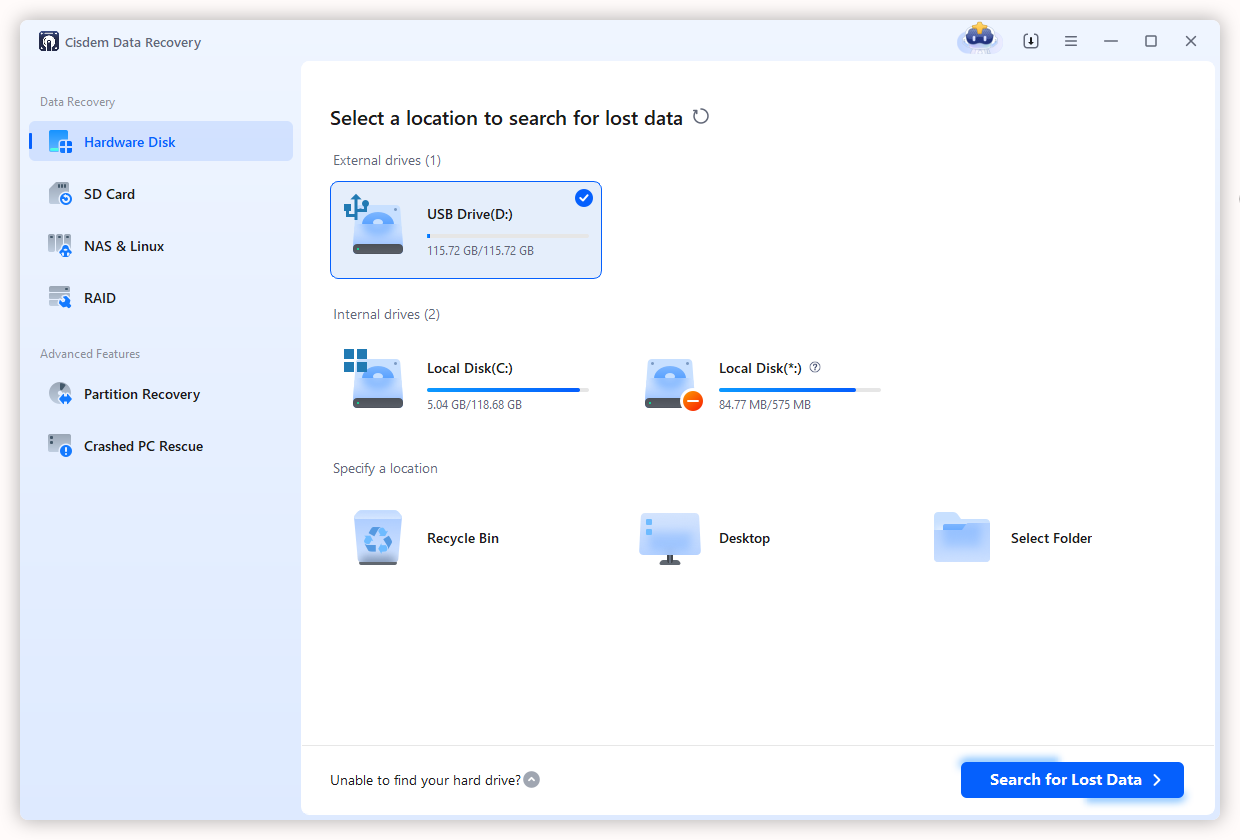
Free Download Windows 11/10/8/7 Free Download macOS 10.15 or later - In Hardware Disk mode, select the location where you deleted your games, and click Search for Lost Data to start the scanning.
![recover with cisdem 01]()
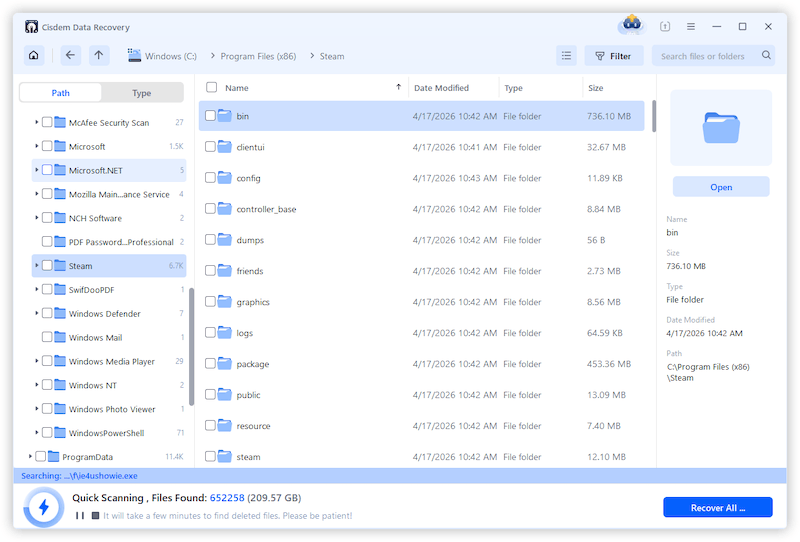
- During or after scanning, go to Path and check out the game folders that Cisdem has found for you.
![recover with cisdem 02]() Or go to Type and specify the file format of your deleted game data, even enter keyword to locate the deleted games files quickly.
Or go to Type and specify the file format of your deleted game data, even enter keyword to locate the deleted games files quickly. ![recover game cisdem04]()
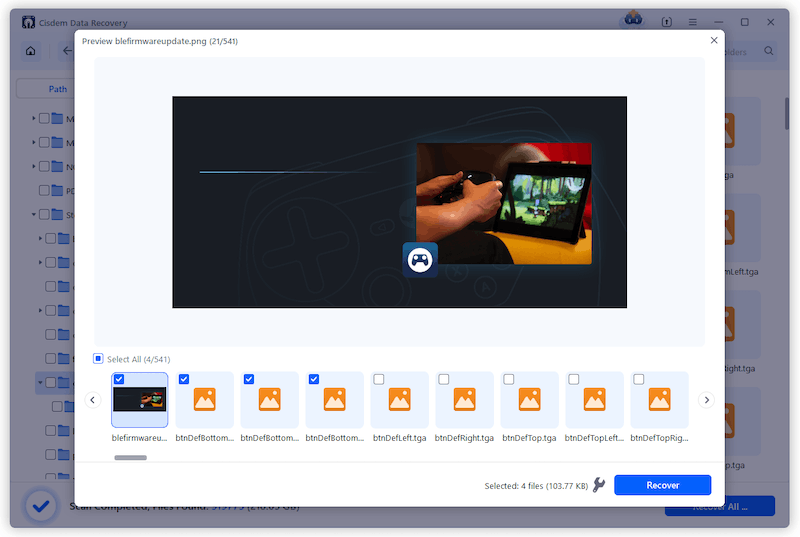
- Select the game files you need to restore and click Recover button to revert them back to your computer.
![recover with cisdem 03]()
 Or go to Type and specify the file format of your deleted game data, even enter keyword to locate the deleted games files quickly.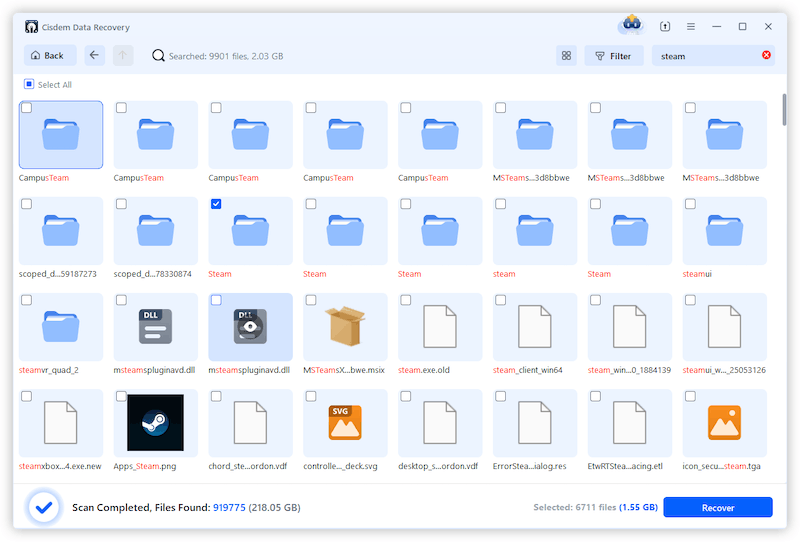
#2 Recover deleted game data via backup
Also, the creation of game data backups remains as a viable solution to get back deleted games. Many game clients themselves have backup tools built in their system to store various game data, you might also have made a backup of your deleted game data in common backup ways like enabling File History, copying them into an external hard disk, or uploading them onto a cloud service.
As following we will take Steam for an instance to demonstrate how to recover deleted games via backup.
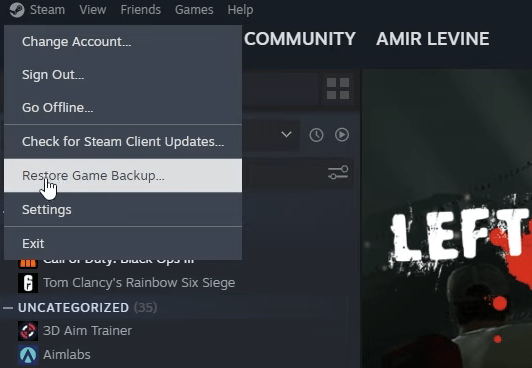
- Click Steam from the top-left menu bar, select Restore Game Backup.
![recover via steam backup 01]()
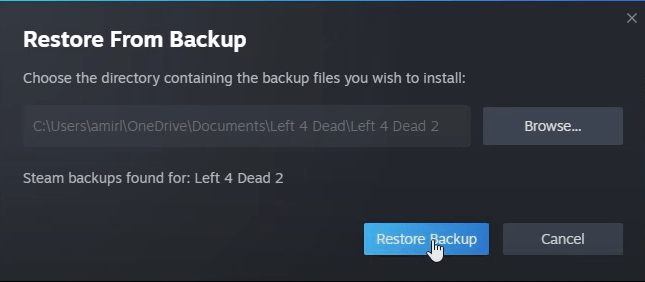
- Click Browse to choose the directory containing the backup files you wish to install, click Restore Backup.
![recover via steam backup 02]()
- After restoration, re-install the deleted games on your computer.
#3 Verify game integrity to retrieve deleted games
Suppose that your games are still visible in the game library but grayed out within the list, there could be some unknown corrupted or damaged files leading to a missing game. This error can be easily resolved by verifying the integrity of game files. Nearly all video game clients have the feature of integrity check. The tutorial below is based on Steam, but the workflow on other clients is pretty much the same.
- Open Steam, go to Library.
- Right-click on the problematic game, select Properties.
![verify game integrity 01]()
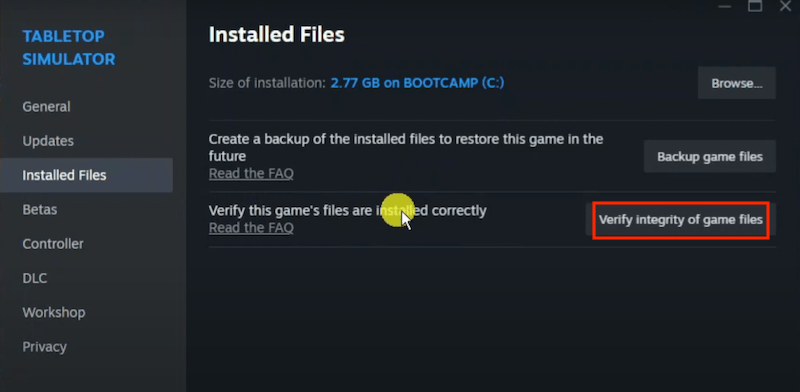
- Choose Installed/Local Files tab, click on Verify integrity of game files.
![verify game integrity 02]()
- During the validation, it will attempt to repair any corrupted files if detected.
- Finally reaccess the game to check if the deleted data has been restored or not.

#4 Restore deleted games files with Windows File Recovery
In case you don't have a backup, or you need more time to evaluate Cisdem, another method to retrieve deleted games is turning to Windows File Recovery. Developed by Microsoft, it’s a 100% free command-line software utility to recover deleted files from a variety of storage devices.
This tool is designed with 2 recovery modes: Regular mode & Extensive mode. The first focuses on NTFS file systems, attempting recovery of files from a corrupted or formatted disk; while the latter is dedicated to recover missing files from FAT, exFAT and ReFS file systems. This is how to restore deleted game data with Windows File Recovery. You’re required to remember the folder name of your deleted games.
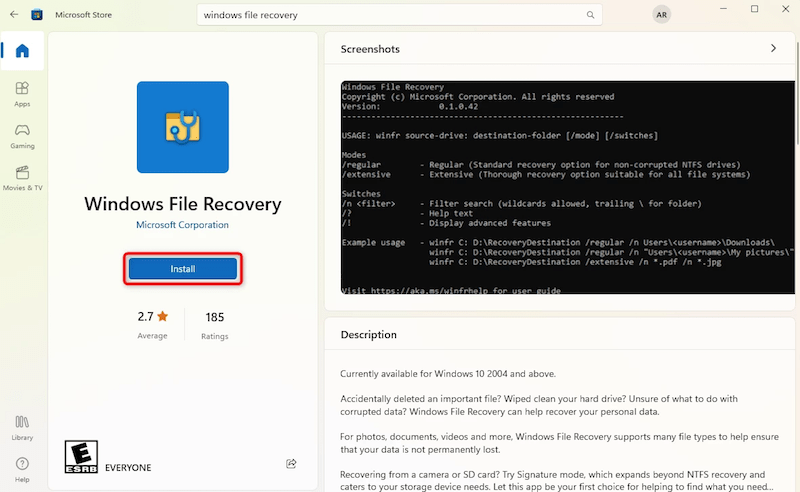
- Download and install Windows File Recovery from Microsoft Store.
![recover with windows file recovery 01]()
- The program will automatically open after installation.
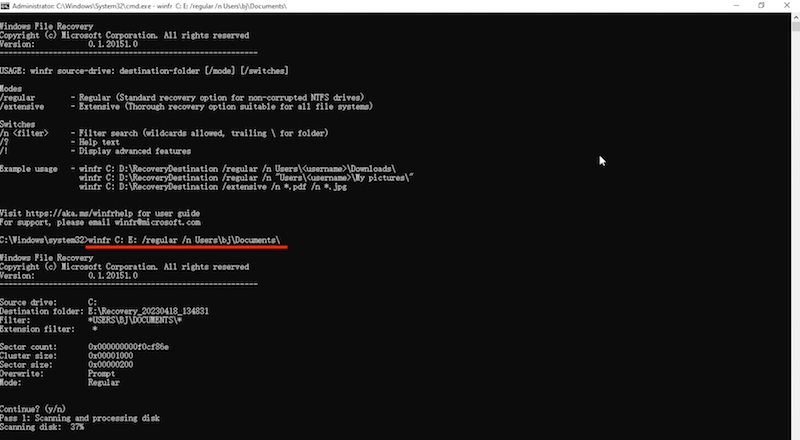
- Type winfr source-drive: destination-drive: /(mode) /n (the original path of your game folder)\. For example, I need to recover deleted games from drive C to drive E, the command should be winfr C: E: /regular /n Users\bj\Documents\.
![recover with windows file recovery 02]()
- Press Enter to execute the command.
- Type Y to scan the disk where stored your deleted games.
- After the process done, go to check if the deleted game files have been restored back to its original location.
#5 Recover deleted games from Support
Still not able to get back your deleted games data? Our final approach is to seek help from Support center. Although permanently removed from your computer, the game files are still possible to be kept by the client server within a specific duration. So try to turn for the game’s customer support for more chance. The path to contact the Support of different clients may vary, here we will give a guide for Steam.
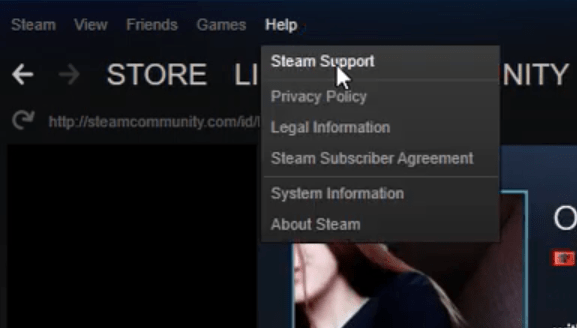
- In Steam, select Help from the menu bar, click Steam Support.
![recover from support 01]()
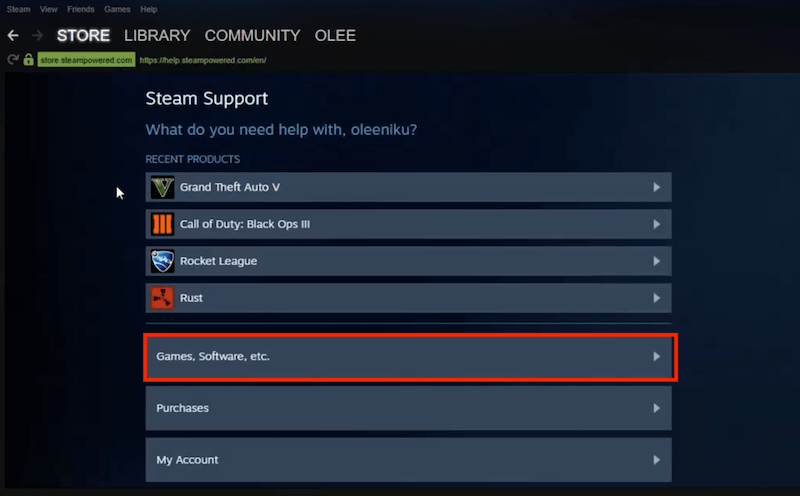
- Continue to choose "Games, Software, etc.".
![recover from support 02]()
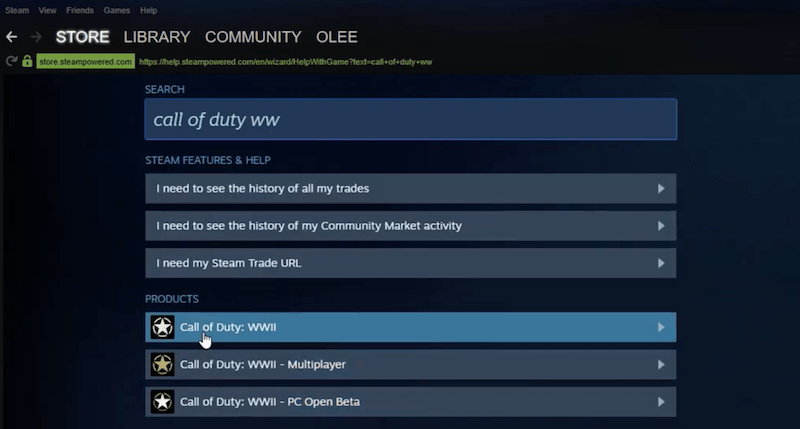
- Type the name of your deleted game in the search box, find the corresponding product.
![recover from support 03]()
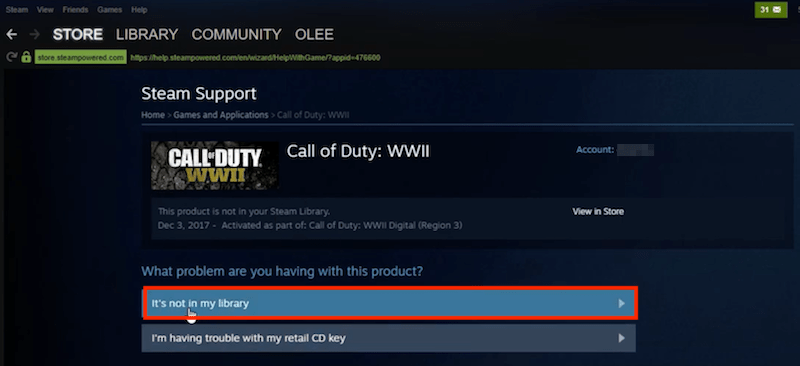
- Select "It’s not in my library".
![recover from support 04]()
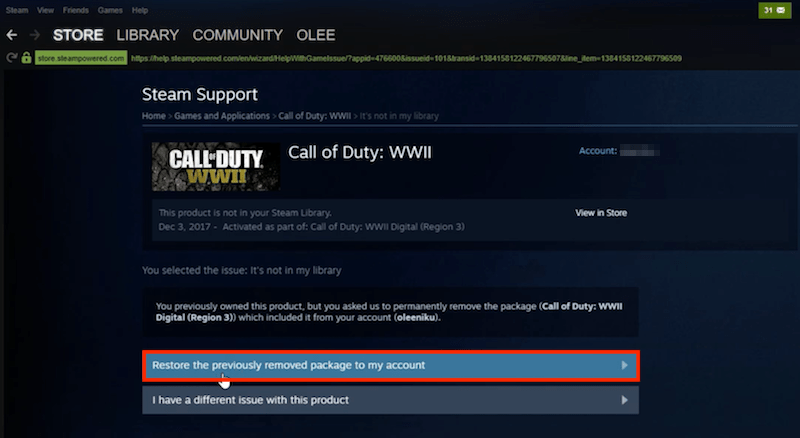
- Continue to select “Restore the previously removed package to my account”.
![recover from support 05]()
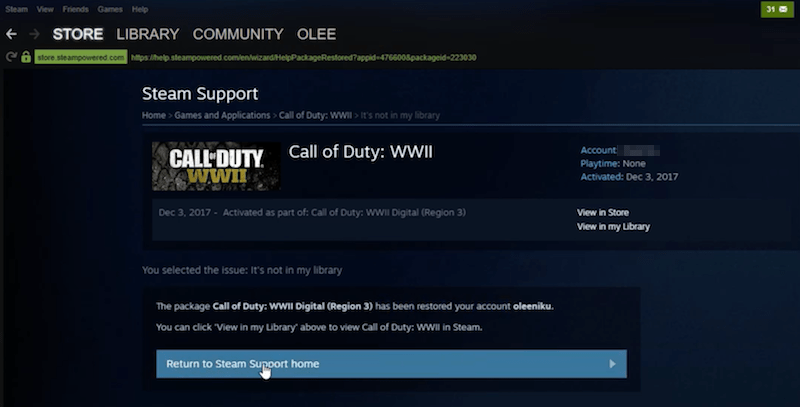
- Click “Return to Steam Support home”.
![recover from support 06]()
- Go to see whether the deleted game is recovered successfully.
Closing words
The evolution of video game industry has brought about plentiful advancements. However, this progress has also given rise to a challenge: unexpected loss of game files. A mistakenly deleted game means a truly disheartening issue for most gamers. Fortunately, this page comes in great handy to some extent. Our most recommended tool --- Cisdem Game Data Recovery, has the ability to recover deleted games from numerous video game clients. Give it a free try and it won’t let you down.

Zoey shows a great interest in what she does. Although not long with Cisdem, she has possessed a professional understanding of data recovery.

JK Tam is the lead developer at Cisdem, bringing over two decades of hands-on experience in cross-platform software development to the editorial team. He is now the lead technical approver for all articles related to Data Recovery and DVD Burner.