


How to Recover CSV File That Is Unsaved, Deleted or Corrupted?
 776
776
 1
1


Have you spent a long time on working on a CSV file only for your heart to sink, because you found the file was unsaved, deleted, even corrupted? This can be caused by a mistake, sudden power off, bugs in the app or operating system and other unknown reasons. Whatever, this guide will talk you through all the solutions to rescue your CSV files under different occasions.
 Cisdem Data Recovery for Windows and Mac
Restore Lost CSV Files Fast - No Data Left Behind
- Restore deleted, formatted, lost CSV files caused under different scenarios
- Recover unsaved files in Word, Excel, PowerPoint, WPS, Keynote, Pages, etc.
- Recover 1000+ file types: video, audio, photo, document, email, archive, bookmarks, etc.
- Repair damaged videos, photos and documents
- Restore files from both internal and external storage disks: HDD, SSD, SD card, USB, etc.
- Preview files before recovery
- Support advanced file recovery: NAS, RAID, Linux, Partition, etc.
- Recover files to local drive, or to cloud
 Free Download Windows 11/10/8/7
 Free Download macOS 10.15 or later
How to Recover Unsaved CSV File on Windows or Mac?
You may be in the situation that leave a CSV file unsaved after adding many new entries, which is stressful. A CSV file can go unsaved for various reasons, a mistake, sudden power off, or Excel crash. As long as you left a CSV file unsaved in MS Excel, there’s solution to recover the file, because Excel app has the auto-recover feature. If auto recover fails, we can have a try in a data recovery program.
#1 Recover Unsaved CSV Files via Auto-Recover
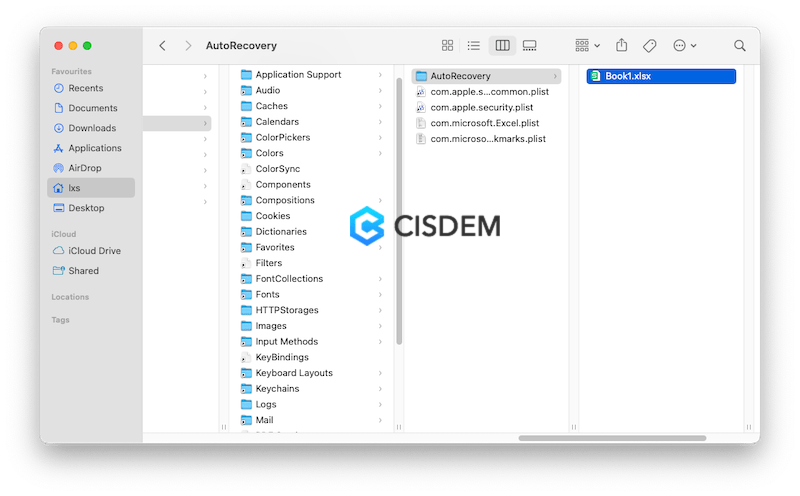
Generally speaking, you can relaunch the Excel app to restore the unsaved CSV file if you have enabled the AutoRecover feature, it will open the unsaved file automatically and then you will be able to save. But if it doesn’t open the unsaved CSV file, you can check the auto recovery location.
- Go to the location where the CSV files are auto saved.
For PC users: C:\Users\AppData\Local\Microsoft\Office\UnsavedFiles
For Mac users: /Users/Library/Containers/com.microsoft.Excel/Data/Library/Preferences/AutoRecovery![recover unsaved csv mac]()
- Open the unsaved CSV file with Excel app, and click Save button to restore.
#2 Recover Unsaved CSV Files Using Cisdem Data Recovery
Auto-recover is not enabled, or it failed to recover your CSV files? Maybe it is time to embrace a new way of file recovering, let a program do the job. Such a program will scan thoroughly on your disk, and bring those lost CSV files back to you.
Cisdem Data Recovery delivers robust file restoring tools and high-quality user experience. It engineers a lot of features to make it straightforward to scan a drive, locate a file, preview, recover even repair the files. With the streamlined workflow, Cisdem will save you from data loss as easily as doing any other task on your device.
The benefits you can get from Cisdem Data Recovery:
- Recover deleted files from both internal and external hard drive
- Recover files lost under different situations: deletion, partition loss, formatting, virus attack, system crash, hard drive damage, etc.
- Restore 1000+ types of files: video, audio, photo, document, email, archive and so on
- Recover unsaved Word, Excel, Powerpoint files
- Repair damaged videos, photos, office documents
- Recover files from crashed PC or Mac
- Filter and search files quickly
- Preview files before recovery
- Save recovered files to local folder or cloud storage platforms
- Highly compatible with macOS 10.15 and later, Windows 7 and later
How to recover unsaved CSV files with Cisdem Data Recovery?
- Download and install Cisdem Data Recovery on your Mac or PC.
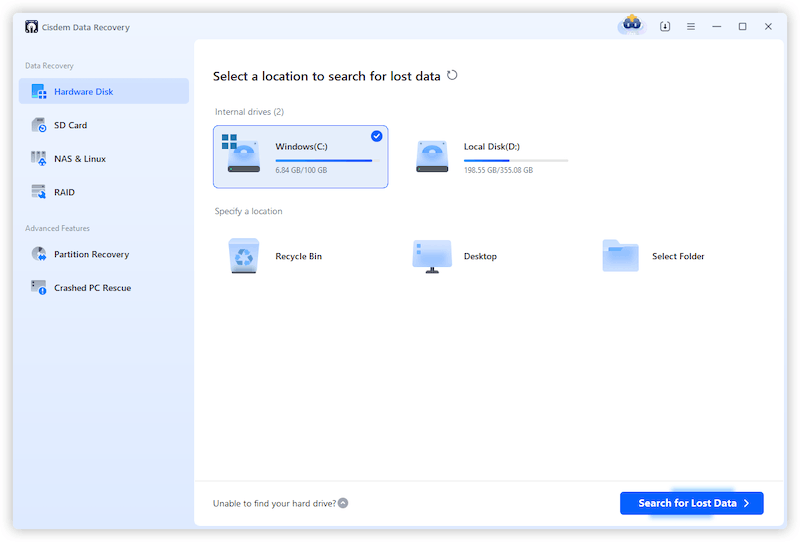
Free Download Windows 11/10/8/7 Free Download macOS 10.15 or later - Select the drive where you lost the CSV files and click Search for Lost Data to scan the drive.
![recover csv files cisdem 01]()
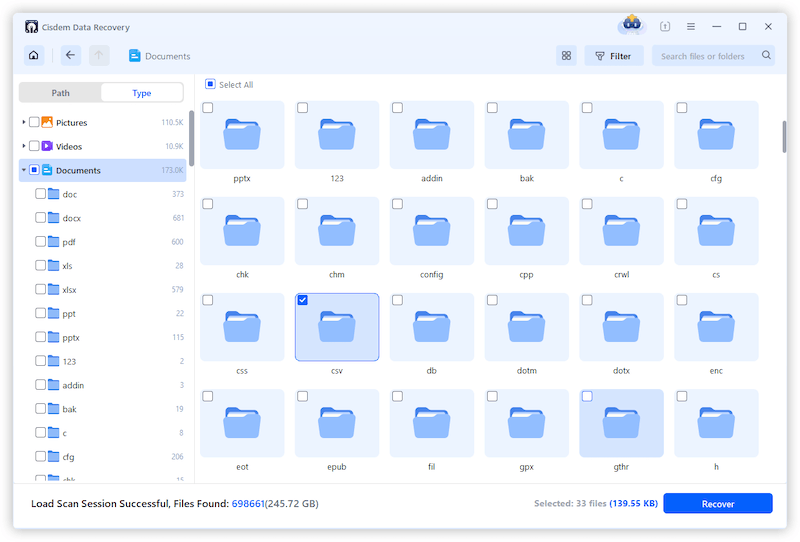
- Go to Type > Documents > CSV, also you can search a CSV file by keyword or filter by date, size, etc.
![recover csv files cisdem 02]()
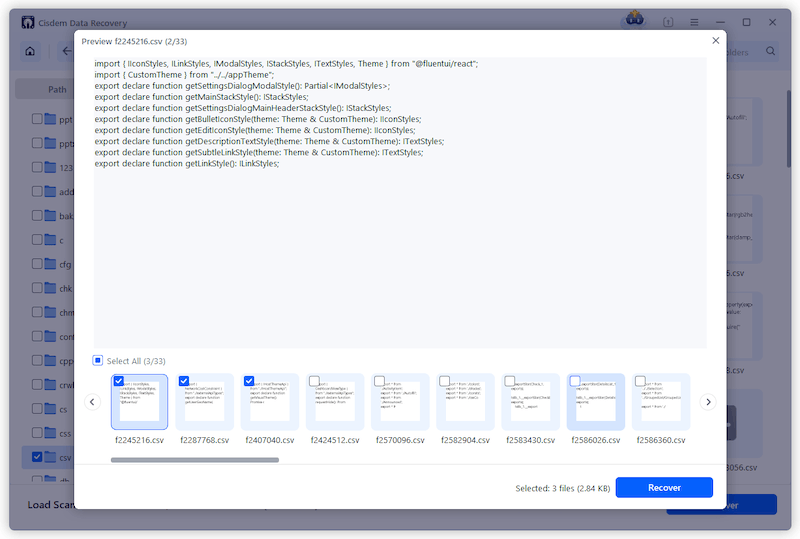
- Double click the file to preview, then select the files and click Recover.
![recover csv files cisdem 03]()
How to Recover a Deleted CSV File?
If you deleted a CSV file by mistake, or removed it permanently before but now having second thoughts, no need to worry. Both Mac and Windows have their own set of rules or tools for recovering a deleted CSV file. Moreover, if you have a backup,CSV recovery can be even easier. Keep reading as we detail how to recover a deleted CSV file in the step-by-step guide below.
#1 Recover from Trash Bin
When a file is deleted, it will be move to Trash bin on Mac or Recycle bin on Windows PC, you should always check the bin first, if you don’t empty it.
On PC
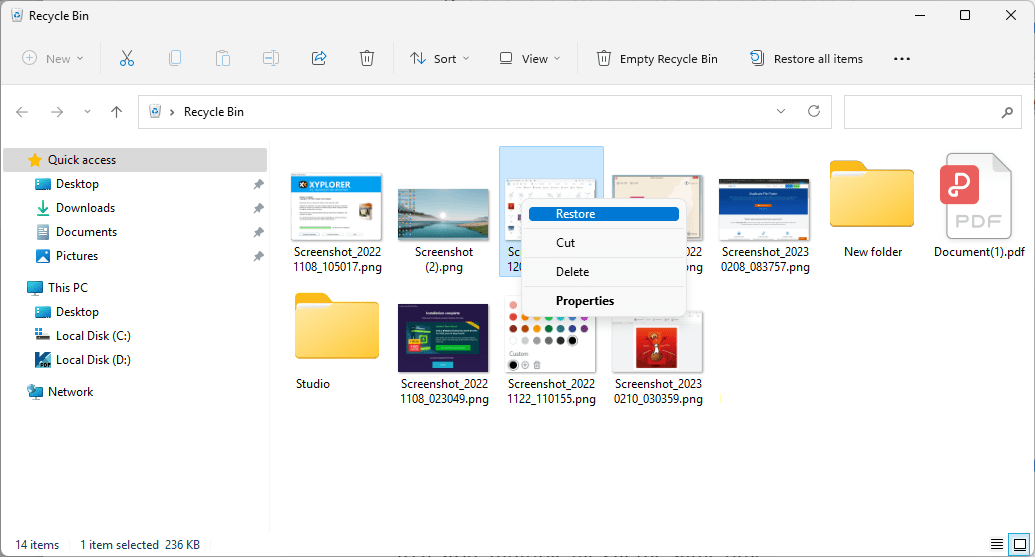
- Open Recycle bin app.
- Find the deleted CSV file, right click the file and click Restore.
![recover csv recycle bin]()
On Mac
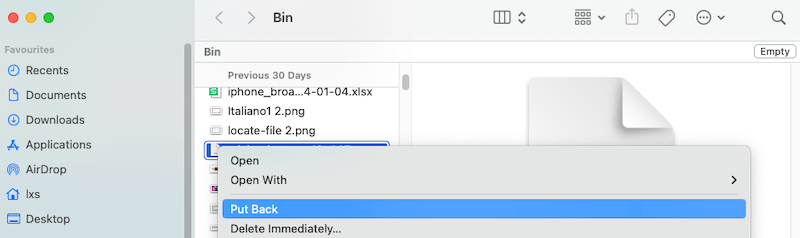
- Open Trash bin app.
- Find the deleted CSV file, right click on the file and Put back.
![recover csv mac trash]()
#2 Recover from Backup
While some people can restore the deleted CSV files, it is not workable for all users. Then a backup of the file becomes significant. To protect data in the event of accidental deletion, hard drive formatting, system failure or file corruption, both macOS and Windows preinstall backup & restore tool, even, there are many reliable cloud storage service for secure data backup. If you have enabled the auto backup on your Mac or Windows or uploaded a copy for the files, you will be able to restore the deleted CSV files easily from the backup.
Via File History on Windows
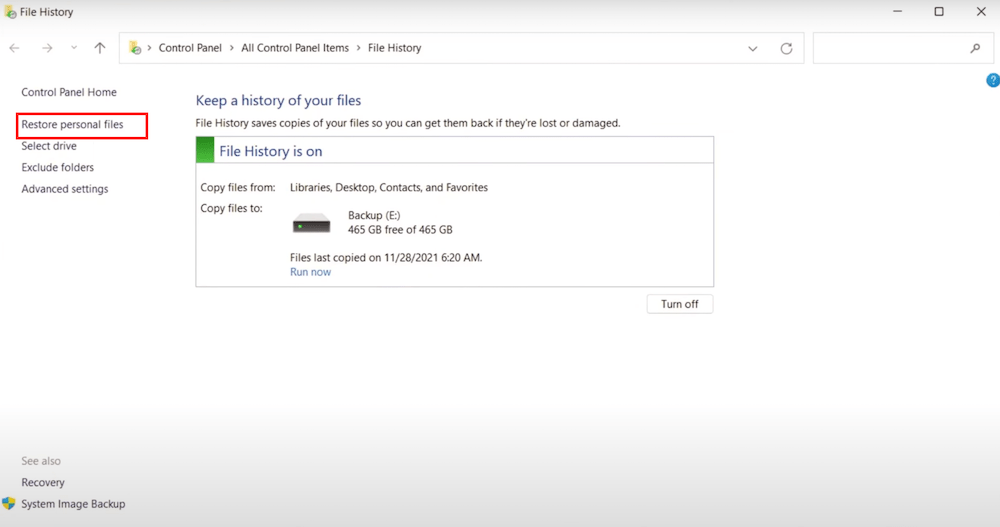
- Connect the File History backup drive to your Windows PC.
- Open File History > Restore personal files.
![recover csv from file history]()
- Go to the CSV backup files, select a wanted version.
- Click Recover.
Via Time Machine Backup on Mac
- Connect the Time Machine backup drive to your Mac.
- Click Time Machine icon from the menu bar and click Enter Time Machine.
- Go to the location where you save the CSV files, choose the file and select a version from the timeline.
![recover csv from time machine 01]()
- Click Restore.
![recover csv from time machine 02]()


Via OneDrive Backup
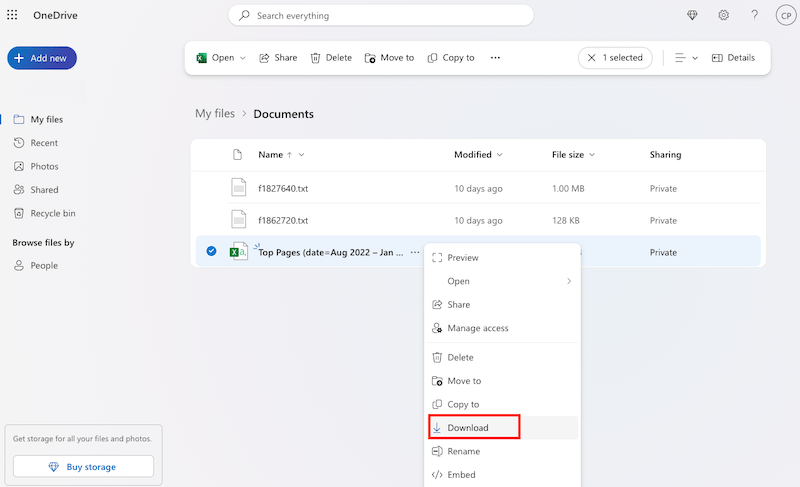
- Sign in OneDrive account.
- Go to My files > Document, find the CSV backup files.
- Click on the 3-dot icon and click Download to restore the deleted CSV file to your PC or Mac.
![recover csv onedrive]()
How to Recover a Corrupted CSV File?
A CSV file might be corrupted and unable to play or composed of garbled data. Before going into full panic and starting replicating the work, switch to a different CSV reader or try following solutions to fix the corrupted CSV files.
#1 Switch to Another CSV Editor
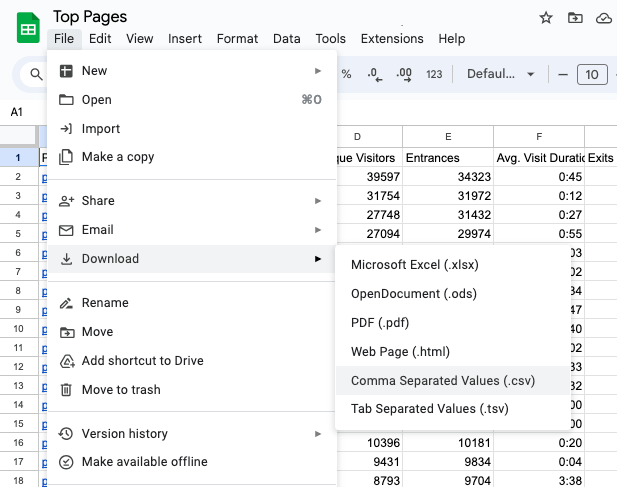
If you cannot open the CSV file in MS Office Excel, upload the file to Google Drive and check if you can open with Google Sheets, if yes, download the file as CSV again.
#2 Convert CSV to Excel
CSV file is a plain text format composed of comma separated values, it is used to store data only, while Excel is a binary file that stores data, also contains formatting, formulas, macros and so on. Both of them can be opened in Excel or other spreadsheet programs, and share a lot of resemblance, if your CSV file goes corrupted, you can convert it to Excel format, letting the Excel restructure the file and fix.
You can directly change the .csv file extension to .xlsx and check if the file can be opened in Excel app:
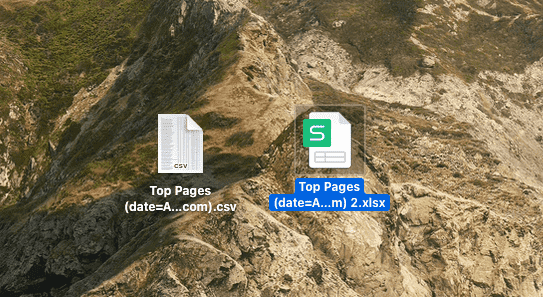
Or you can visit convertio.co and upload the csv, then choose output format as xlsx to convert:

#3 Save CSV in UTF-8 Encoding Using Excel
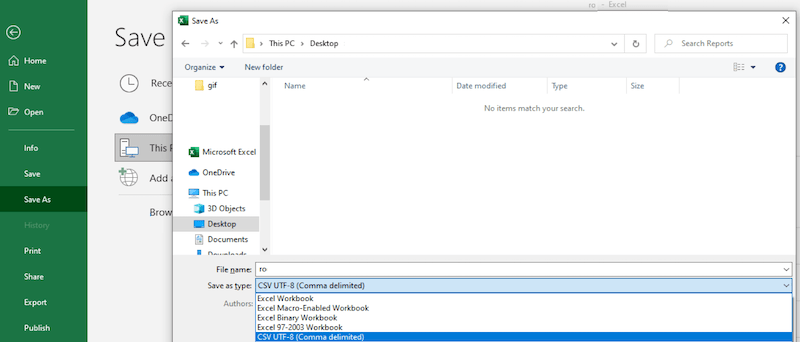
UTF-8, “Unicode Transformation Format, 8 Bit”, is the best encoding for a CSV file, because it can import special characters and non-English characters. If your files contain special characters but is not saved in UTF-8 encoding, it may go into corruption. We need to re-save the file as UTF-8 encoding.
- Open the corrupted CSV file in Microsoft Excel.
- Go to File > Save as....
- Click the drop-down menu from Save as type and select CSV UTF-8 (Comma delimited).
![save csv utf8]()
- Click Save.
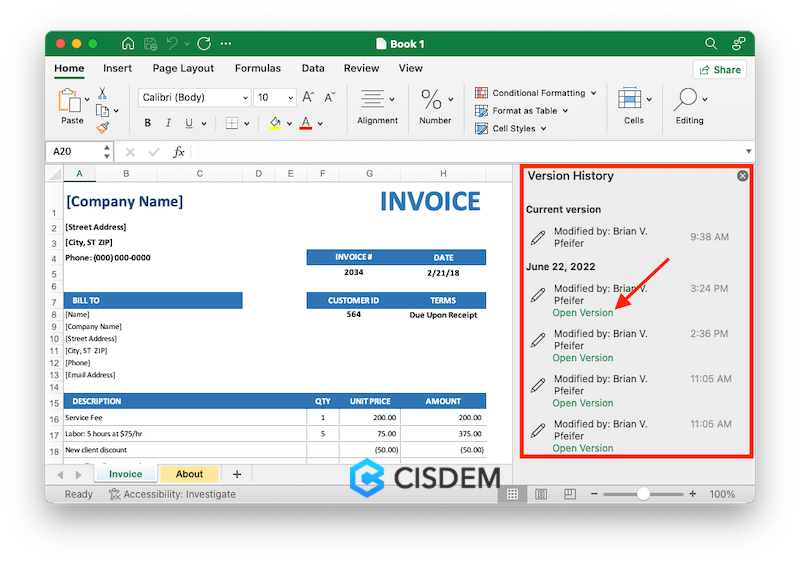
#4 Recover Corrupted CSV File from Previous Version
If the file goes corrupted after you made some edit to it, you can recover the file by reverting to previous version. Though it won’t save your newly added changes, it saves you the time and effort to start over editing the CSV file.
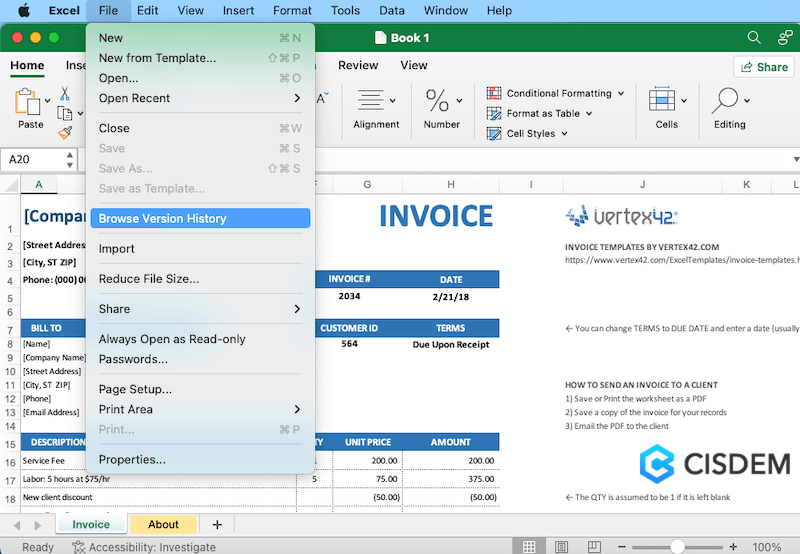
- Open the CSV file in Excel.
- Go to File > Browse Version History.
![recover csv from previous version 01]()
- Choose the latest version and click Open Version.
![recover csv from previous version 02]()
- Then click Restore.
Regain Your Access to CSV File
In case that you are looking for the most efficient and quickest solution to recover a CSV file that is unsaved, deleted or corrupted, Cisdem Data Recovery is the best option. But if you want to restore an unsaved CSV file, use the auto-save feature from Excel and check the autorecover location. Also, you are recommended to always backup important files to an external hard drive or cloud storage platforms.

Zoey shows a great interest in what she does. Although not long with Cisdem, she has possessed a professional understanding of data recovery.

JK Tam is the lead developer at Cisdem, bringing over two decades of hands-on experience in cross-platform software development to the editorial team. He is now the lead technical approver for all articles related to Data Recovery and DVD Burner.
Donald
Really helpful and easy to follow, this guide made CSV recovery much less stressful. Appreciate the clear steps and practical tips!