


How to Lock Messages on iPhone (iOS 26 & Earlier) – 3 Ways
 229
229
 1
1


Key Takeaways
You can lock Messages on iPhone using built-in features or a third-party app locker.
For stronger protection that can’t be easily bypassed, a tool like Cisdem AppCrypt is a more reliable option.
Ever handed your iPhone to someone and worried they might view your text messages? Messages may contain a lot of personal or sensitive information, including our private conversations, bank account information, etc. To protect your privacy, the best way is to lock it. In this article,we’ll show you how to lock Messages on iPhone in different ways, including in every version of iOS.
 Cisdem AppCrypt
Lock Messages & Other Apps on iPhone
- Lock individual apps on your phone with a PIN
- Lock Messages on iPhone to prevent unauthorized access
- Lock categories of apps, such as Social, Games, etc.
- Auto re-lock apps after they've been unlocked for a period of time
- Auto-lock AppCrypt itself to protect all your settings
- Block websites on Chrome, Safari, Firefox, and other browsers
- Let you lock apps/block websites permanently or at certain times
- Hide the App Store app to prevent new apps from being installed
- Hide the Delete App option to prevent existing apps from being deleted
- Help with privacy protection, productivity, and parental controls


Method 1. Lock Messages on iPhone with a PIN (Cisdem AppCrypt)
Best for: Users who want strong protection. It’s ideal if you don’t want others to access your messages at all, even after your iPhone is unlocked.
Cisdem AppCrypt is an easy-to-use tool designed to help users protect privacy by locking certain applications on iPhone.With it, you can easily lock the Messages app on your iPhone to prevent any unauthorized access.
It lets you set a PIN. Even if someone unlocks your phone, they still can’t view your text messages. For added security, AppCrypt also automatically lock itself, ensuring that no one can change your settings without your permission.
Below are steps:
1. Download and install Cisdem AppCrypt from the App Store.

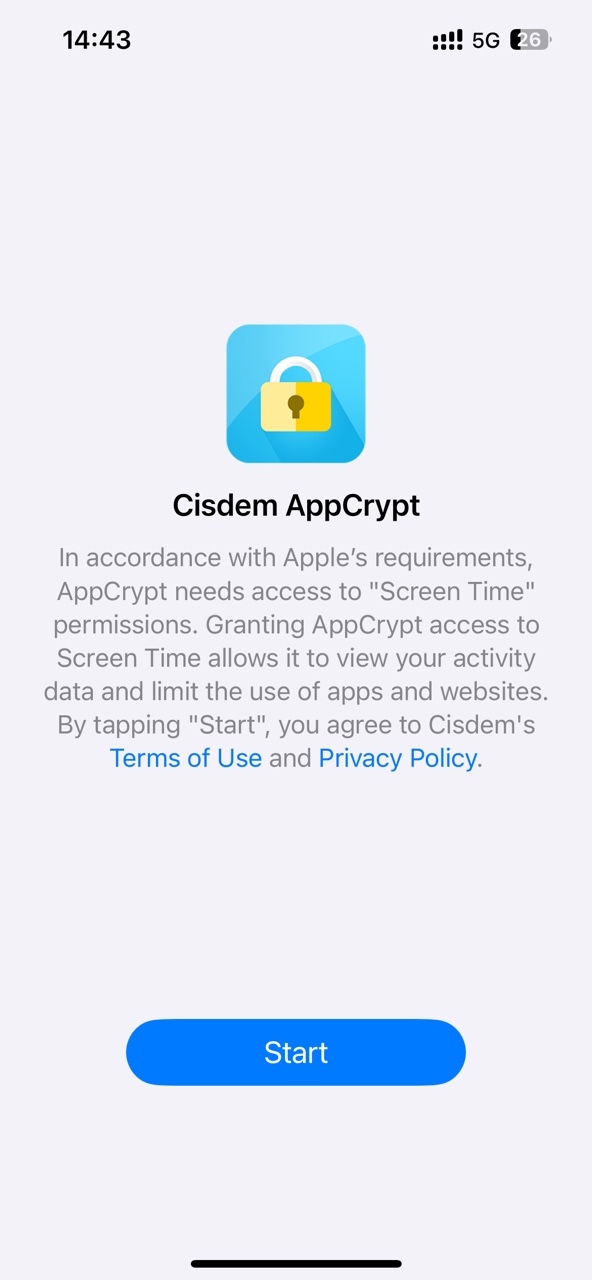
2. Open it. Click Start to access the main window.
3. Go to the App Lock tab.
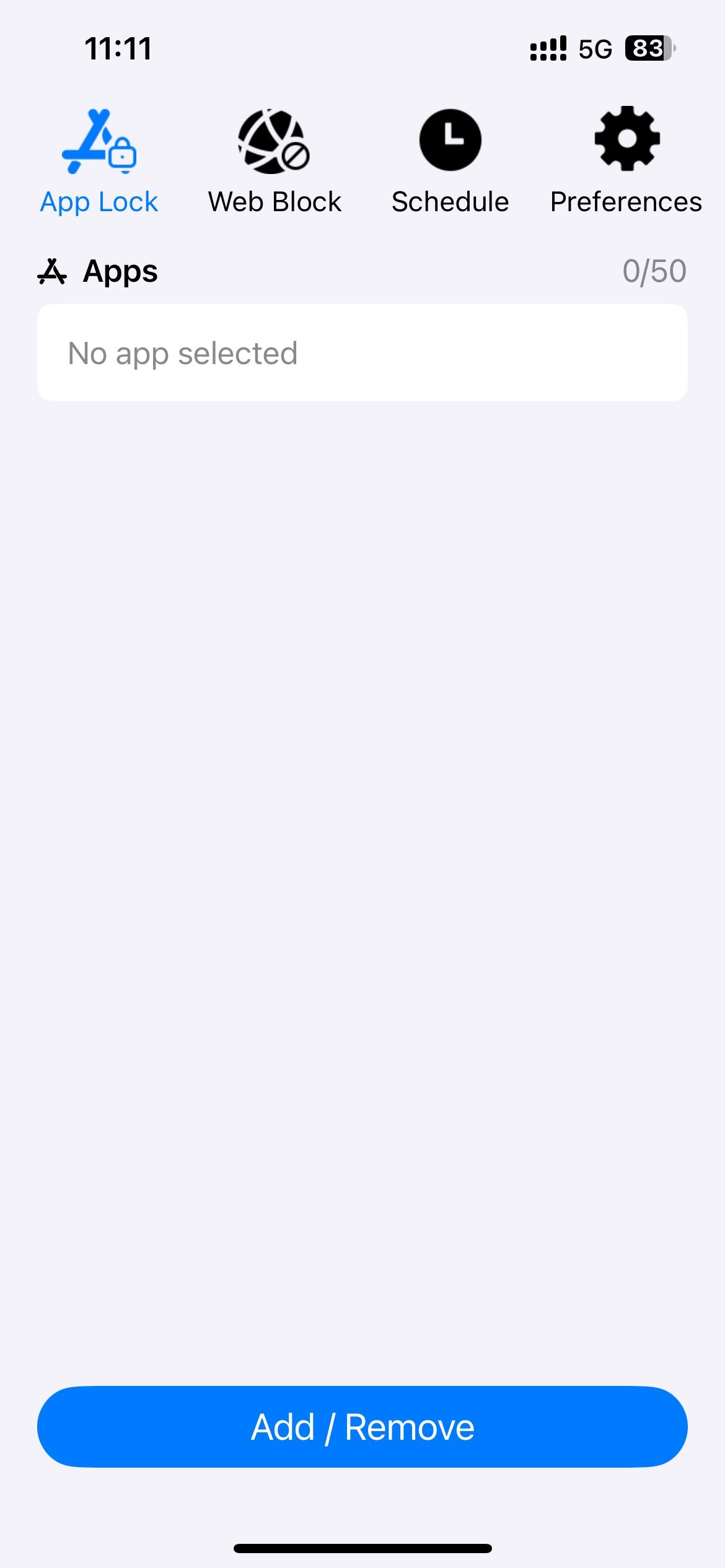
4. To lock Messages on your iPhone, click the Add/Remove button at the bottom.
Search for Messages app. Select it from the application list.
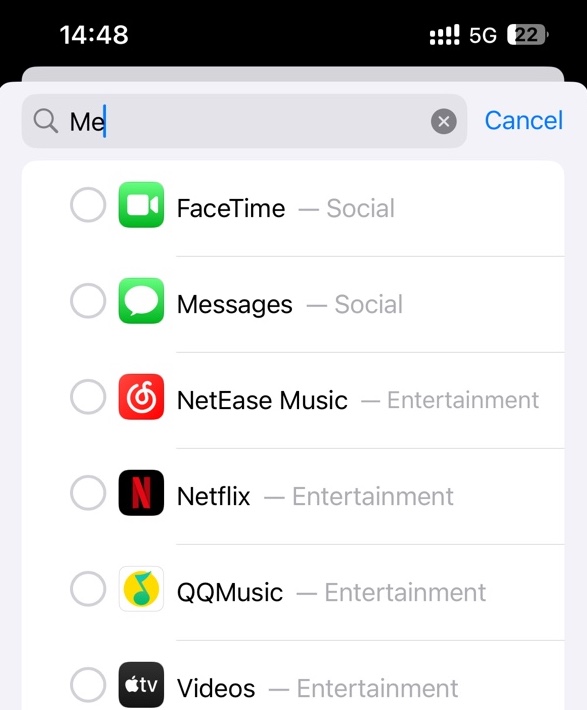
Click Done.
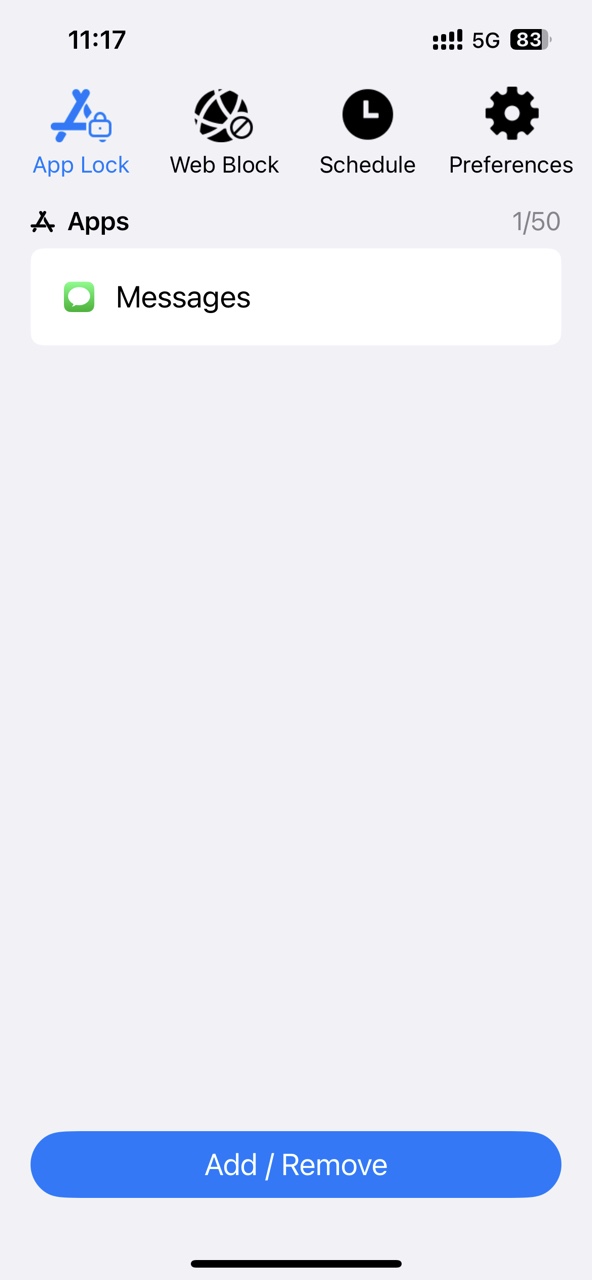
5. Click Preferences at the top. Click Change Password.
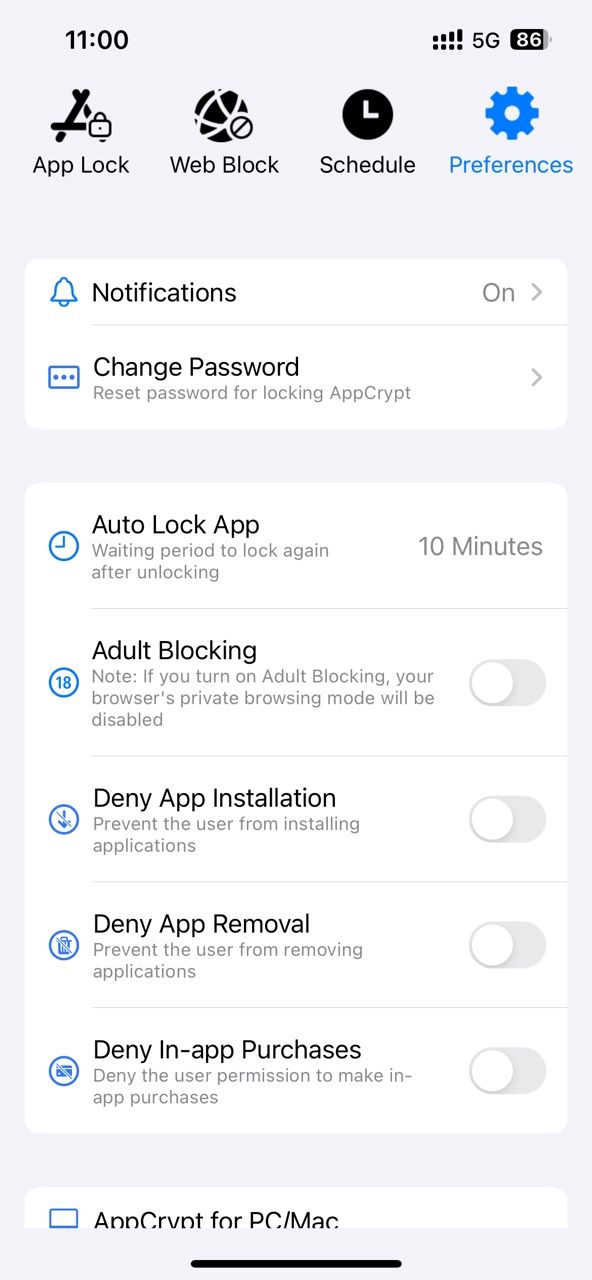
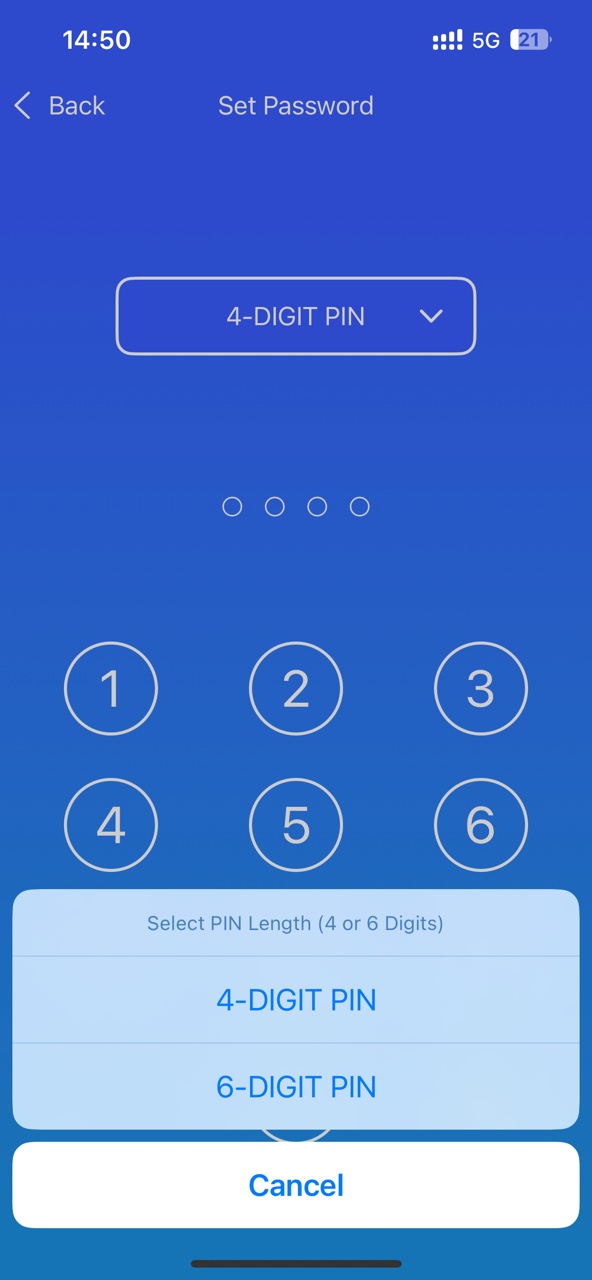
6. Set a 4-digit PIN or 6-digit PIN as your like. Verify your PIN.
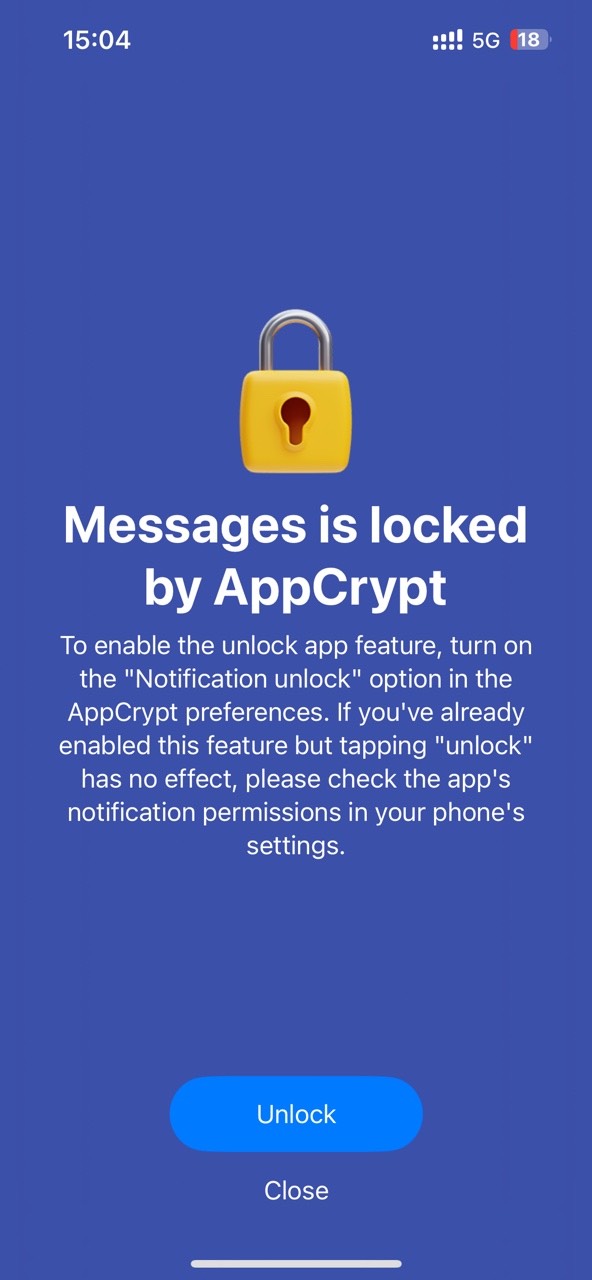
Now Messages is successfully locked on your iPhone.
Also read: How to lock Messages on Android phone.
Method 2. Lock Messages on iPhone with Face ID (App Lock Feature)
Best for: Users who prefer a quick and built-in solution. But only available on newer iOS versions.
This method is also very simple to use, but it only works on iPhones running iOS 18 or later. To help users protect privacy, Apple introduced a new App Lock feature in recent iOS versions. With this feature, you can lock the Messages app on your iPhone with Face ID, preventing others from accessing your text messages. Once enabled, you can confidently hand your phone to others without worrying about them opening your private apps.
Unlike method 1, it uses your Face ID instead of a password to lock Messages, which is more convenient and more difficult to crack.
Before you get started, check if your iPhone has updated to iOS 18:
Go to the Settings app. Click General > Software Update. Then you can see the OS version you are using on your iPhone.
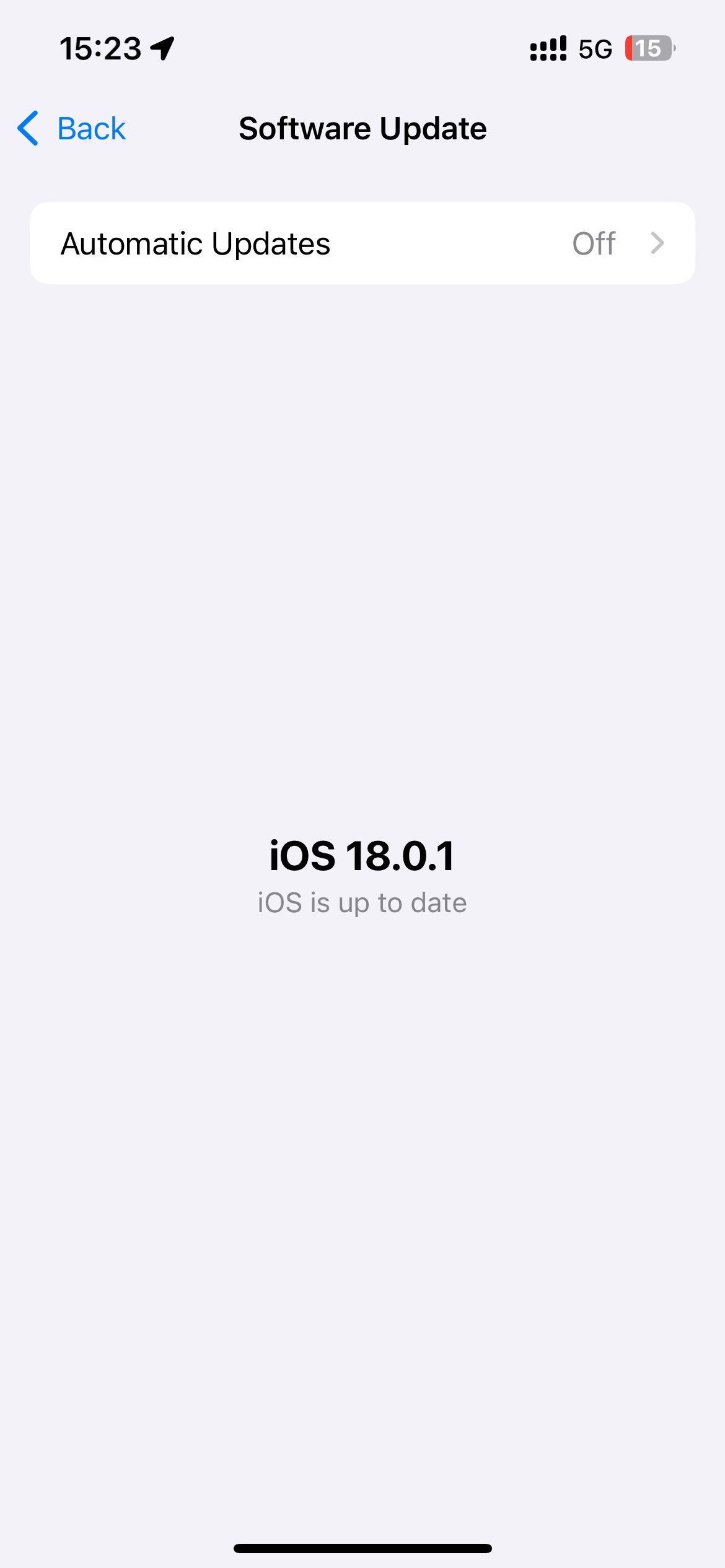
If it is iOS 18 or later, you can follow the steps below to lock your messages on your iPhone. If not, you need to update your iPhone, or use other methods in this article.
Steps to lock Messages on iPhone with Face ID:
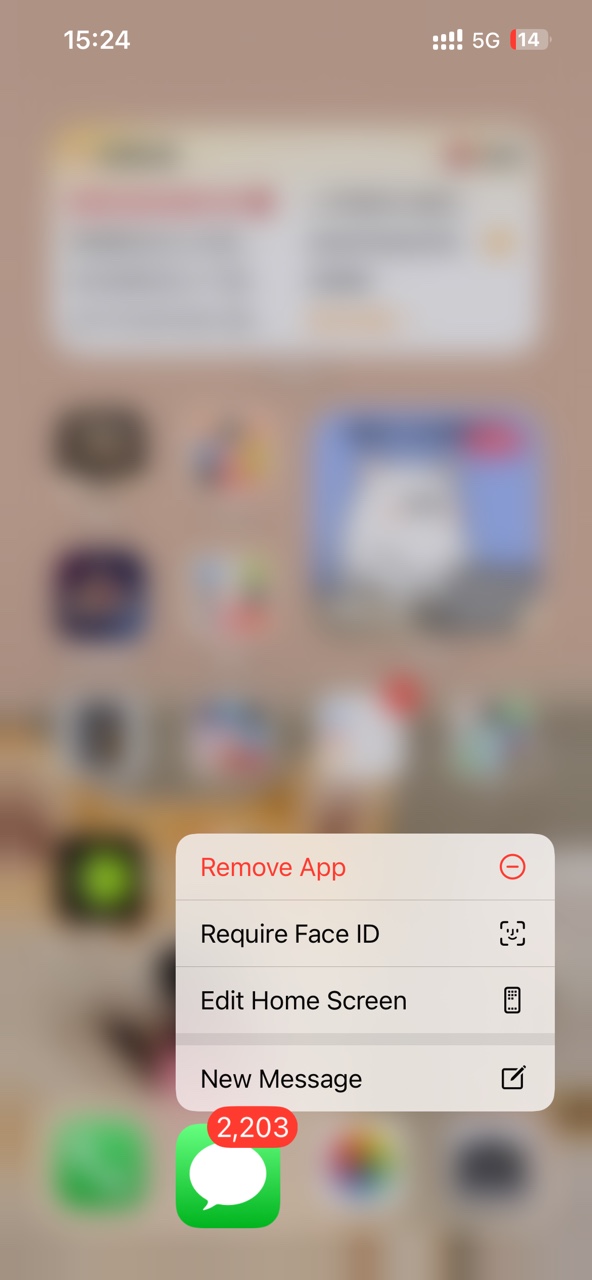
1. On your iPhone, long-press on the Messages app to bring up the app menu.
2. Select Require Face ID.
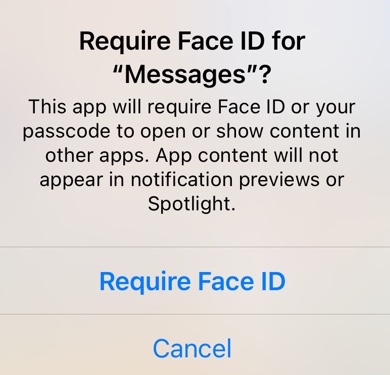
3. Next, you’ll be asked to confirm if you want to lock the app with your Face ID. Click Require Face ID again.
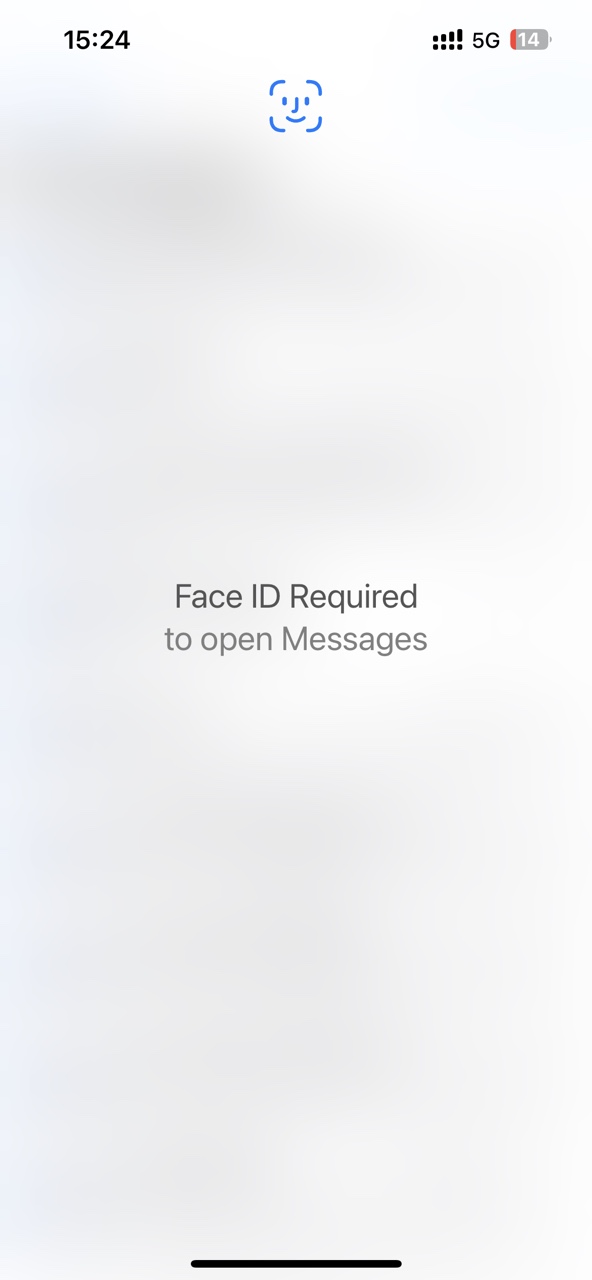
Now Messages is locked on your iPhone. The next time you open the Messages app, your iPhone will ask for verification through facial recognition to ensure that only you can access it.
Method 3. Lock Messages on iPhone after 1 Minute of Use (Screen Time)
Best for: Users who just want basic protection and don’t mind it may be bypassed.
iPhone users may be familiar with Screen Time - a feature built into Apple devices. This feature can also be used to lock Messages. However, unlike the above 2 methods, it can only automatically lock apps after a period of usage time. You can set the maximum usage time to 1 minute per day. So if someone uses your phone and you have never used the Messages app today, he can open it for 1 minute. But if you have used, he can not access your messages without password.
To use this method, you need to be running at least iOS 9 on your iPhone.
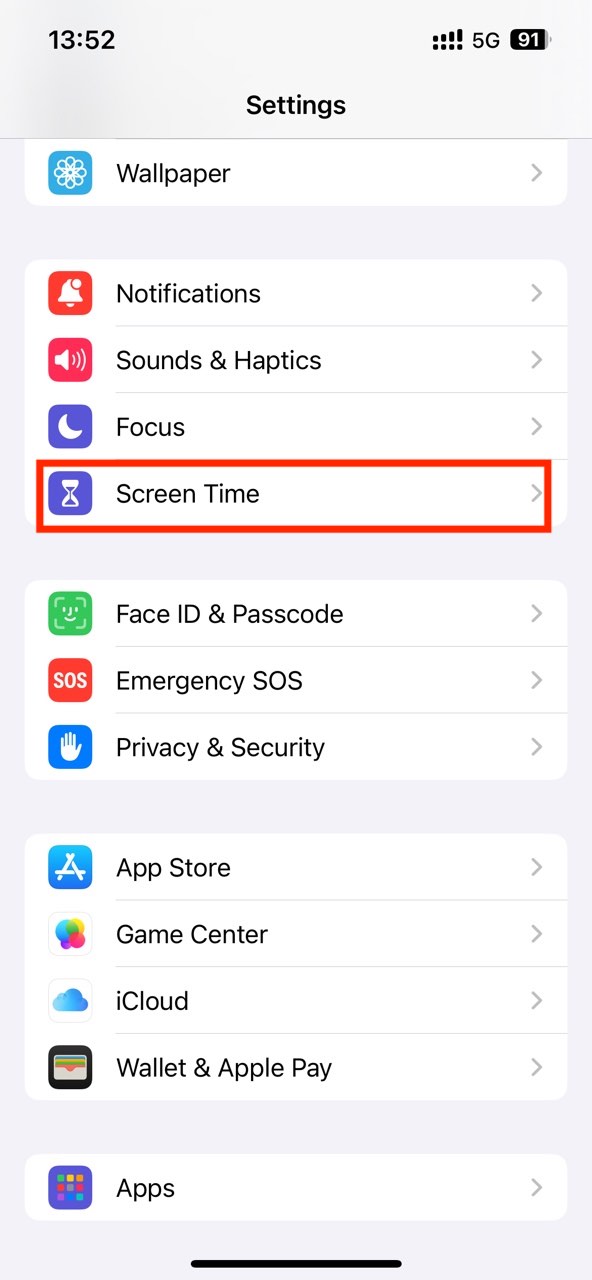
1. Open your iPhone. Go to Settings > Screen Time.
2. This step is optional: click Lock Screen Time Settings. Set a password for locking your text messages.
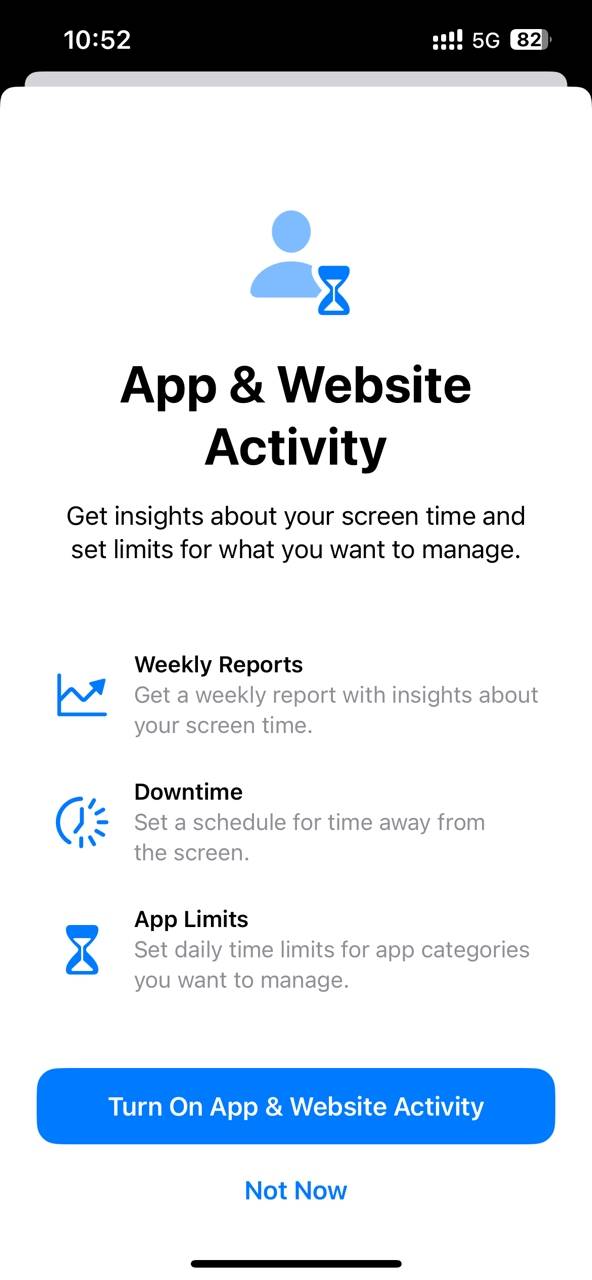
3. Under Limit Usage, choose Apps & Websites Activity. Click Turn on Apps & Websites Activity to allow it set limit for Messages.
4. Go back to Screen Time settings. Choose App Limits from the Limit Usage section.
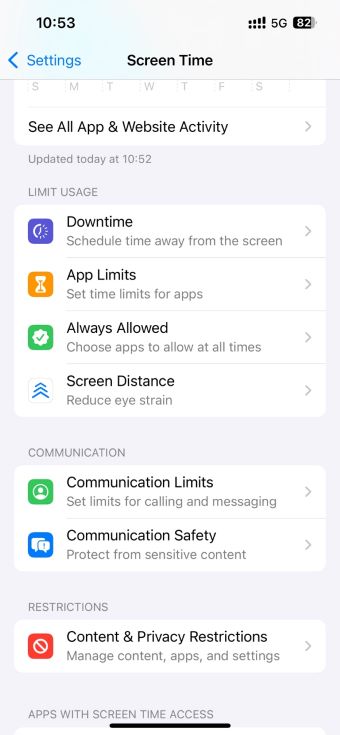
5. Click Add Limit.
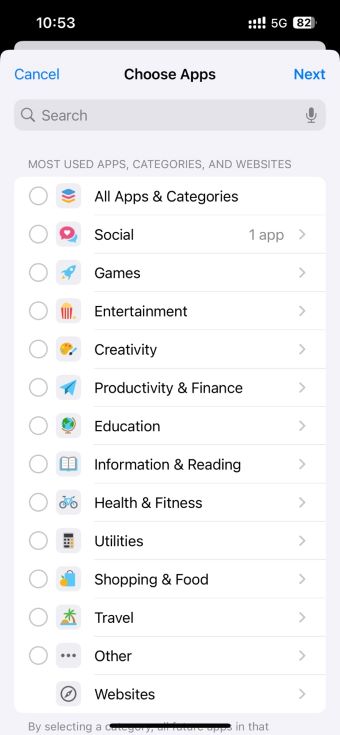
6. Search for Messages from the top search box. Select the app.
7. Click Add. Then click Next in the upper-right corner.
8. Set the time to 0 hour, 1 min, every day. Click Add.
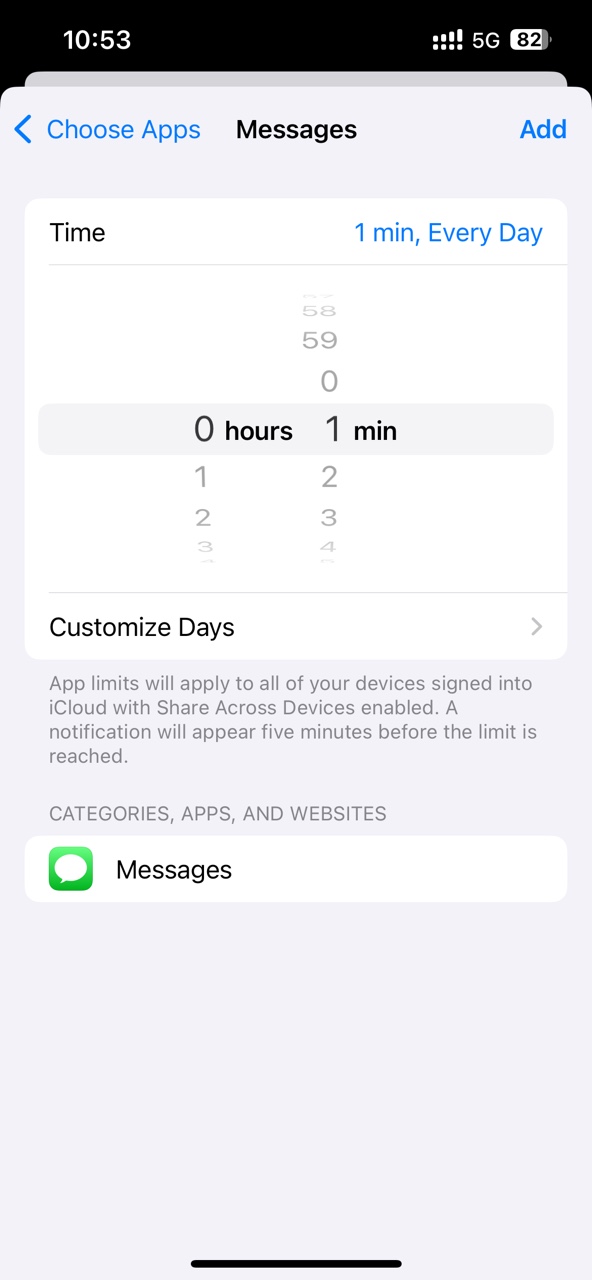
After completing the above settings, once the Messages app is used for more than 1 minute, it will be automatically locked, and you need to enter the Screen Time password to continue using it.
Some tips to keep your text messages on iPhone private
In addition to locking the Messages app, here are some practical tips to further keep your text messages on your iPhone private.
Tip 1. Turn off text messages preview on your iPhone
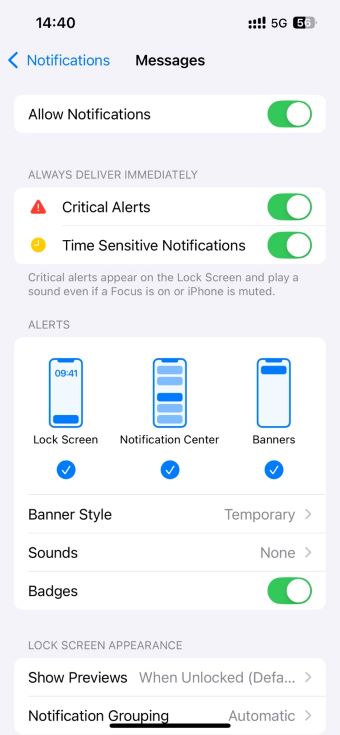
The messages preview function on iPhone will display part of the content of the incoming message on the lock screen. Then others can see your private messages easily without unlocking your phone. Turn off text messages preview can better protect your privacy.
1. Open the Settings app.
2. Scroll down to find Notifications. Tap it.
3. Find and click the Messages app.
4. In the Messages notification settings page, tap the Show Preview option.
5. Select When Unlocked so that the message content will only be displayed in the notification after you unlock your phone. You can also select Never to hide the message preview completely.
Tip 2. Regularly delete the text messages on iPhone
Many users like to keep a large number of text messages on their phones. But these messages may contain some sensitive content. If they are not cleaned up for a long time, there may be a risk of privacy leakage. After reading a text message, you can select it and swipe left to delete it from your phone. If you find it troublesome to delete messages manually, you can also turn on the automatic deletion function.
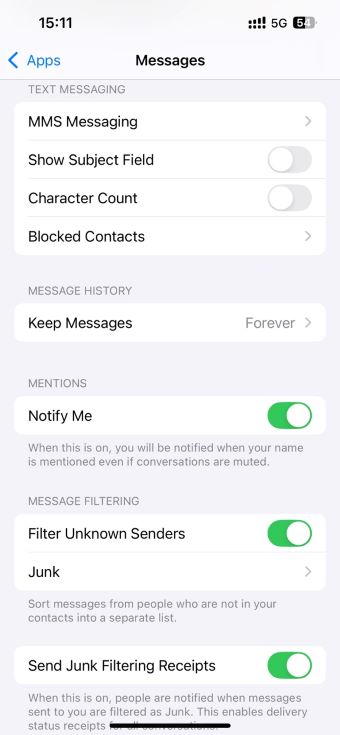
1. Go to Settings.
2. Scroll down. Click Apps. Find and click Messages.
3. Click Keep Messages.
4. You can choose to keep your message history 30 days, 1 year, or Forever.
Tip 3. Enable two-factor authentication on your Apple ID
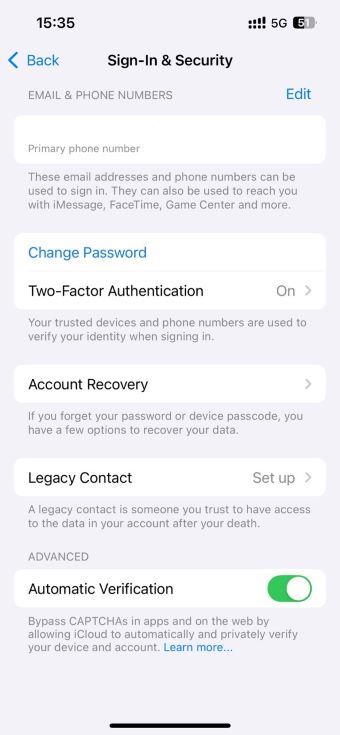
Two-factor authentication prevents others from signing in to your Apple ID and accessing your messages on other devices without your permission.
1. Open Settings. Click your name at the top.
2. Click Sign-In & Security.
3. Select Two-Factor Authentication. Turn on it.
4. Follow the on-screen prompts to enter your phone number to receive a verification code.
5. Enter the verification code.
Conclusion
When you lend your phone to someone else, he/she can easily view all your text messages. To protect your privacy, it would be better to lock the Messages app with a password. This article talked about 3 easy methods on how to lock Messages on iPhone. All iPhone users running different iOS versions can find a suitable method.

Norah Hayes likes to share her tips on how to improve focus and stay motivated at work. She believes it is essential to eliminate all online distractions during work hours.

Ethan Long joined Cisdem in 2015 as a developer and now serves as the editorial advisor for Cisdem AppCrypt. He actively tests and uses Cisdem AppCrypt and other screen-time management tools to ensure AppCrypt meets its promises in real-world scenarios.
Hedda Neil
Really helpful article! Thank you!