


How to Delete Duplicate Photos on Android Automatically or Manually
 664
664
 0
0


In this article, I will show you how to delete duplicate photos on an Android phone or tablet in two different ways, including an automatic method and a manual one.
Both methods are universal (for current devices), which means they are available regardless of the brand or model of your device.
 Cisdem Duplicate Finder
Free Duplicate Photo Finder & Remover for Android
- Find duplicate photos as well as all other duplicate files
- Find similar photos too
- Display duplicate photos for you to preview side by side
- Automatically select all but one item for deletion in each group of duplicates, enabling you to eliminate all duplicate with a tap
- Let you adjust selections manually or choose from rules (e.g., Select Oldest)
- Free and easy to use


How to remove duplicate photos on Android automatically
If you have a large photo collection, manually looking for and removing duplicates can be time and effort consuming. Fortunately, there are some professional duplicate photo finders for Android that can help you complete this task automatically and effectively.
Use Cisdem Duplicate Finder
Cisdem Duplicate Finder is a duplicate finder available for Android. Here's how it helps automate the process.
- Automatically identify duplicate images (along with all other duplicate files) as well as similar images
- Automatically select all duplicates for one-click deletion while keeping all original files unselected (hence unaffected)
To remove duplicate photos on Android phone using this app, follow these steps:
1. Download and install Cisdem Duplicate Finder from the Google Play Store.

2. When using this app for the first time, it’ll need to obtain permission to access local files of your phone. Click Grant permission.
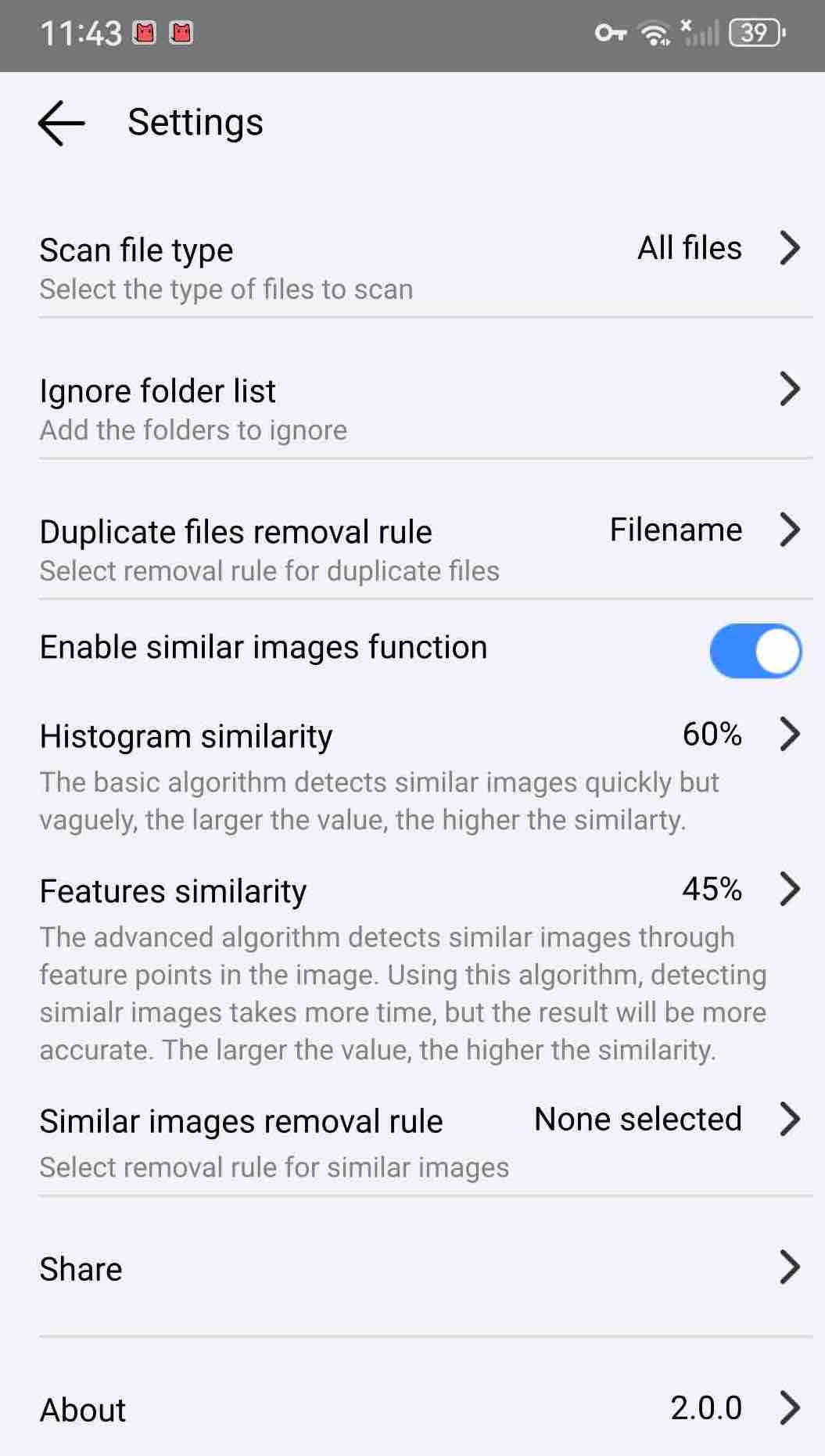
3. Before scanning, you can customize the app to better suit your needs. Click Settings.
- Click Scan file type. Let it find all types of duplicate files or just images.
- Click Ignore folder list. Exclude certain important folders on your phone from being scanned.
- Click Duplicate files removal rule. Choose a desired rule (e.g. Oldest files for remover). Let it automatically mark duplicates based on the rule after scanning.
- Enable/disable the similar images function as you like.
4. Click Start Scan. Wait for it to finish searching for duplicates on your phone.
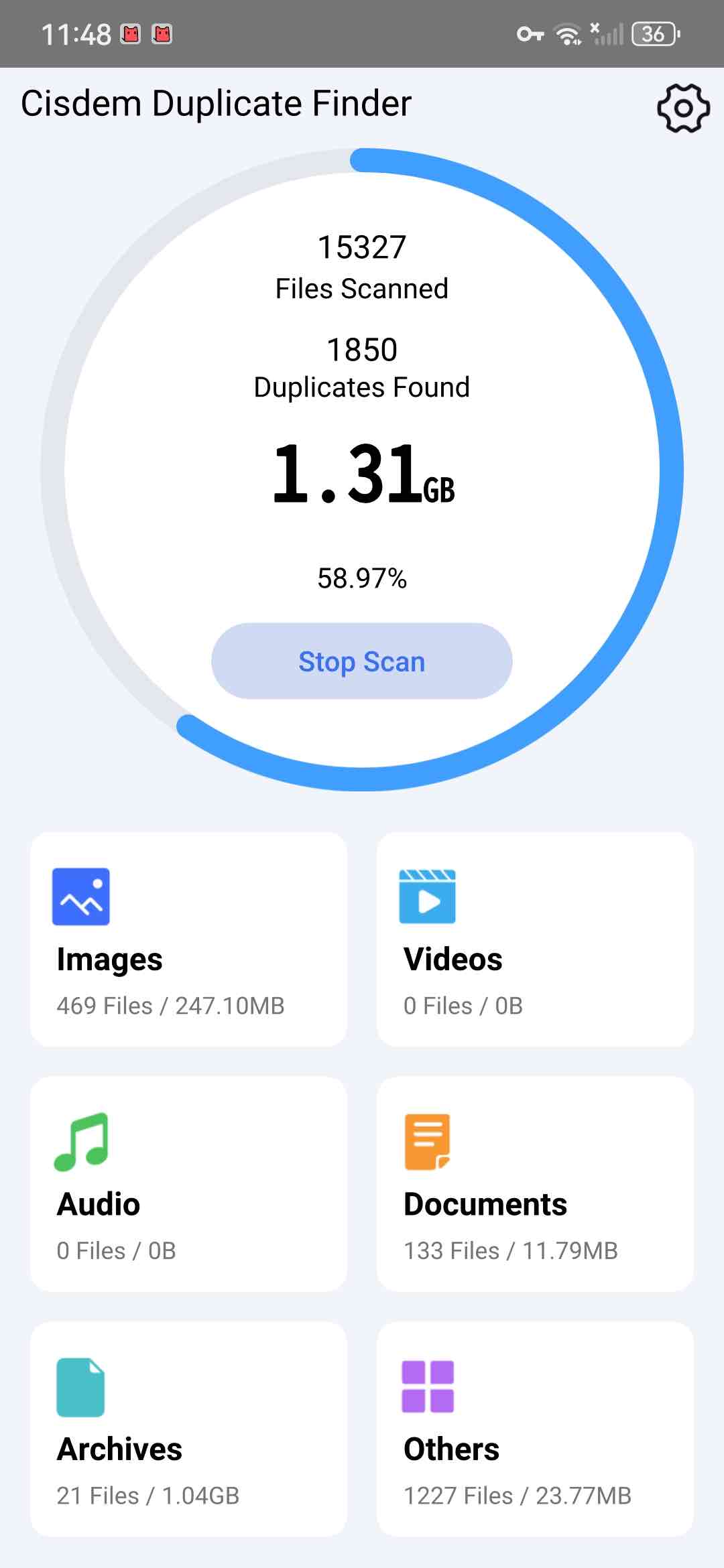
5. It displays all duplicate photos under the Images tab. You can preview each set of duplicates side by side. Click on a photo to view a larger version.
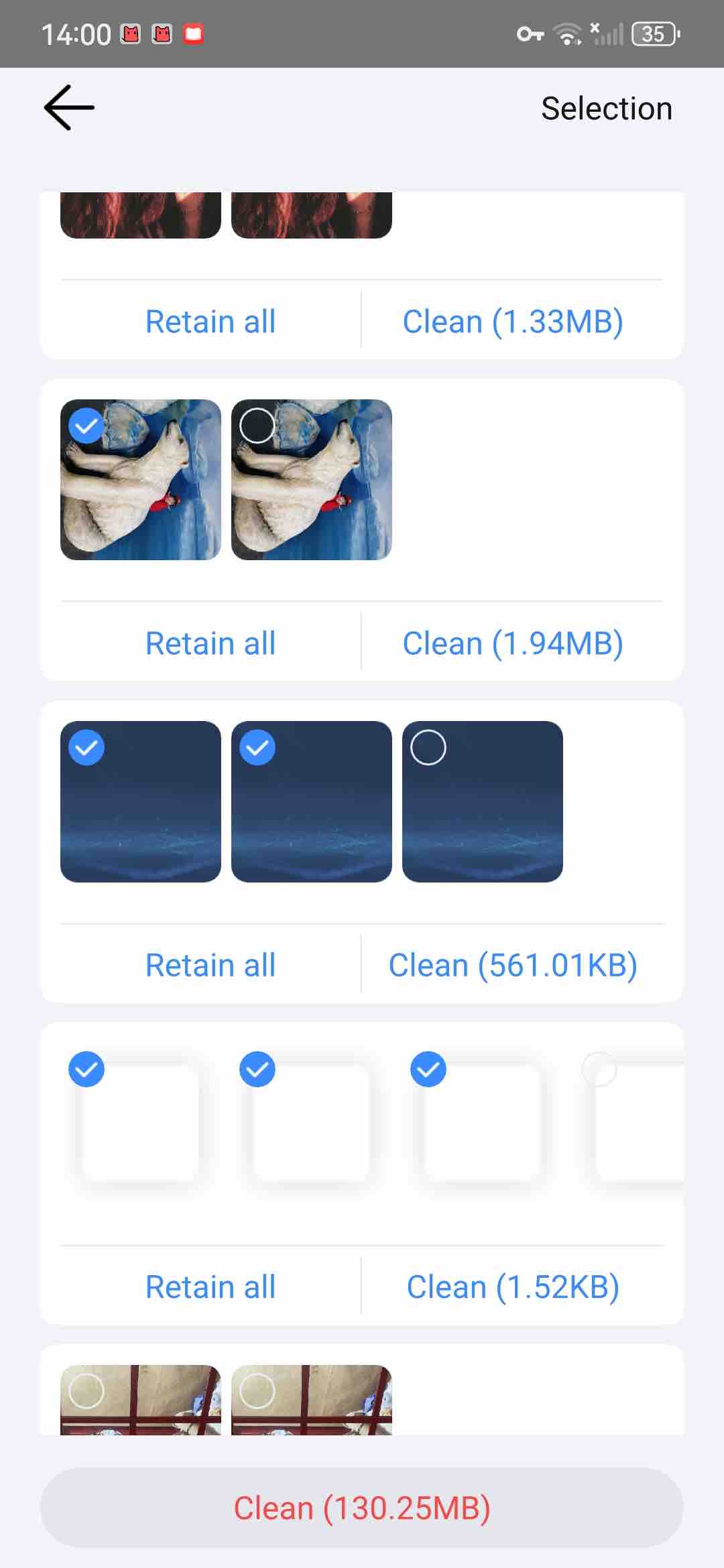
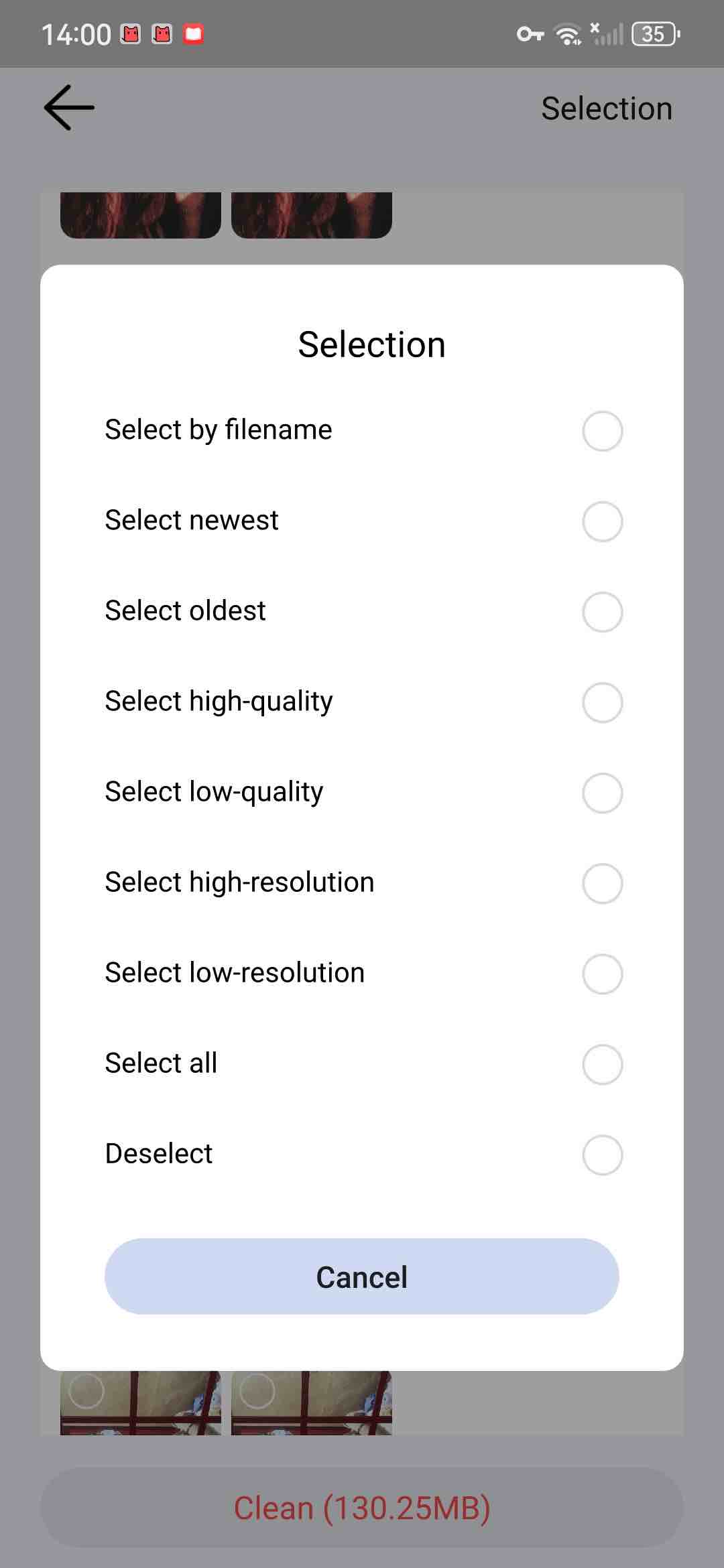
6. It has automatically marked duplicates for you based on the rule you set in step 3. Or, you can click Selection in the upper right corner. Let it mass select duplicates based on other rules, such as Select low-quality, Select low-resolution, etc. It also lets you manually select unwanted photos to delete.
7. Click Clean to delete all duplicate photos from your Android phone.
How to delete duplicate photos on Android manually
The method above can help you manage duplicate photos on your Android device almost fully automatically. You can also choose to manually eliminate duplicates on your phone without installing a third-party app. However, the manual methods may not be perfect for dealing with a large number of duplicates and can be time-consuming. Below are 3 manual ways.
Note
The three methods in this section still provide automatic duplicate detection.
Use Files by Google
Developed by Google, Files (also known as Files Go) is a file management app for Android phones. It helps you view the files that take up the most space on your phone, and free up space by finding and deleting duplicate photos, old junk files, as well as some unused applications, etc. Files app is built into many Android devices. If you don’t have this app, you can also download it from the Play Store. Here’s how to use Files by Google to remove duplicate photos on Android phone.
1. Open the Files app on your Android phone.
2. Tap the Clean button in the bottom left corner.
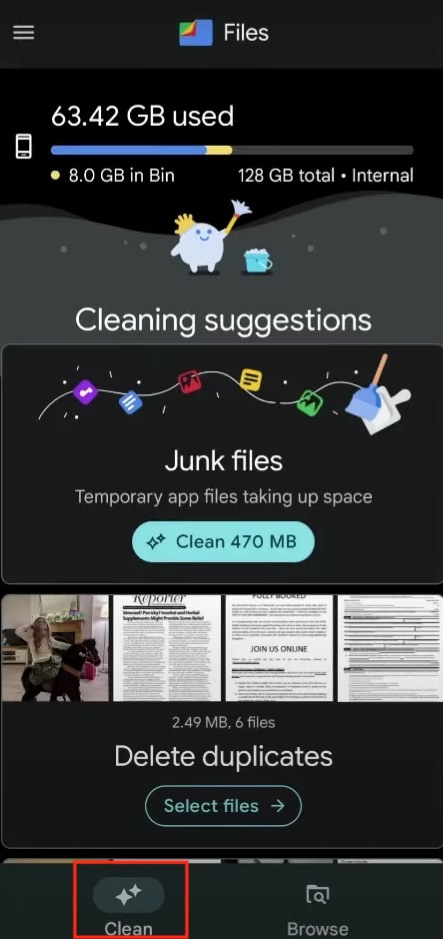
3. Click on Select files in the Delete duplicates section that appears.
4. Now you should be able to see the duplicates that Files automatically detects on your device. In each group, it tells you which file is the original one, and you can easily select the rest by hand. When you finish selecting, click the Move X to Trash button to clean up selected items.
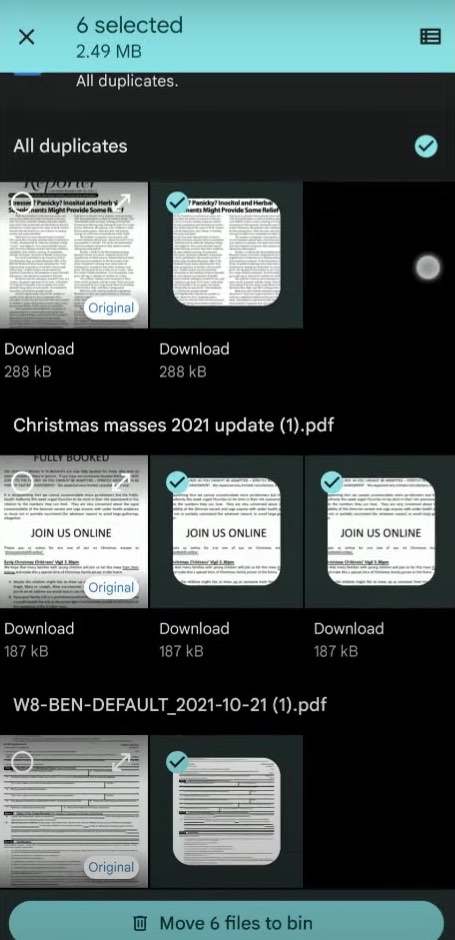
5. Confirm the deletion from the pop up window.
Tip
Files app only finds exact duplicate photos on your phone. Such as those photos that you accidentally copied multiple times, downloaded by communication apps, or synced repeatedly by cloud services. If you don’t see the Delete duplicates section in step 3, you probably don’t have the exact same photos on your phone. Then you can consider other methods in this article.
Use Gallery app on Samsung Galaxy
Gallery is a built-in app on Samsung Galaxy devices. It is a place to organize all photos and videos on your phone. This app also offers feature to automatically find duplicates. If you are using Samsung Galaxy, follow the steps below to free up space by deleting duplicate photos from your Gallery.
1. First open Gallery on your Galaxy smartphone.
2. Tap Pictures at the bottom.
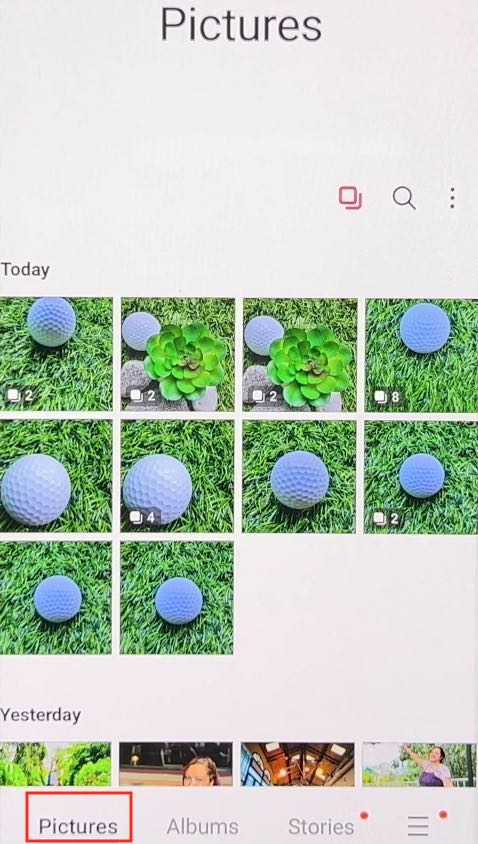
3. Tap the Similar images grouped icon in the upper right corner.
4. You’ll see a double square icon in the lower left corner of each group of similar images. Tap the double square icon to preview the group of duplicate photos on your Android phone.
5. You can swipe left or right and select the duplicates you want to delete.
6. Then tap on the Trash icon.
7. Tap Move to Recycle Bin.
This is how to delete duplicate photos on Android phone with the Gallery app. It lets you choose photos to delete/keep one by one as needed, but this may take a long time if you have a lot of duplicate photos on your phone.
Use My Files app
Most Android devices include a file manager app for browsing and managing files stored on the phones. It’s called “Files” or “My Files” or something similar. Some of them have built-in duplicate detection feature that lets you delete duplicate photos, videos and other types of files. The process may be slightly different on different Android phones.
For example, Samsung users can find the My Files application developed by Samsung Electronics Co on their phones. It helps find duplicate photos easily.
1. Open the My Files app, which is often in the Samsung folder.
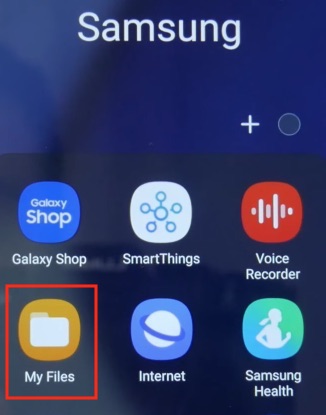
2. Tap Analyze storage at the bottom.
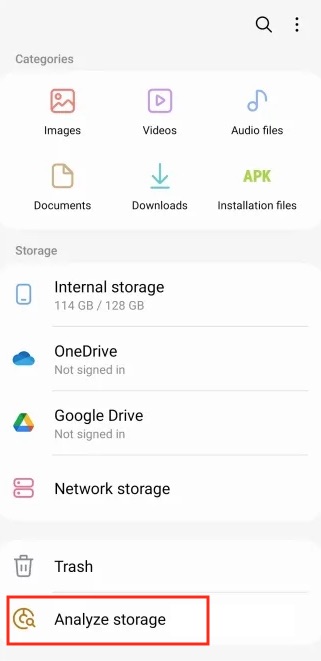
3. Scroll down the window. Tap Duplicate files.
4. Then you can see all duplicate files on your phone. Check the circle next to the duplicate photo you want to delete. It also allows you to view the total file size of the selected duplicates by tapping on Details in the bottom right corner.
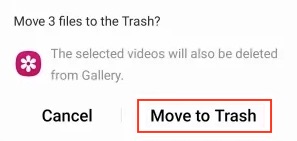
5. Tap Delete.
6. Tap Move to Trash for confirmation.
FAQs
Why are there duplicate photos on my Android phone?
They can be caused by several reasons. Here are some examples. You take photos from slightly different angles, resulting in duplicates that aren't exactly identical. Some communication apps download the same photos multiple times when you send or receive from different people. If you use cloud storage services like Google Photos, duplicate photos may appear during the upload or sync process.
Can my phone find duplicate photos?
The operating system itself doesn't offer such a feature. However, some pre-installed apps, such as Files by Google or Samsung's Gallery, can find duplicate photos.
Does deleting duplicates free up storage?
It depends on the method you use. For instance, with Cisdem Duplicate Finder, duplicates are permanently deleted, so storage space is immediately freed up. With Files by Google, deleted duplicates go to Trash and still take up space, so you can empty Trash to release storage.
Conclusion
It is easy to accumulate a lot of duplicate photos on phones. Removing duplicates can free up much storage space from your phone’s memory. It also helps keep your photo library organized. This article talked about two ways on how to delete duplicate photos on Android phone. The manual method can be helpful enough for many users. If you are looking for the most efficient method, the method using a third-party duplicate photo finder would be better.

With a passion for tech and writing, Sarah joined Cisdem, where she focuses on creating articles about using utility tools to enhance file management and simplify contact management.

Adrian Li is Cisdem’s Chief Engineer and serves as the editorial advisor for Duplicate Finder and ContactsMate. His work and insights have been featured in leading tech publications such as Fossbytes, TUAW, Redmond Pie, SafetyDetectives, and BestForAndroid.