


How to Block Websites on Router 2025: Steps and Tips
 746
746
 0
0


You may want to block websites on router to prevent your children from accessing inappropriate web content, or to improve productivity by restricting access to distracting websites. In this article, we’ll show you the detailed steps to block websites via router, as well as with some important tips.
 Cisdem AppCrypt
The Best Website Blocker for Computer & Phone
- Block websites on Chrome, Safari, Edge and more browsers
- Let you block specific sites and pages, URLs with certain words, and categories of sites
- Let you block all adult websites with 1-click
- Also let you block all websites except the ones you specify
- Lock apps with password
- Let you block websites and lock apps permanently or at scheduled times
- Easy to use
- Hard to bypass
- Help with parental controls, productivity, privacy protection, etc.
- Available for Mac, Windows, iPhone, iPad, and Android


Is configuring the router a good method to block websites?
It’s possible to block a website at the browser level, at the device level or at the network level. Configuring the router allows you to do it at the network level. The effectiveness is depending on your specific needs.
Here are three facts about this method, which can help you understand if the method works (well) for you.
- If you administer the Wi-Fi network that the involved device (like your child’s smartphone or your work computer) is connected to, you are able to do the configuration. In other words, this method is available if you own the router.
- It’s possible that your router doesn’t provide a way for you to control website access, or allows you to do this in a very basic way, or provides several relevant features for you to play with. It all depends on the router brand and model that you are using.
- After you set your router to block the websites, they will be blocked on a device only when the device is connected to this particular network.
If you think this method works for you, you can follow the steps below to set up your router. If this method is not a good choice, you may want to learn about other common ways to block websites.
Steps: How to block websites on router
As mentioned, the settings or features available depend on the specific router brand and model. It’s impossible for me to cover all routers in this article. The good news is that the process of configuring a router to limit access to websites is similar regardless of brand and model of the router.
In addition to details steps that show you how to block websites on a router, this part provides helpful tips.
Step 1. Access your router’s settings.
Generally you can access and change your router’s settings from your router’s webpage or app. Since not every router has an app, here I only talk about how to do it from the webpage.
Open a web browser (preferably on a computer). Visit your router’s webpage.
You can find the address of the webpage on the back of the router. If you can’t find it there, try 192.168.1.1 or search for the address online.
Log in by entering your username or password.
You can also find the default username and password on the back of the router.
Step 2. Find the relevant settings.
There are several sets of settings. You need to find the set of settings that allow you to block web content. This set of settings is usually called Parental Controls, Parental Control or Firewall. On your router, it may be named differently.
On some routers, such settings are somewhat hidden. For example, they are in HomeShield on TP-Link Archer BE900 and in Advanced > HomeCare on TP-Link Archer GX90 AX6000.
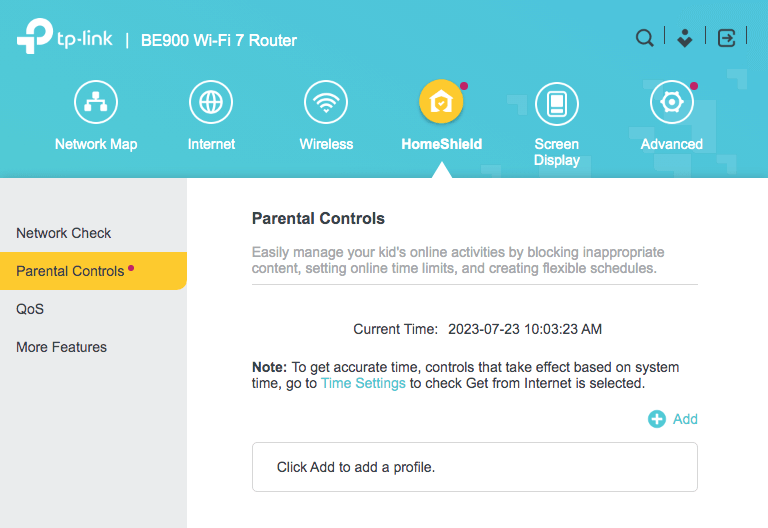
Anyway, you should be able to find such settings easily if they are available on your router.
Step 3. Optionally, add the device(s) on which you want to block websites.
If your router allows or requires you to add the device to which the blocking will apply, this step is recommended or necessary. If not, please skip this step.
Typically, you will be asked to create a profile first. This brings great flexibility. Here are some examples.
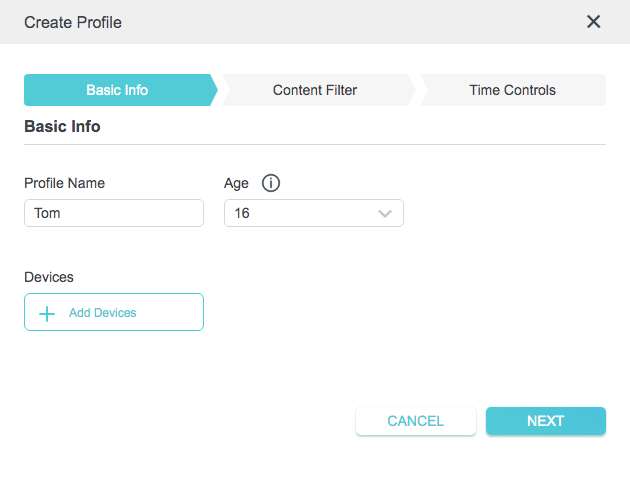
- Suppose that you have two children. One is 8 years old and the other 16 years old. You can create seperate profiles for them and set different block lists. For instance, you might want to allow the older child to use social media but not the young child.
- You can create a profile for each of your devices. For instance, block YouTube on your phone to reduce screen time. But don't block the site on comp[uter because you need to use it for work.
After you create a profile, you can add the corresponding device. Some routers allow users to add multiple devices to a profile, and some only allow one device.
Step 4. Add websites to the block list.
There can be different ways to do this, depending on your router or your preferences.
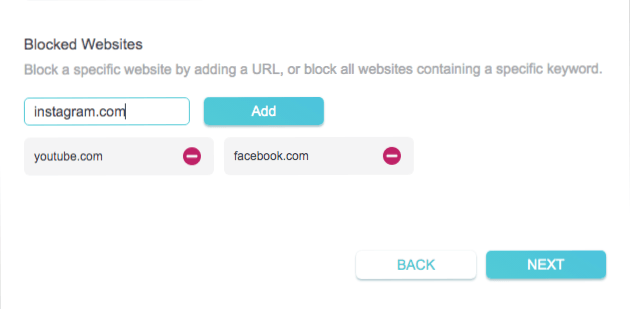
- Add websites to the block list: Manually add the specific websites that you want to prevent access to.
![the webpage of TP-Link Archer BE900 router showing that two websites have been added to the block list]()
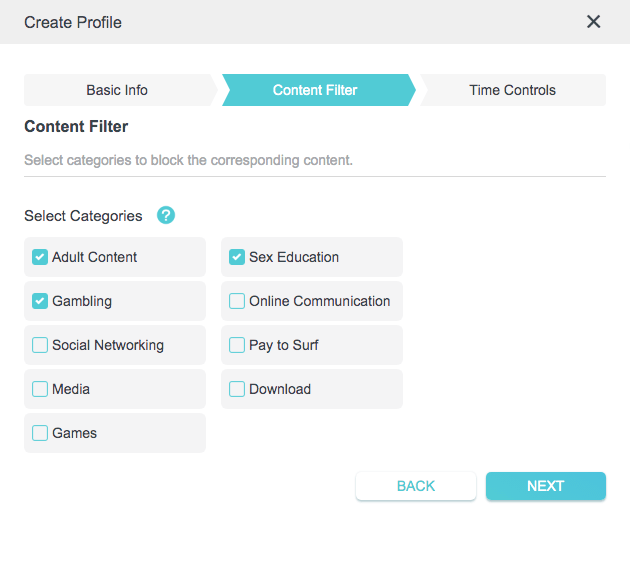
- Specify the categories of websites that you want to block: Some routers list several website categories. Selecting a certain category will add websites (but not all of them) in this category to the block list. For example, some TP-Link routers have a Content Filter feature, which provides a list of nine website categories. For example, to block porn on router, you need to select the Adult Content category and the Sex Education category, and you might even want to select the Social Networking category because it’s easy to find explicit content like porn on some social media sites. If blocking a certain category doesn’t block a specific unwanted site, you can manually add the site to the block list.
![the webpage of TP-Link Archer BE900 router showing the Adult Content category, the Sex Education categories, and the Gambling category have been selected]()
- Add keywords to the block list: Many routers, such as ASUS ZenWiFi AX, also allow users to block websites by keyword. Once you add a certain word to the block list, websites with URLs that contain this word will be blocked. This can be especially helpful if you want to block porn because the URLs of porn websites very likely contain keywords like “porn” or “xxx”. Just add keywords like these to the block list.
You can use one of the ways or a combination of the ways.
If you have created multiple profiles, you need to repeat step 4 for each profile.
After you configure your router like this, the websites you’ve specified will be blocked.
Note that the websites will be unblocked on all devices or a certain device if:
- You remove a certain website from the block list.
- You remove an added device.
- You delete a profile.
- The device is connected to a different Wi-Fi.
- The device uses mobile data.
Tips
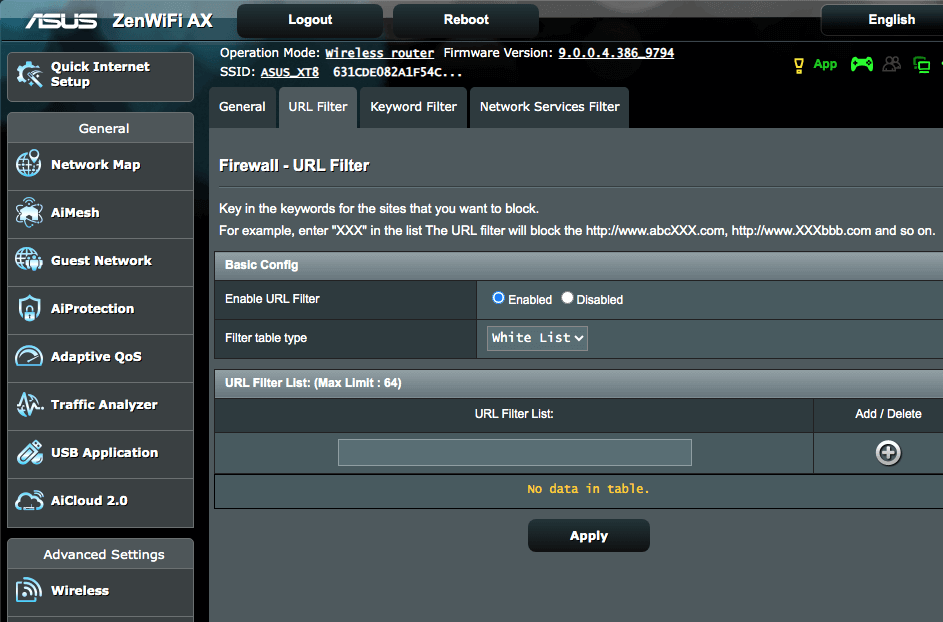
- If your router has a whitelist or allow list feature and you want to create a completely porn-free or distraction-free Internet experience, you can try this feature. When turned on and set up, this feature blocks all websites except the ones on the whitelist or allow list. Note that you might not want to keep this feature turned on all the time. Only having access to certain websites can cause inconvenience.
![the webpage of the ASUS ZenWiFi AX showing that the White List feature is turned on]()
- Some routers provide a Schedule feature, which allows you to block websites during specific hours. This feature can be helpful if you want to reduce screen time.
- If you want to stop yourself from visiting certain websites, it can be a good idea to ask someone else to change your router’s password. Without knowing the password, you are not able to access to your router’s settings and remove the websites from the block list. This tip can be helpful if you want to quit porn addiction.
What to do if the router doesn’t work?
If your router doesn’t have an option to block websites, getting a router that has this option can be the choice.
If you don’t own the router or you want to have unwanted websites blocked on a device all the time whether this device is using mobile data or your home Wi-Fi or a different Wi-Fi, you may want to consider other ways of limiting website access.
Below are two common methods available. Both methods work regardless of the method of Internet access (like Wi-Fi or mobile data) or the Wi-Fi network a device uses.
Use a website blocker app
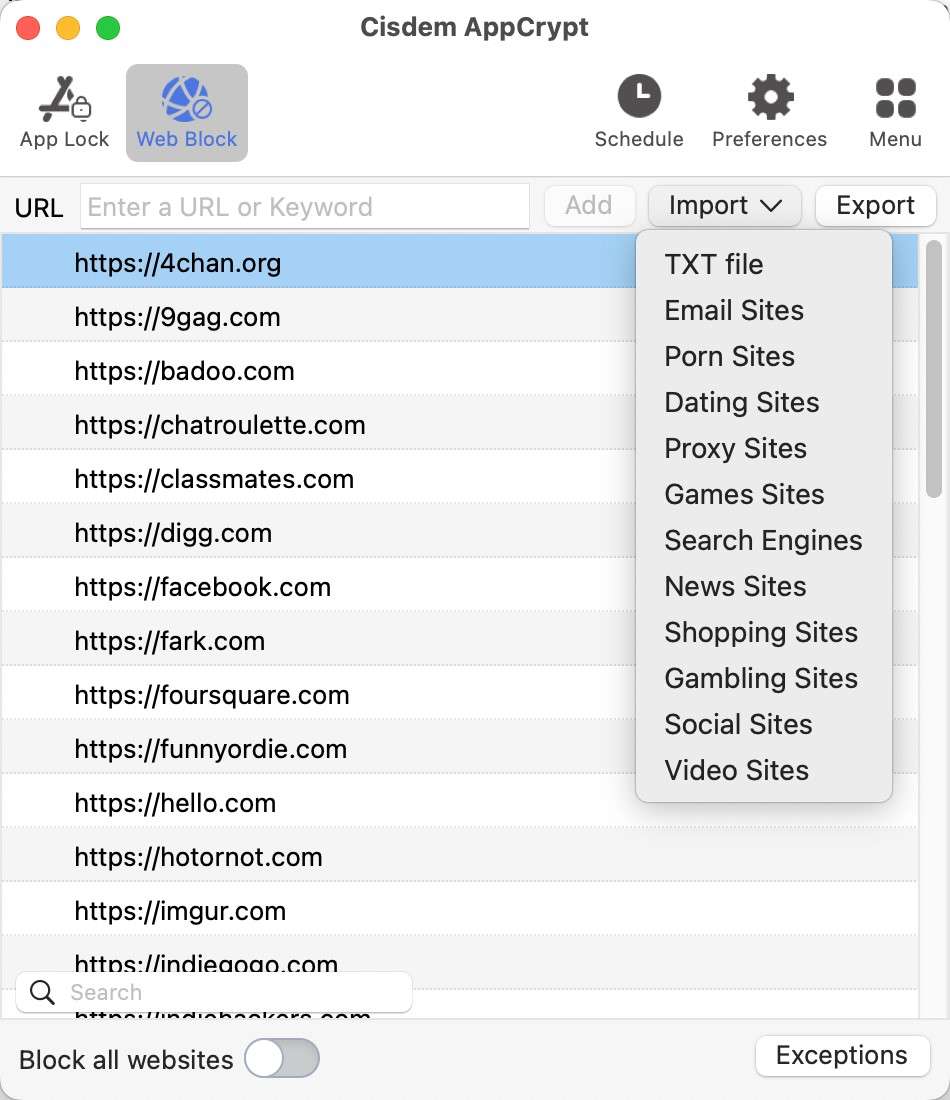
To block certain websites on a Windows PC, Mac, Android, iPhone or iPad, you can use Cisdem AppCrypt.
Like routers that offer great website-blocking features, AppCrypt makes it easy for you to add websites to the block list or allow list.
The website will be blocked permanently by default, or you can use the Schedule feature to block the sites only during certain times.
All the routers that I know of don’t offer a schedule feature as useful as the one in AppCrypt.
It is hard to bypass due to the password protection feature.
 Free Download Windows 10 or later
  Free Download macOS 10.12 or later
 GET IT ONGoogle Play
  Download on theApp Store
Use a website-blocking browser extension
Website-blocking extensions are available for most of the popular desktop web browsers, such as Chrome, Edge, Opera, Firefox and Safari. With this method, a website is blocked at the browser level. In other words, a certain website is blocked on specific browser that such an extension is installed and set up, but not blocked on other browsers on this device.
FAQs
Can I block sites on specific devices using router?
This depends on if your router supports creating profiles for individual devices. If it does, you can block sites on a specific device separately. If not, the blocking rules will apply to all devices connected to the router.
Can I block phone apps through the router?
No, you can’t block phone apps through the router. It only allows you to block sites or certain types of online content (such as porn). To block a phone app, you can use Cisdem AppCrypt, which allows you to block both apps and websites.
Conclusion
If configuring the router if the best way for you to block the websites that you’d like to stop access to, then you are lucky. And I hope that the steps on how to block websites on router in this article are helpful to you. If this method alone is not enough, it might be a good idea to use a combination of the methods described in the article.

Norah Hayes likes to share her tips on how to improve focus and stay motivated at work. She believes it is essential to eliminate all online distractions during work hours.

Ethan Long joined Cisdem in 2015 as a developer and now serves as the editorial advisor for Cisdem AppCrypt. He actively tests and uses Cisdem AppCrypt and other screen-time management tools to ensure AppCrypt meets its promises in real-world scenarios.