


How to Block Certain Keywords and Searches on YouTube: 3 Ways
 796
796
 0
0


Key Takeaways
To block certain keywords and searches on YouTube, there are 3 effective methods.
With Cisdem AppCrypt, you can block specific keywords from your YouTube searches. It also lets you block specific YouTube channels, videos, and lock your settings with password.
YouTube’s powerful search engine makes it super easy for users to search for videos, which is great. But it also allows users to effortlessly discover inappropriate or distracting videos, which may not be great.
This article shows you several ways to block certain keywords, prevent inappropriate searches, or stop distracting topics from being searched on YouTube.
 Cisdem AppCrypt
The Best YouTube Search Blocker
- Block specific keywords from YouTube searches
- Block specific websites or webpages on Chrome, Edge and other browsers
- Block URLs containing certain words, such as porn, game
- Let you block categories of sites, such as social sites, games sites
- Also lock apps with password
- Let you block websites and lock apps permanently or at schedules times
- Easy to use
- Hard to bypass
- Help with parental controls, productivity, and privacy protection
- Available for Mac, Windows, iPhone, iPad, and Android


Method 1. Block certain keywords and searches on YouTube with AppCrypt
If you are a parent who wants to prevent your children from searching for explicit videos, this method can help.
If you can’t stop searching for distracting videos during work hours, this method can also help.
Cisdem AppCrypt is a website blocker and app lock rolled into one. It’s available for Windows, Mac, Android, iPhone and iPad. When working as a YouTube blocker, it can do the following things:
- Block certain words from being searched on YouTube
- Block specific YouTube videos
- Block specific YouTube channels
- Block all YouTube Shorts videos
- Block access to the entire YouTube website
- Limit YouTube time
- Password protect all settings
- Support Chrome, Safari, Edge, Firefox (Windows only), Opera, and Brave
- Let you lock unsupported browsers with a password
Note: The above things apply to the YouTube website, but not the YouTube app.
Below are the steps.
1. Download and install AppCrypt on a computer or phone.
 Free Download macOS 10.12 or later
  Free Download Windows 10 or later
 Download on theApp Store
  GET IT ONGoogle Play
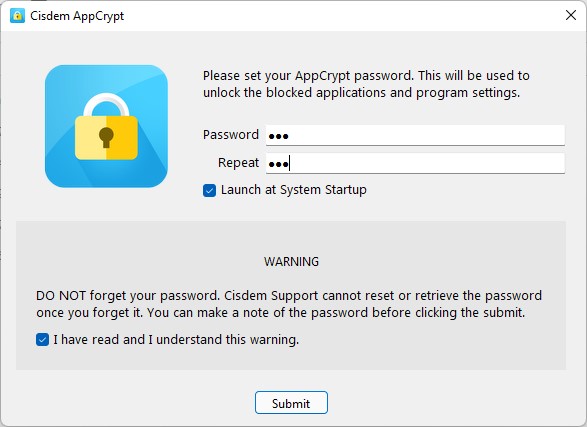
2. The first time you open it, set a password. It’s recommended to select the Launch at Startup checkbox.
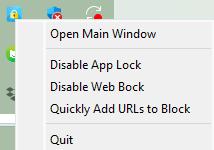
3. Click the lock icon in the taskbar or menu bar. Choose Open Main Window.
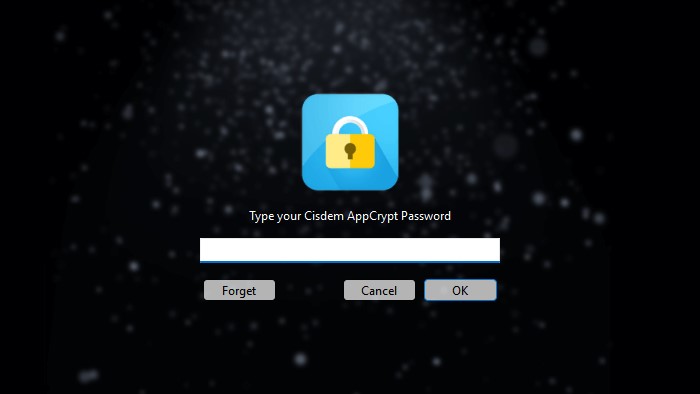
4. Enter the password to access the main window of AppCrypt.
5. Click the Web Block tab.
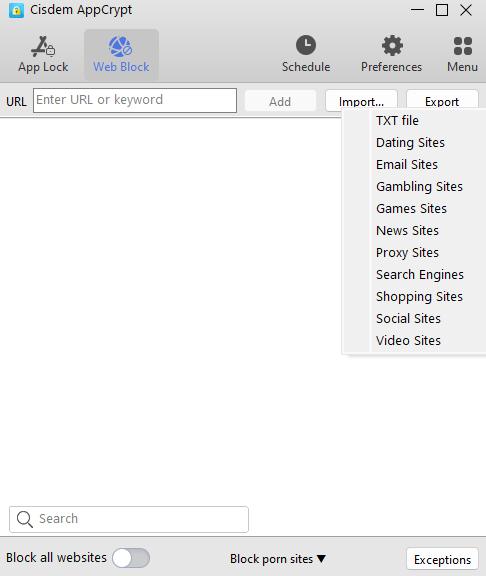
Note: If you are a Windows user, in this step, yon need to install an extension on the browser(s) of your choice. Mac users don’t need to do this.
6. In the URL field, enter the keywords that you want to block on YouTube’s search engine. Click Add. You can also add certain YouTube channels.
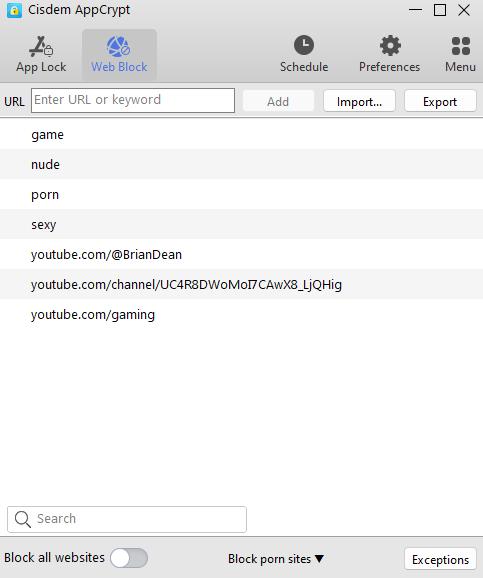
From now on, if you or someone else tries to search a blocked word or channel on YouTube, YouTube’s search engine will be blocked. But the search engine will work normally when searching words that are not on the block list.
In addition to YouTube’s search engine, a word on the block list will be blocked on other search engines such as Google. Also, any URLs containing this word will be inaccessible.
There are totally 3 ways to temporarily or permanently unblock a word (or other items on the block list), such as quitting AppCrypt, removing the word from the block list, or uninstalling AppCrypt. But any of the ways requires the password. Therefore, the blocking is hard to bypass.
Method 2. Block certain keywords and searches on YouTube with YTBlock
YTBlock is an extension that helps block certain keywords on YouTube. Once add a word to the blacklist, all videos that include this word in title, categories, tags, and description will be blocked. It also let you block YouTube channels, comments, and more.
This extension is available for Chrome and Firefox.
Below are the steps.
1. Go to the Chrome Web Store. Search for an extension called YTBlock - Block any content from YouTube.
2. Click Add to Chrome.
3. In the message that appears, click Add extension.
4. Click the Extensions icon in the toolbar.
5. Click Go to Options Page.
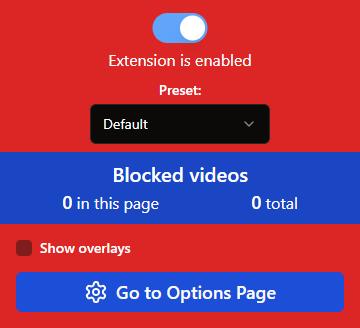
6. On the left, click General. Do one or all of the following things.
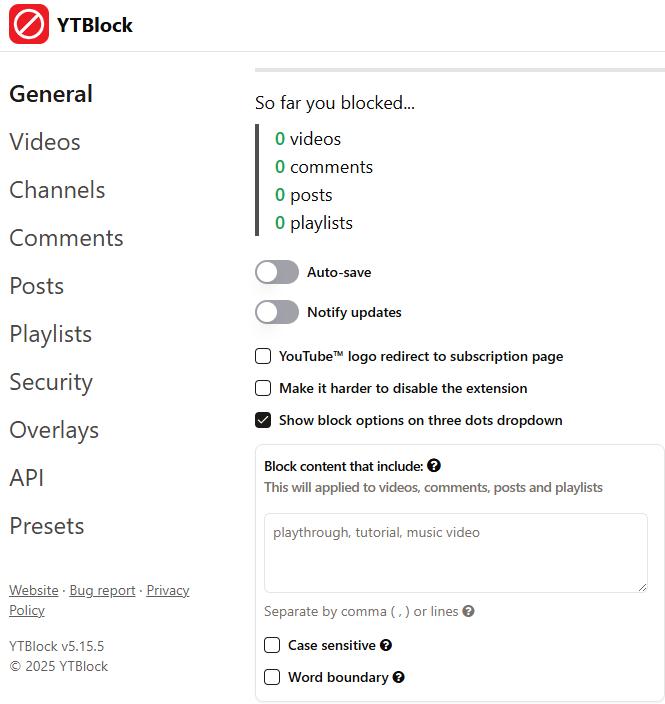
- Optionally, enable the Auto-save feature. This will automatically save any change made on the Options page.
- In the Block content that include section, enter the words that you want to block.
If a word is added in the Block content that include section, any YouTube video that contains this word in its title, tag or description won’t appear in search results. Additionally, any YouTube comment containing this word will be hidden.
7. If configuring the General Options isn’t enough, you can go to Videos and Channels tabs to block content more extensively or specifically.
In the Videos tab, you can block the following search results on YouTube.
- Any video with a specific word in its title, description, or tags
- Any video from a specific channel
- Any YouTube Shorts video, live video, menbers only video, premiere video, etc.
- Any video longer or shorter than the duration you specify
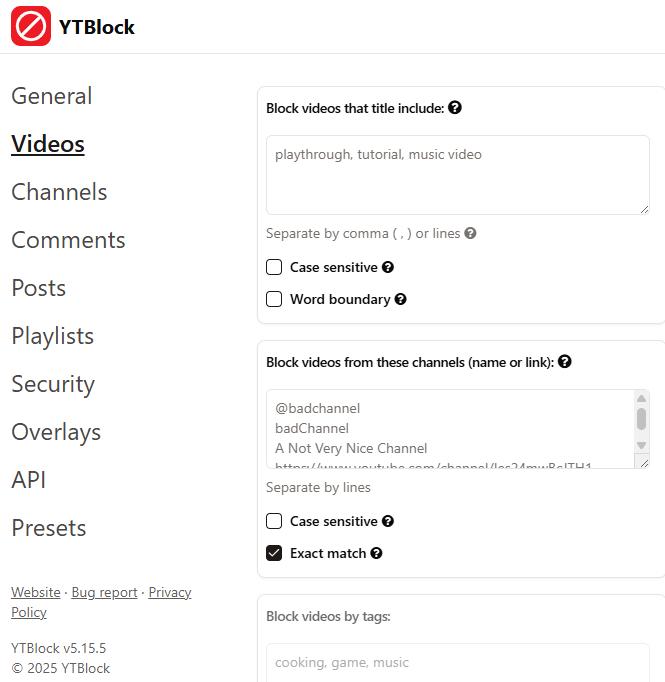
In the Channels tab, you can block a specific channel and any video from this channel from appearing in the search results.
Method 3. How to block inappropriate search results on YouTube with Restricted Mode
Unlike the two methods above, this method is built into YouTube. YouTube has a Restricted Mode. When turned on, it automatically blocks certain videos and channels from the search results.
The Restricted Mode is likely to block certain videos or channels that contain or focus on any of the following type of content.
- Adult content: Videos that have porn content, talk explicitly about sex, or have explicit images or scenes
- Violence: Videos that show images or scenes of violence, accidents, disasters, attacks, or violent video games
- Substance or alcohol use: Videos that talk about substance use or alcohol drinking
- True crimes: Videos that talk about murders, kidnappings, hijackings, robbery or some other crimes
- Gambling: Videos that promote gambling
In addition to these five types of content, the Restricted Mode may block videos about other types of content that may be harmful to or negatively impact people especially children, teens or young adults.
The Restricted Mode is turned off by default. Below is how to turn it on.
1. In your browser, open YouTube.
2. Click your profile icon in the top right corner.
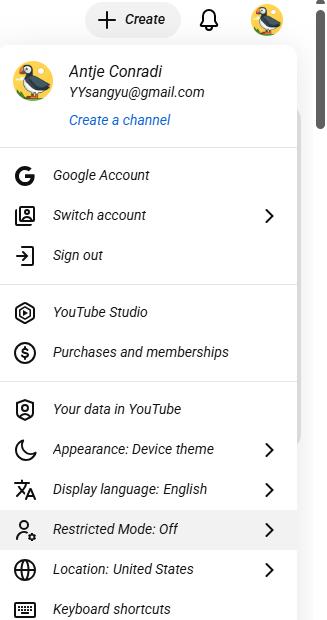
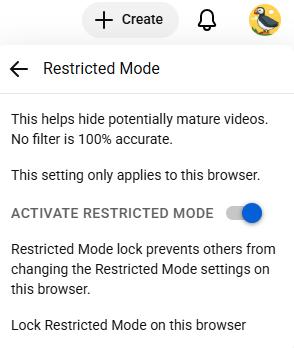
3. Click Restricted Mode.
4. Enable Activate Restricted Mode.
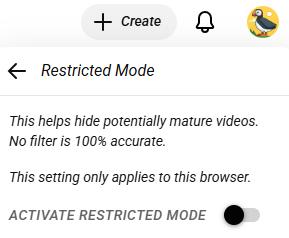
If this mode blocks certain content from the search results, you will see a “Some results are hidden because Restricted mode is turned on” message.
Tip: To protect the blocking, you can lock the Restricted Mode. Here’s how to do this. Sign in to YouTube with your or your child’s account. Click the profile picture. Choose Restricted Mode. Click the Lock Restricted Mode on this browser option. Enter the password.
Conclusion
This article talks about three ways to block keywords and inappropriate searches on YouTube. The first method shows you how to prevent certain words, channels, videos from being searched. The last two methods show you how to prevent certain content from showing up in the search results. You can choose the method that works best for your purpose. You can also use a combination of two or all of the methods.

Norah Hayes likes to share her tips on how to improve focus and stay motivated at work. She believes it is essential to eliminate all online distractions during work hours.

Ethan Long joined Cisdem in 2015 as a developer and now serves as the editorial advisor for Cisdem AppCrypt. He actively tests and uses Cisdem AppCrypt and other screen-time management tools to ensure AppCrypt meets its promises in real-world scenarios.