


How to Block Certain Searches on Google Search Engine
 7.6K
7.6K
 0
0


Key Takeaways
To block specific keywords from being searched on Google, use Cisdem AppCrypt, which is easy to set up and difficult to bypass.
To block certain content from being appearing in search results, use SafeSearch or uBlacklist, depending on your specific needs.
Thanks to Google, the internet is just a search away. However, it's not always a good thing. For example, you may want to stop your children from searching for inappropriate content. You may also want to block certain content from appearing in search results.
In this article, I will cover both situations and show you how to block searches on Google in four ways. You will find the article helpful, whether you are doing this for a loved one or yourself.
 Cisdem AppCrypt
The Best App to Block Searches on Google
- Prevent specific terms from being searched on Google and other platforms
- Block entire websites, specific pages, and website categories (e.g., social, adult, gambling)
- Block all websites except allowed ones
- Support Chrome, Edge, Safari, and other browsers
- Lock individual apps
- Block websites and apps 24/7 or only during scheduled hours
- Set a password to prevent restrictions from being bypassed
- Easy to set up
- Help with parental control, productivity, and privacy protection


Method 1. How to block searches on Google with AppCrypt
Applies to: Mac, Windows, and Android
This method uses Cisdem AppCrypt, an easy-to-use website blocker and app locker in one. You only need to add the search terms that you want to block on Google, and AppCrypt does the rest.
Once a word or phrase is added to the block list, every time you or someone else searches for it, Google will immediately block the search on Chrome, Edge, and all other supported browsers, and no search results will show up at all. At the same time, other search terms are still allowed on Google.
In addition to Google, this specific search will be blocked on Bing, Facebook, X, and more platforms.
The following steps show you how to block a search on Google using this tool.
1. Download and install AppCrypt on your computer or phone.
 Free Download macOS 10.12 or later
  Free Download Windows 10 or later
 Download on theApp Store
  GET IT ONGoogle Play
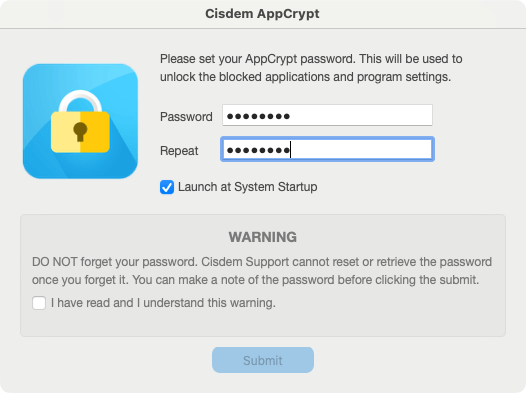
2. When you open it for the first time, set a password. It’s recommended to select the Launch at System Startup checkbox.
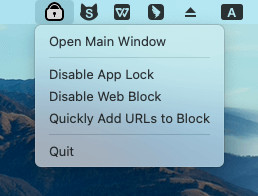
3. On a Mac, click the lock icon in the menu bar to choose Open Main Window. On a Windows PC, click the AppCrypt icon in the taskbar.
4. Enter the password to access the main window.

5. Under the Web Block tab, enter the specific word that you’d like to block in the URL field and click Add. Add more words if needed.
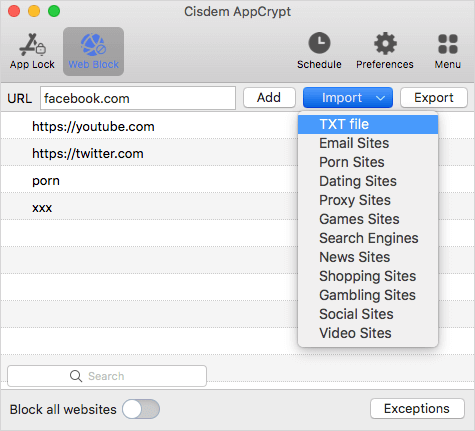
In step 5, if you have a text file with a list of words to block on Google, you can import the file by choosing Import > TXT file. This can save you from manually adding words.
From now on, Google won’t let you or other users of this computer search the added words. Also, any URL containing any of the added words will be blocked and inaccessible.

If blocking certain searches on the search engine isn’t enough, you can use AppCrypt to block more. Here’re some examples.
- Block specific websites and pages, like distracting ones or inappropriate ones
- Block a certain category of websites, like adult sites or social media sites, by choosing the category from the Import menu
- Block all websites except a few
By default, a search or website will be blocked permanently as long as AppCrypt is running. There are 3 ways (including quitting AppCrypt) to unblock a search, but they all require the password. So only people who know the password can unblock searches.
Method 2. How to block a search on Google with BlockSite
Applies to: Mac, Windows
BlockSite is a web browser extension. Once you add a search term to its Block List, if you search the term on Google, this extension will block Google, preventing you from seeing the search results for this term. This extension is available for Chrome, Firefox and Edge. The blocking only applies to the very browser on which this extension is installed.
Below is how to use this extension to do the blocking.
1. Add BlockSite to your browser.
2. Click the Extensions icon in the upper right corner. Select BlockSite. Click the settings icon .
.
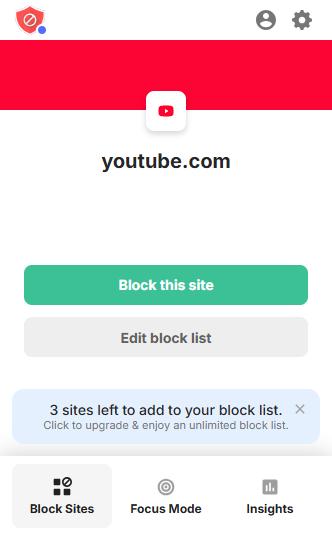
3. Choose Block Sites in the sidebar on the left to access the Block List.
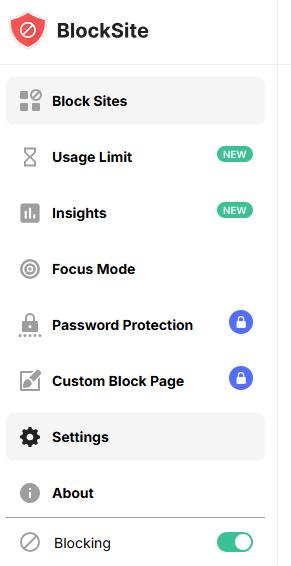
4. Click Add to Block List.
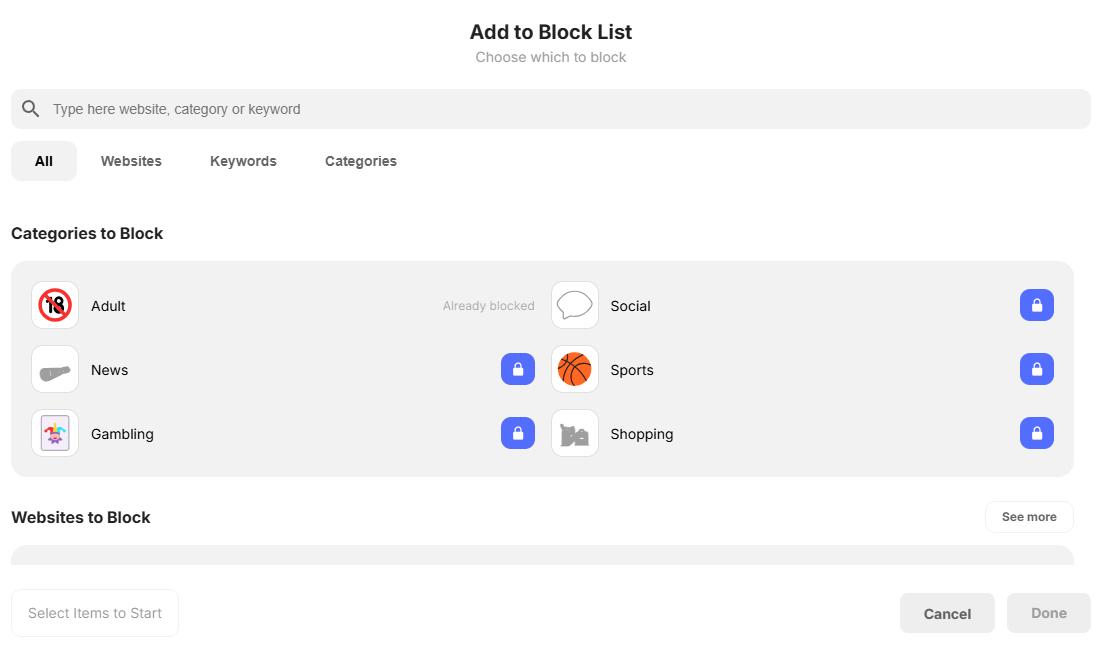
5. Choose the Keywords tab.
6. Enter the word you need to block. The word will show up in the Keywords to Block list. Click the Add button next to the word. Add more words if needed.
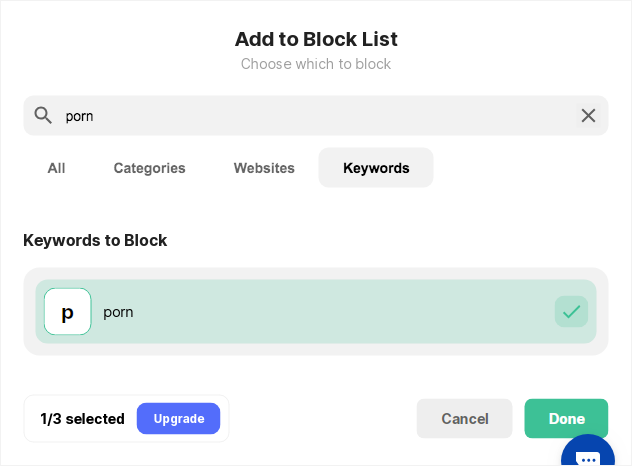
7. Click Done.
With Method 1, searches are blocked on Google in both normal browsing and incognito/private browsing. But by default Method 2 only supports normal browsing. To make it support incognito/private browsing, you need to enable the extension to work in such browsing.
Method 3. How to block inappropriate search results on Google
Applies to: Mac, Windows, Android, iPhone
The two methods above are about blocking search terms and can be suitable for scenarios like this: you are a concerned parent with a teen son who uses Google to search for porn. You just need to block search terms like “porn”.
Method 3 can also be helpful for parental control. However, it doesn’t block a search. It blocks inappropriate search results instead.
This method uses Google SafeSearch. Once turned on, SafeSearch automatically blocks inappropriate content (like adult websites and explicit images) in search results.
Blow is how to turn it on.
1. In your browser, go to https://www.google.com/safesearch.
2. Choose Filter (recommended) or Blur.
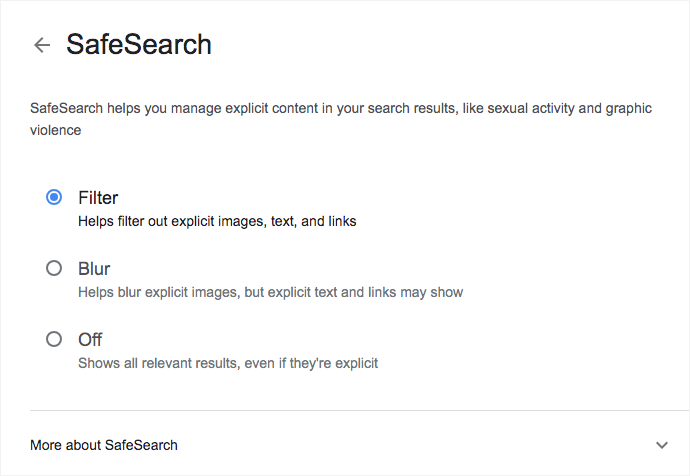
- Choosing Filter will hide explicit links in search results, text and images.
- Choosing Blur will blur explicit images in search results, which is generally not enough.
It’s that simple.
Note that turning on SafeSearch in normal browsing doesn’t turn it on in incognito/private browsing, and vice versa. You need to turn it on in both browsing modes.
To turn on SafeSearch in the Google app on your Android device, iPhone or iPad, you need to go to the app’s settings.
Method 4. How to block specific websites from Google search results
Applies to: Mac, Windows, iPhone
Some seemingly normal search terms (or typos) can bring up explicit websites. Also, results from some unwanted websites may keep showing up in your searches. Method 4 can help you easily avoid such things.
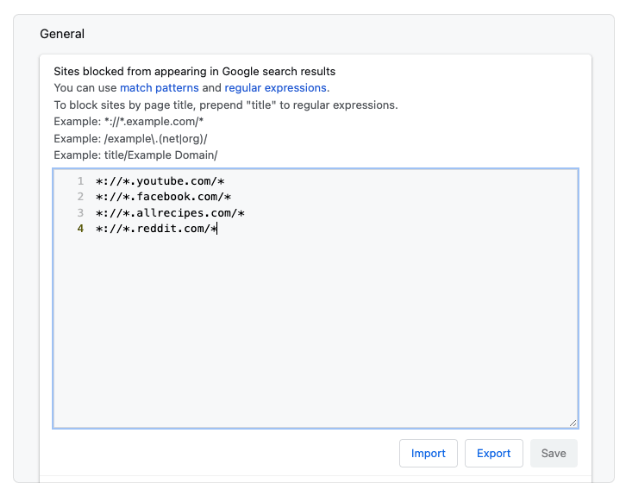
This method uses an extension called uBlacklist. Once set up properly, it can help you block those inappropriate or annoying search results on Google.
Here are the steps.
1. Add uBlacklist to your Chrome, Firefox, or Safari browser.
(I use Chrome as an example in the rest steps.)
2. Right-click the extension's icon in the toolbar and choose Options, which will open the settings page.
3. In the General section, add unwanted websites one by one. Then, click Save.
FAQs
How do I block unwanted content in Google?
With Cisdem AppCrypt, you can block unwanted content in Google by adding specific keywords to the block list. Such as “adult”, “porn”, which will block most adult content in Google. Windows and Mac users can also use the preset block lists to block unwanted content by category. Click the Import button. Select the category you’d like to block, such as Social site, Games sites.
How do I block Google Search completely?
If you want to block Google Search completely, the easiest way is use Cisdem AppCrypt’s keywords blocking feature. Go to the Web Block tab. Enter the keyword “google” in the top keyword field. Click Add.
Conclusion
Blocking certain words on the search engine is one of the ways to maintain a more child- or family-friendly browsing experience. This article shows you how to block searches on Google, which actually also applies to Bing and other search engines. You can choose the method that suits you best and start blocking. I also recommend enabling SafeSearch.

Norah Hayes likes to share her tips on how to improve focus and stay motivated at work. She believes it is essential to eliminate all online distractions during work hours.

Ethan Long joined Cisdem in 2015 as a developer and now serves as the editorial advisor for Cisdem AppCrypt. He actively tests and uses Cisdem AppCrypt and other screen-time management tools to ensure AppCrypt meets its promises in real-world scenarios.