


How to Block Discord on Computer, Phone, and Router: 7 Methods
 14.0K
14.0K
 0
0


Discord is a popular instant messaging platform, especially among gamers. It can be a great place to communicate with fellow gamers, discuss gaming or non-gaming interests, and meet people. However, if children and teens spend too much time on Discord, parents might want to block access to it.
In this article, I will show you how to easily block Discord on devices and routers, providing step-by-step instructions.
 Cisdem AppCrypt
Discord Blocker for Kids & Adults
- Lock individual apps with a password
- Block specific websites, keywords, and website categories with a password
- Allow you to block apps and websites 24/7 or during scheduled times
- Easy to use
- Hard to bypass
- Help you block Discord app and website for kids or yourself
- Help with parental control, digital wellness, and productivity


Method 1. Block Discord on computers using AppCrypt
Applies to: Windows 10 or later; macOS 10.12 or later
There are two ways available for using Discord on computers: using the Discord app or the website (discord.com). If you want to restrict access to this platform, the best option is to block both, and the best tool is Cisdem AppCrypt.
With AppCrypt, you can restrict both the app and the website. Password protection helps make restrictions hard to bypass. You can also schedule blocking to be active permanently or during certain hours.
Here are the steps. (Since the steps on Windows PC and Mac are a bit different, I provide separate instructions.)
Steps on Windows PC
1. Download and install AppCrypt.
 Free Download Windows 10 or later
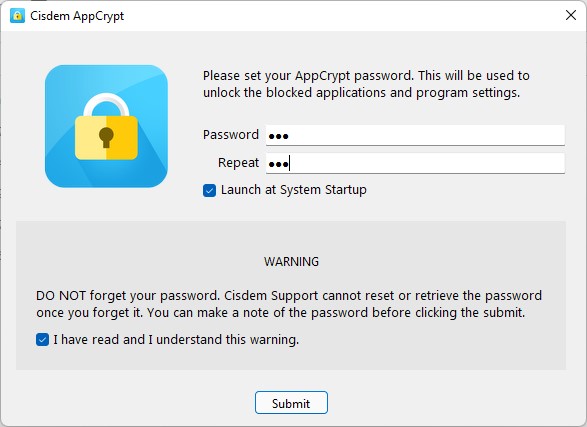
2. The first time you open this tool, set a password.
Note
Make sure that you set a strong password that your child won't be able to guess. If you want to limit Discord access for yourself, consider asking someone else, like a friend or family member, to set the password for you.
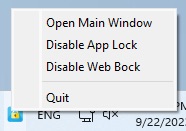
3. Right-click the AppCrypt icon on the taskbar and choose Open Main Window.
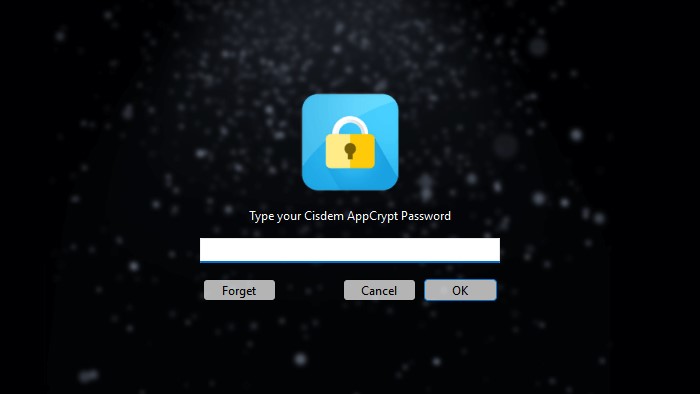
4. Enter the password to access the tool's main window.
5. Drag the Discord desktop shortcut into the App Lock tab.
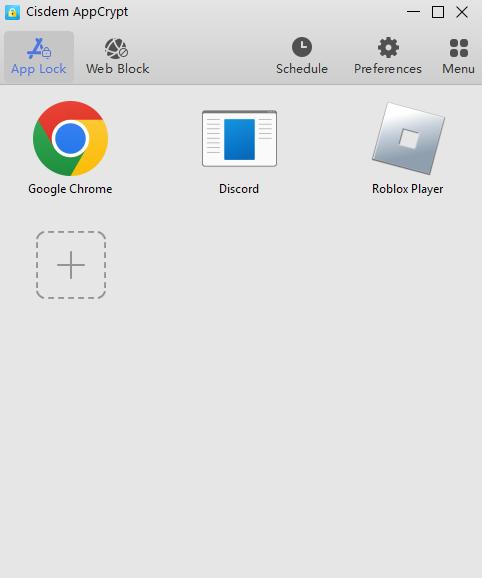
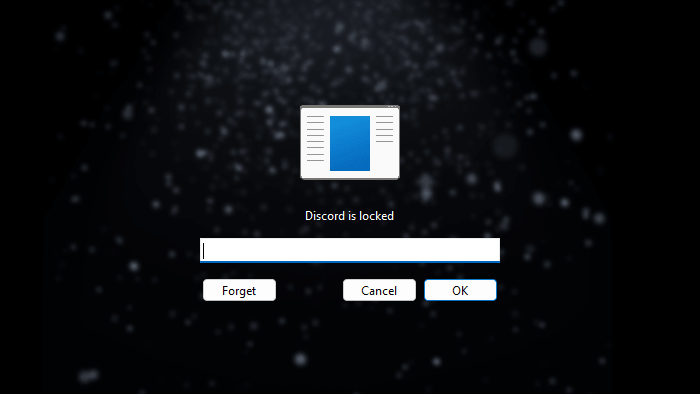
Now, the app is blocked. If someone tries to open it, he or she will be prompted to enter the password. No password, no access.
Tip
If there isn't a desktop shortcut for Discord, this tip can help. Open File Explorer and enter C:\Users\Administrator\AppData\Local\Discord in the address bar at the top. Then, open the folder with this format: app-a series of numbers (e.g., app-1.0.9234), and find the Discord app there. Finally, drag the app into the App Lock tab.
6. Block the Discord website.
Choose the Web Block tab. Install the Cisdem extension when prompted, which is essential for blocking to be implemented.
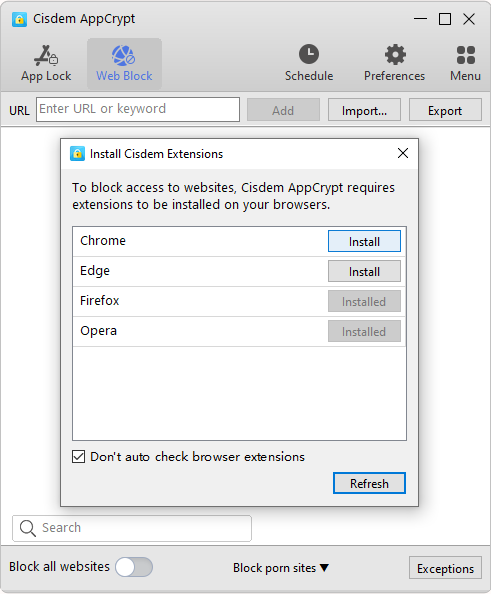
Then, enter discord.com in the URL field and click Add.
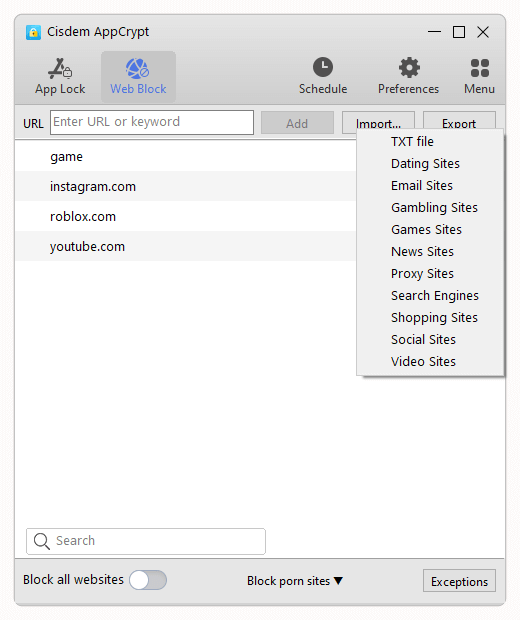
Now, Discord website is blocked on Chrome, Edge, Firefox, and other supported browsers. Due to password protection and Preferences configuration, blocking is difficult to bypass.
Steps on Mac
1. Download and install AppCrypt.
 Free Download macOS 10.12 or later
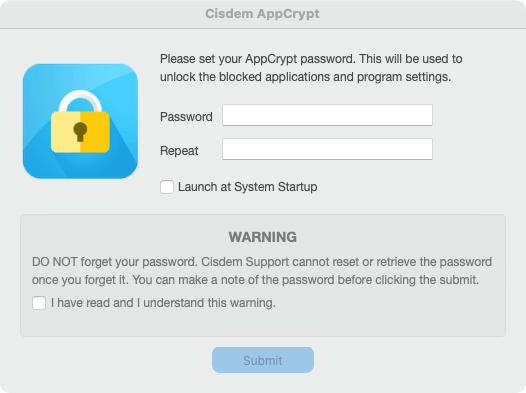
2. When you launch this tool for the first time, set a password.
(If you are using the tool for yourself instead of a child, I recommend asking someone else to set the password for you.)
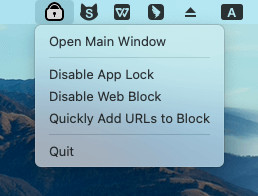
3. Click the lock icon in the menu bar, then choose Open Main Window.
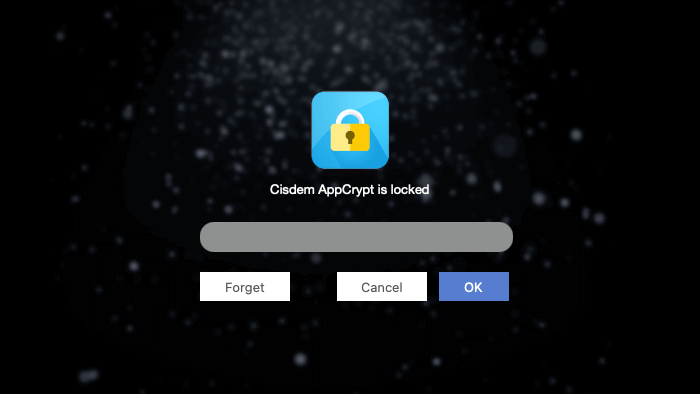
4. Enter the password to access the tool's main window.
5. In the App Lock tab, click the big Add button, select Discord in the Applications folder that appears, and then click Open.
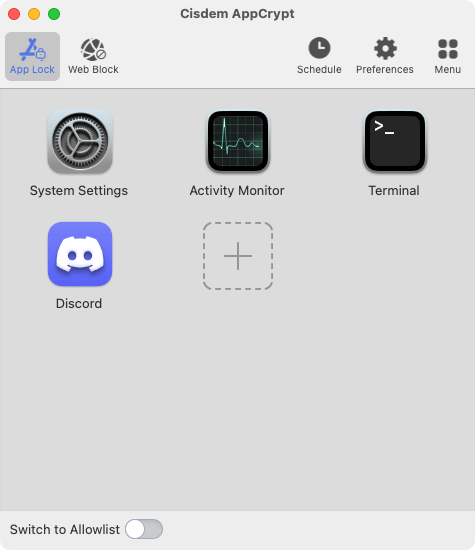
Now, the Discord app is blocked by a password.
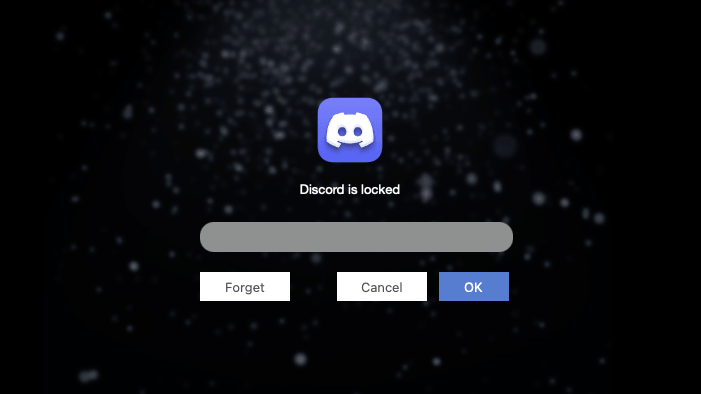
6. In the Web Block tab, enter discord.com in the URL field, then click Add.
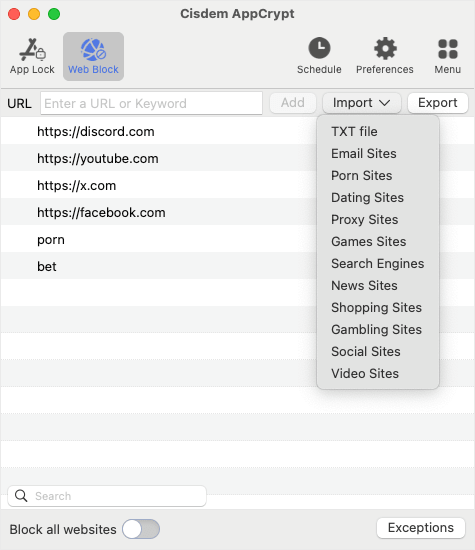
Now, the Discord website is blocked on Safari, Chrome, and other supported browsers. Only people who know the password can unblock Discord, making the restriction hard to get bypassed.
Pro tip: Limit Discord access only during certain hours
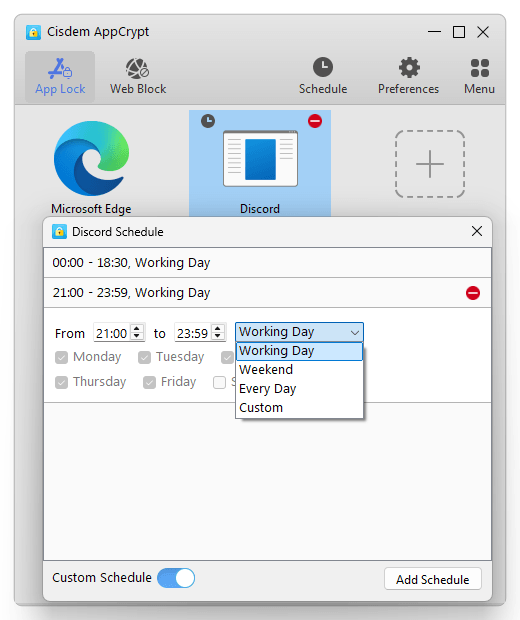
After you've followed the steps above, Discord will be blocked permanently by default. What if your purpose is to reduce time spent on Discord rather than completely blocking it? You can simply schedule the blocking. In the App Lock tab, select Discord, then click the small clock icon that appears. In the Discord Schedule dialog that appears, turn on Custom Schedule, and then set schedules based on your needs.
Method 2. How to block Discord on Windows computer using Microsoft Family Safety
Applies to: Windows 10 or later
Microsoft Family Safety is a free set of built-in features available on Windows computers. With Microsoft Family Safety, you can set time limits on specific apps, block mature content, block inappropriate websites for your kids and so on. If your kid always distracted by Discord, Microsoft Family Safety can be helpful for you.
1. Open your computer. Click Windows > Settings.
2. Select Account at the pop-up window.
3. Select Family & other users from the left-hand menu.
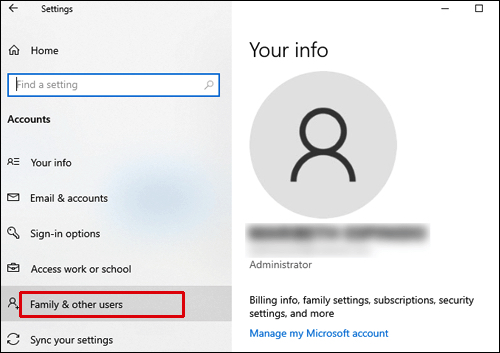
4. Click Add a family member. Then create a separate account for your kid.
5. Click Manage family settings online to open Microsoft online page.
6. Sign in your own Microsoft account. Now you can see and control all accounts connected to your family.
7. Click Activity under the account name of your kid, then select App and game limits. Turn on the App and game limits toggle switch.
8. Type Discord in the search box. If your child has Discord installed, it will appear in the list. Select Discord app and turn on the toggle switch on the right side.
9. You can use the slider to set the amount of time your kid can use Discord.
10. To block Discord website, Click Content restrictions under the account name of your kid. Under the Always blocked section, click the plus button and add www.discord.com to the box.
Once you complete the above steps, your child will not be able to access Discord via his account, either through the app or the web.
Method 3. How to block Discord on Mac computer using Screen Time
Applies to: macOS 10.15 or later
Mac computer (Catalina or later only) has a built-in feature to limit time spent on certain apps and websites. It also supports blocking a specific website. You can find this feature called Screen Time on your Mac System Settings. To block Discord on Mac:
1. Go to the Apple menu. Select System Settings > Screen Time.
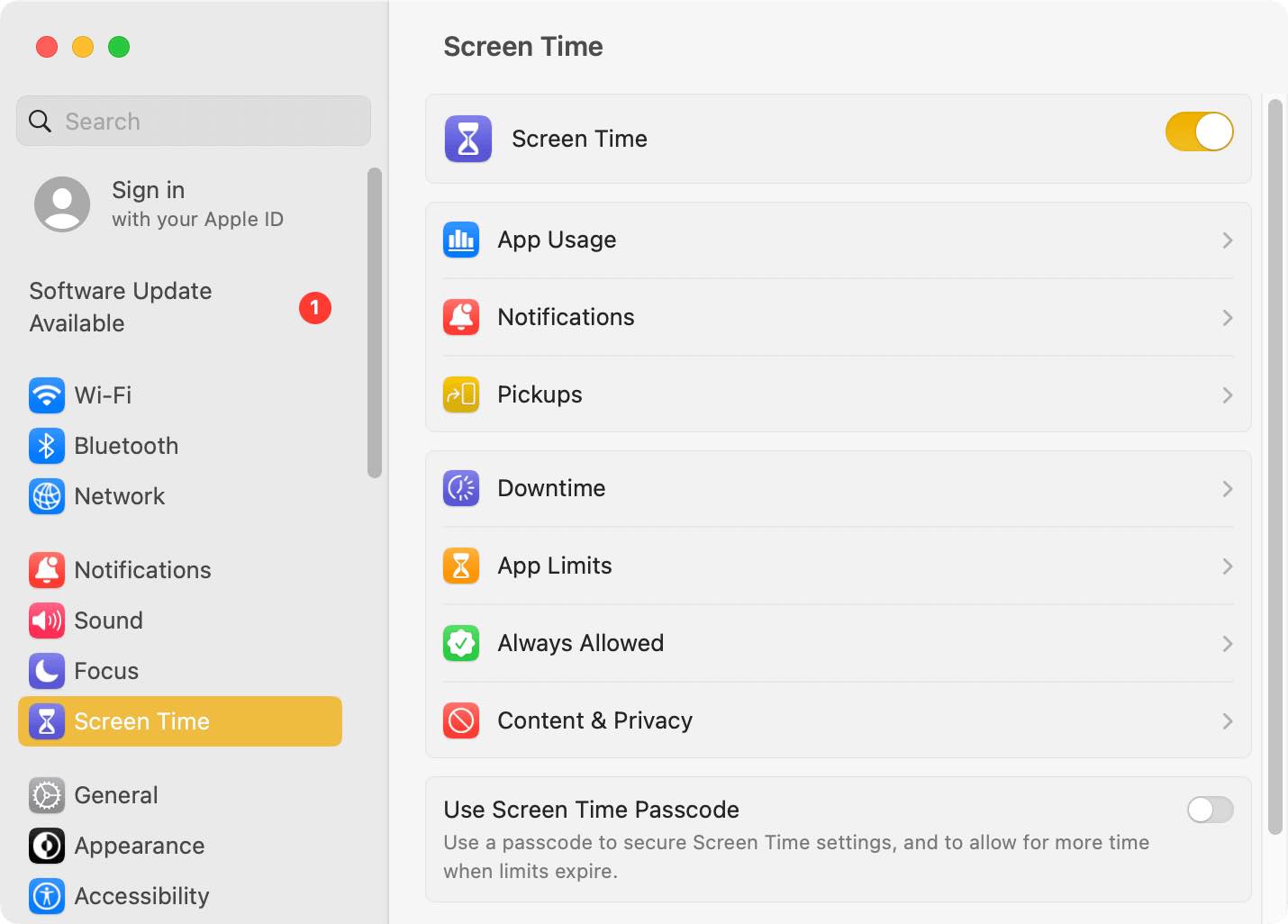
2. This step is optional: click Use Screen Time Passcode. Set a password to secure your Screen Time settings if needed.
3. Select App Limits. Turn on this feature. Then click Add Limit.
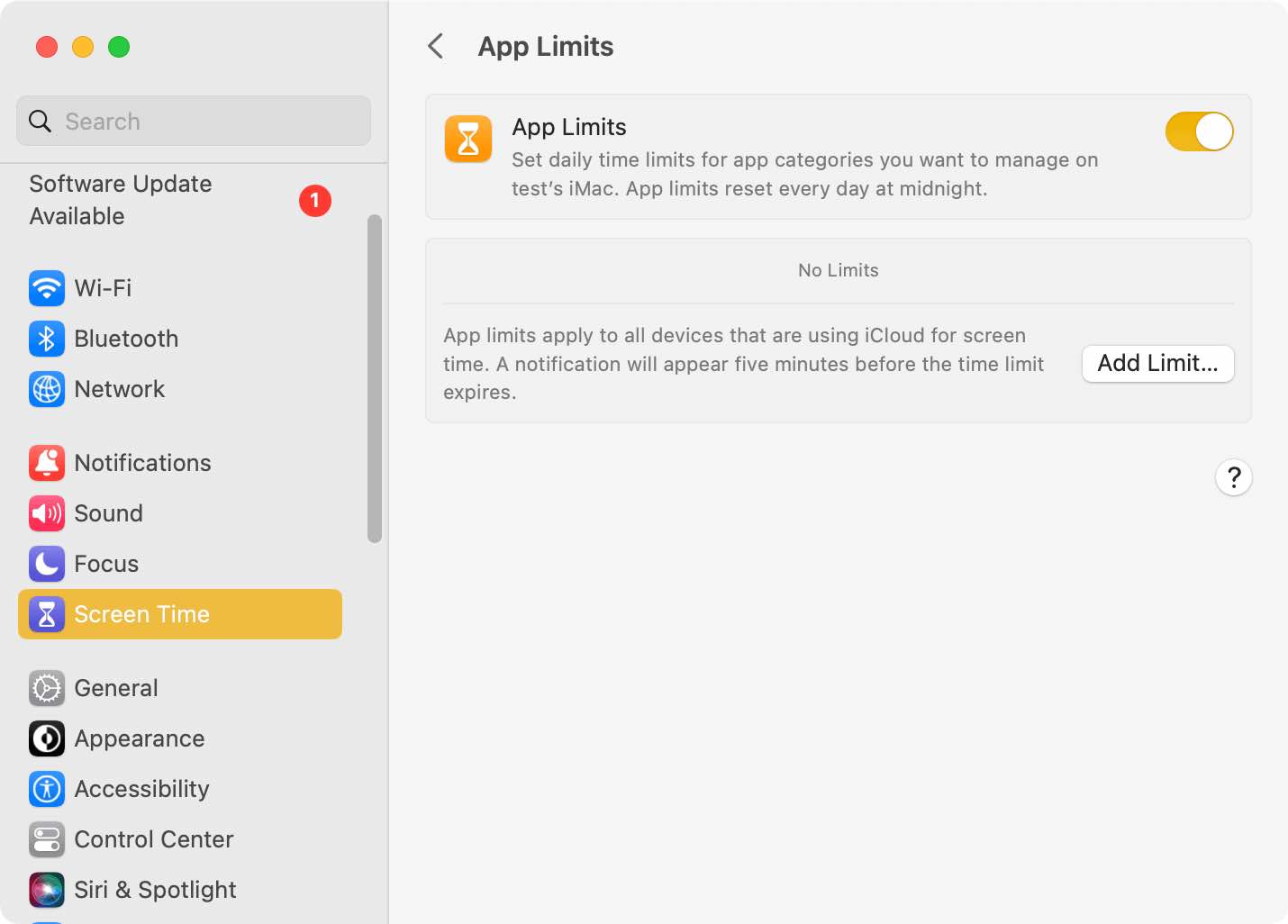
4. Find the Discord app from the app list. Then set the amount of time that you allow yourself or other users of this computer to use Discord each day.
5. Scroll down the app list to the end and expand Websites. Click the Plus icon that appears. Add discord.com. Set a daily/weekly time limit for the Discord website.
6. Click Done.
If your computer is running macOS 10.14 Mojave or older, you cannot find Screen Time on the System Settings window. However, there’s still built-in way in these Mac versions to block Discord-using Parental Controls. Similar to Screen Time, it is also a feature that helps to limit access to certain apps and websites. Note that Parental Controls only works on a non-administrator account.
Method 4. How to block access to Discord on Android phone
Applies to: Android 8 or later
As a popular voice, video, and text chat application, Discord brings us a convenient way to communicate, but it may also interfere with work and study. Blocking Discord is necessary, especially on children’s phone. To block Discord on Android devices, you can set it up in a variety of ways, including using built-in features or third-party applications. However, the built-in blocking can usually be easily bypassed. If you want to completely block access to Discord, Cisdem AppCrypt is the best choice.
1. Install this Discord blocker from the Google Play Store.

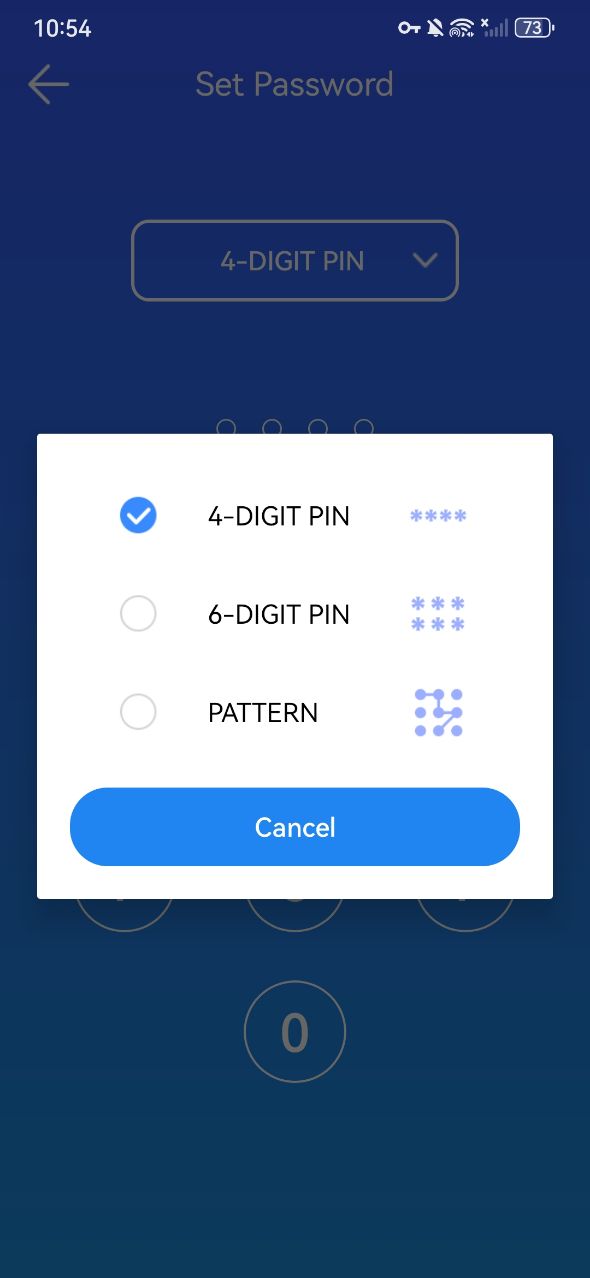
2. The first time you open it, set a PIN or pattern.
3. Go to the App Lock tab. If the Discord app is already installed on this phone, you can find it under the Unlocked App list. Toggle the switch next to it to the on position.
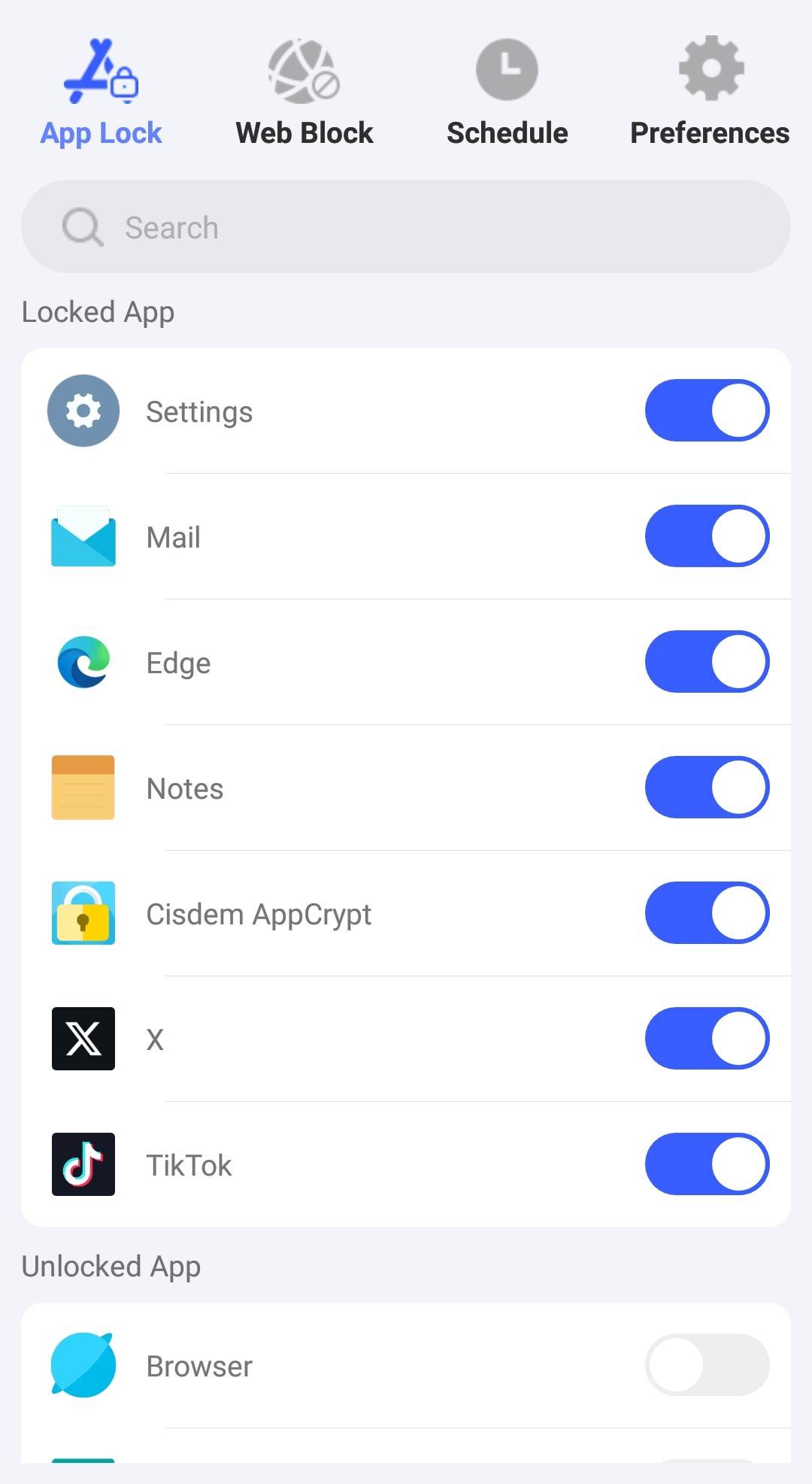
Now Discord is blocked on your Android phone.
Method 5. Use Android's built-in Discord blocker solution
Applies to: Android 10 or later
If you prefer a built-in solution, then I recommend using Android's Digital Wellbeing tool.
1. Open the Settings app on your kid's Android device.
2. Scroll down to find Digital Wellbeing and parental controls, then tap it.
3. Tap App timers.
4. From the All apps list, select Discord.
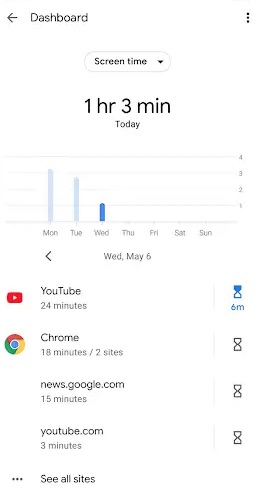
5. Tap Set timer.
6. Set the time to 00:00, then tap Done.
7. On the Digital Wellbeing main interface, tap the three-dot icon in the top right corner. Then, tap Settings.
8. Turn on Set PIN and set a PIN.
From now on, if your child tries to open Discord, the app won't open, and a message will pop up, saying that the app is not usable.
The message comes with a Change timer option. But thanks to the PIN you set, your child won't be able to use this option to bypass restrictions.
Method 6. How to block access to Discord on iPhone or iPad
Applies to: iOS 16 or later
Here are 2 effective ways to block Discord on iPhone or iPad using AppCrypt: One is to block Discord with password. The other is to delete Discord from the iPhone or iPad and then prevent it from being installed. The former is more suitable for users who only want to block Discord during specific times when need to stay focused, rather than blocking it completely. Below are steps:
1. Download and install this Discord blocker from the App Store.

2. Open it. Click Start.
3. Go to the App Lock tab. Click the Add/Remove button at the bottom.
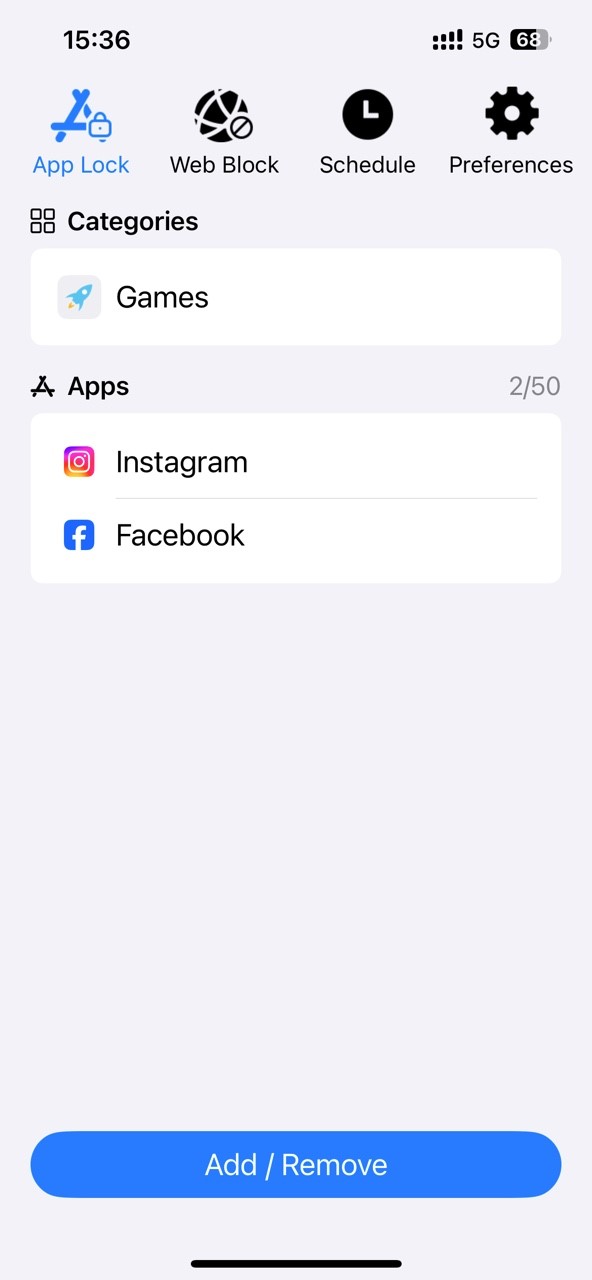
4. Search for Discord. Select it from the application list. Click Done.
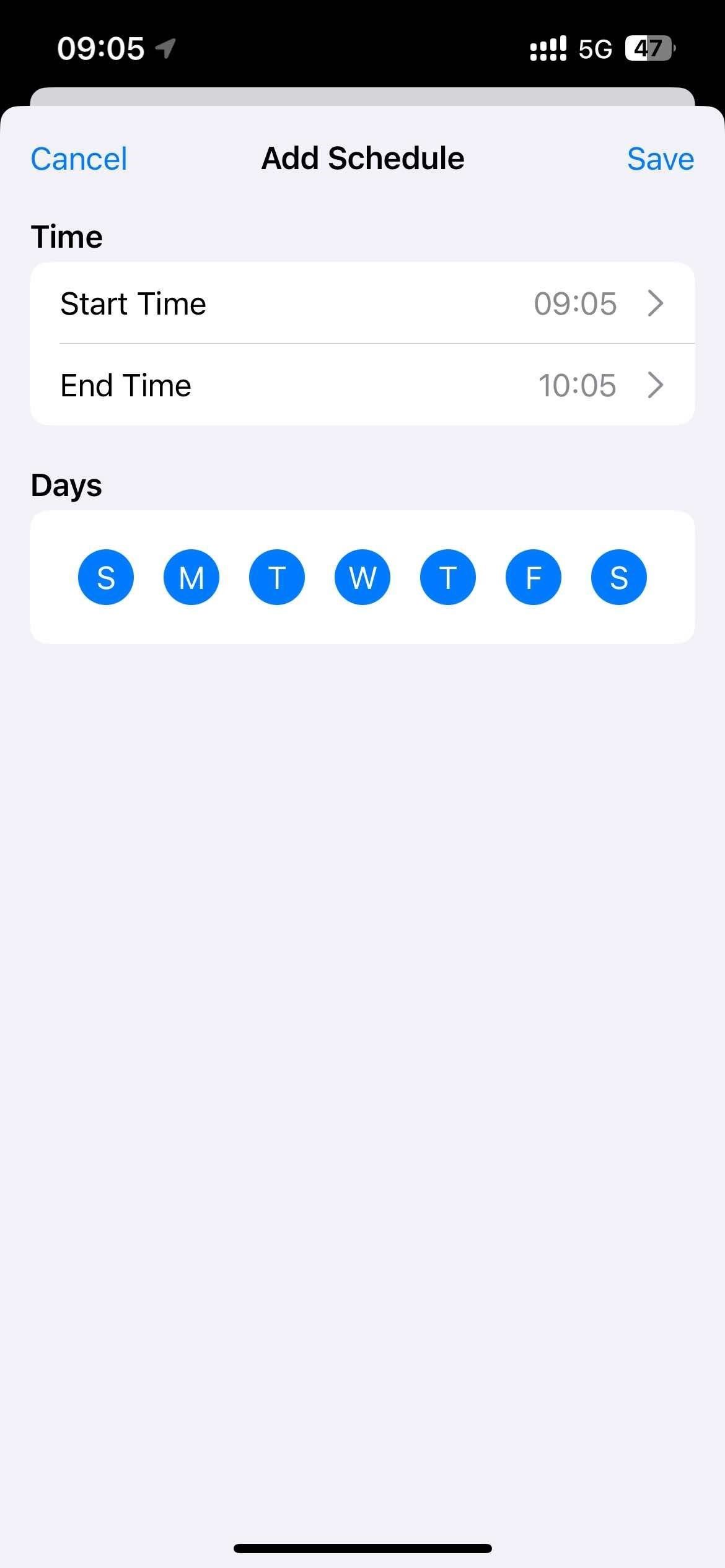
Now Discord is blocked permanently on this iPhone. If you want to set time limit on it, click Schedule. Set your desired blocking time. Click Save.
5. Click Preferences. Click Notification.
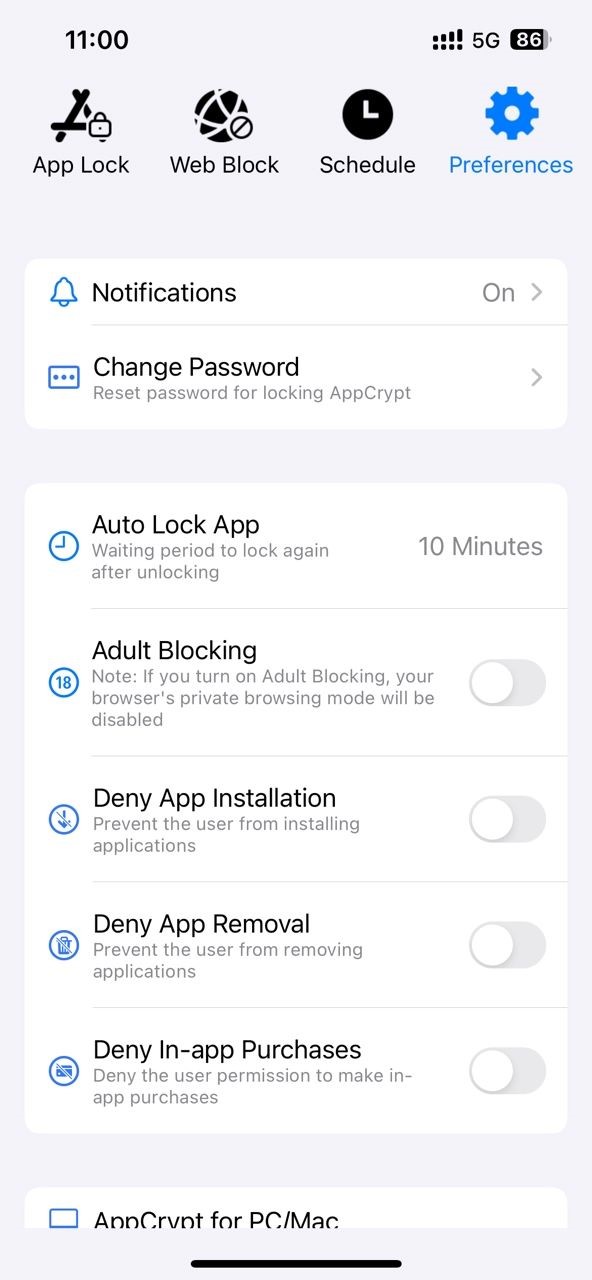
Turn on Notification and then Notification unlock. Set a 4- or 6-digit password when prompted.
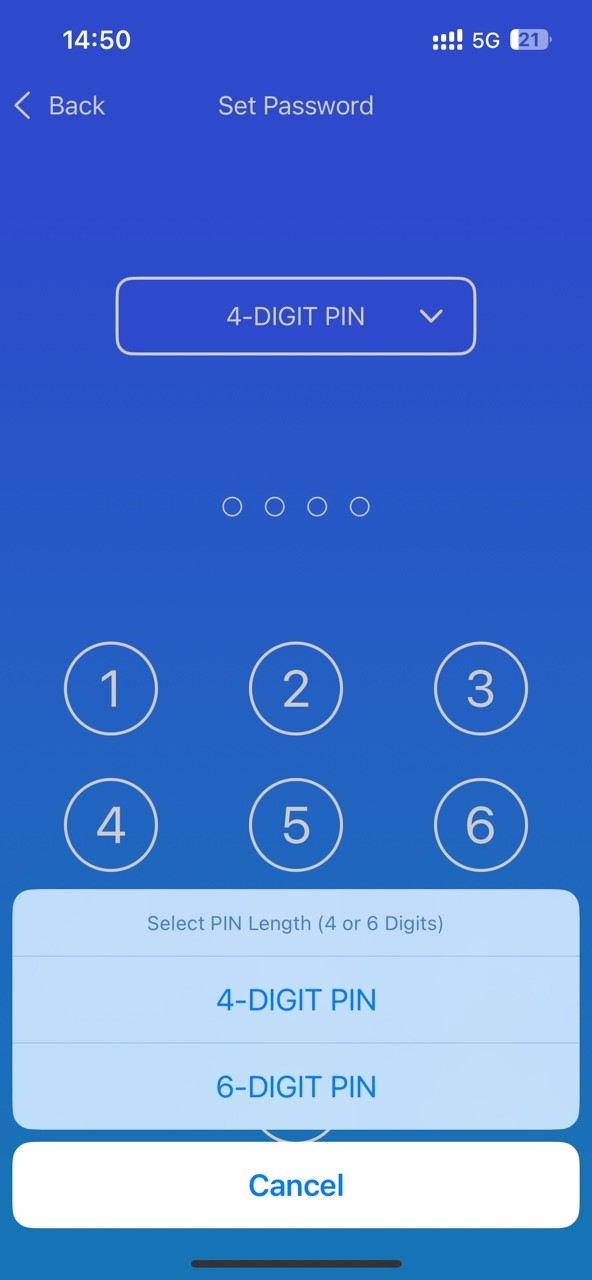
By following the steps above, Discord will be blocked on this iPhone/iPad during the time you set.
Method 7. How to block Discord on routers
Applies to: All operating systems
Many routers offer features such as content filtering, parental controls, web filtering, etc., which can be used to block Discord and other unwanted websites or applications. Unlike setting restrictions on individual devices, blocking at the router level prevents all devices connected to the network from accessing Discord. The steps of blocking Discord on router are as follows:
1. Open a browser and enter your router's IP address (usually 192.168.1.1 or 192.168.0.1).
2. Enter the username and password to log in.

3. In the router's setup interface, look for the “Content Filtering”, “Parental Controls”, or similar sections.
4. Find the option for blocking apps and websites. Add Discord app and discord.com to the block list.
5. Save your settings
6. Restart the router.
After completing the steps, all devices connected to the router will not be able to access Discord.
Conclusion
Above all are different methods on how to block Discord on computer, phone, or router. Hope these are helpful for you. If your kids are addicted to Discord too much, behavioral control is not enough. You should pay more attention to the kids’ mental health rather than blaming them harshly. And encourage them to do some other activities such as sports, travel and reading.

Norah Hayes likes to share her tips on how to improve focus and stay motivated at work. She believes it is essential to eliminate all online distractions during work hours.

Ethan Long joined Cisdem in 2015 as a developer and now serves as the editorial advisor for Cisdem AppCrypt. He actively tests and uses Cisdem AppCrypt and other screen-time management tools to ensure AppCrypt meets its promises in real-world scenarios.