


How to Block Chess.com on Computer and Phone in 2025
 525
525
 0
0


Chess is a popular board game. It is loved by many people. Some players even feel addicted to it. This article will tell you how to block chess.com on Windows, Mac, iOS and Android devices, helping you quit chess addiction.
 Cisdem AppCrypt
Easily Block Access to chess.com
- Block websites on Chrome, Edge, Safari, and other browsers
- Let you block specific websites/webpages with password
- Let you block categories of sites, like games sites, social media, etc.
- Also let you block all websites except the ones you allow
- Lock apps with password
- Block websites and lock apps permanently or during certain times
- Easy to use and hard to bypass
- Help block or limit access to chess.com
- Help with parental controls, productivity and privacy protection
- Available for Mac, Windows, iPhone, iPad, and Android


Quick Highlight
- With Cisdem AppCrypt, you can permanently block chess.com on your Windows, Mac, Android, iPhone, and iPad. It also offers a schedule feature, so you can temporarily restrict access to the site at certain times.
- With Screen Time, you can block chess.com on your Mac and iPhone. But it’ll also block access to all adult websites at the same time.
- With hosts file, you can block chess.com on your Windows computer. This method requires some technical knowledge to set up correctly.
How to block chess.com with Cisdem AppCrypt?
If you feel you are addicted to chess, or think that playing too much chess is bad for your children, you can block chess.com with Cisdem AppCrypt - an easy-to-use website blocker and app locker tool for Mac, Windows and Android. It enables you to block chess.com permanently on your (requiring you to enter the password to unblock). It also helps block chess.com at certain times, such as working hours or study time.
On Mac & Windows
The following steps show you how to use it to block access to chess.com on computer.
1. Download and install Cisdem AppCrypt on your computer.
 Free Download macOS 10.12 or later
  Free Download Windows 10 or later
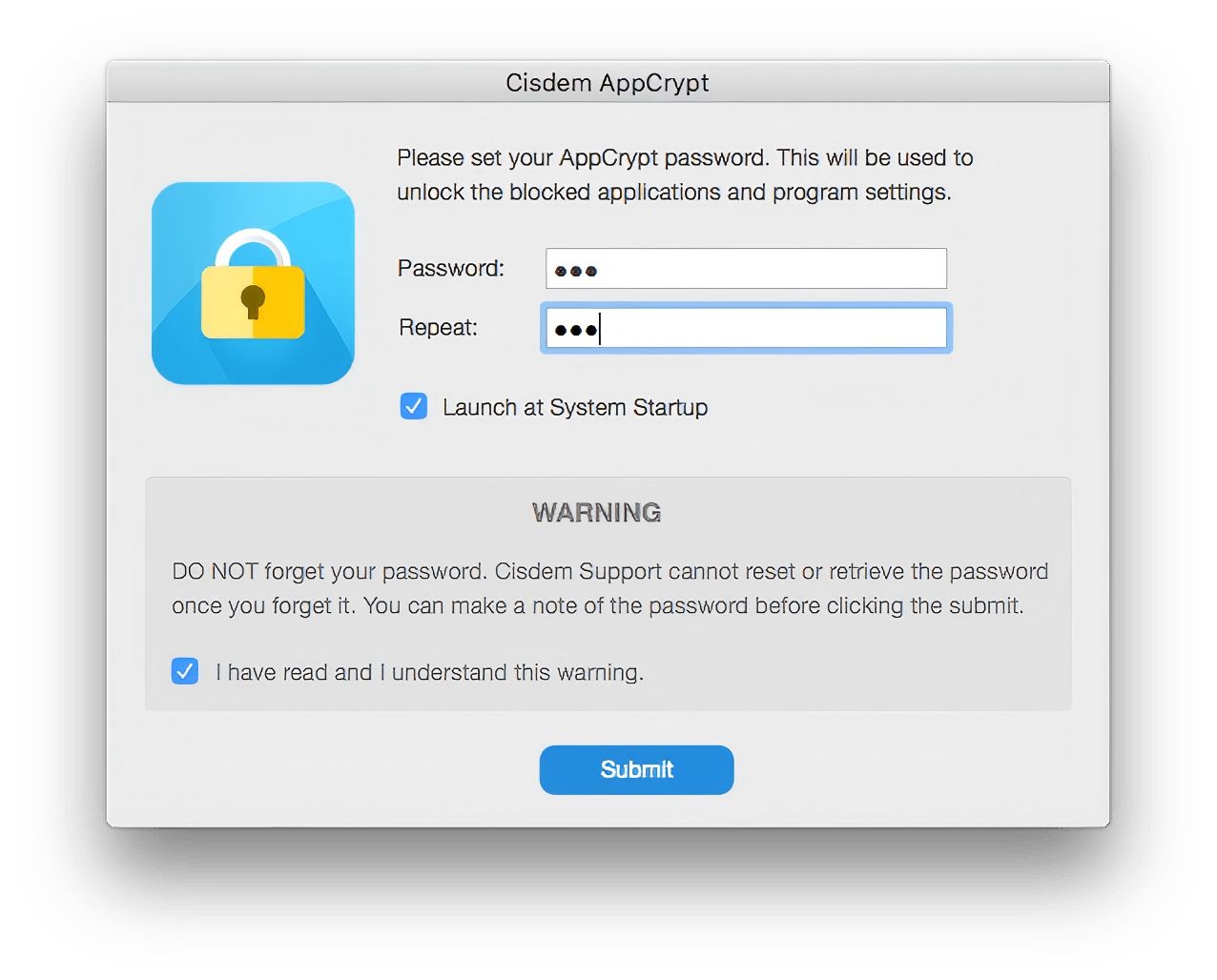
2. Set a password when you first launch it. Click Submit.
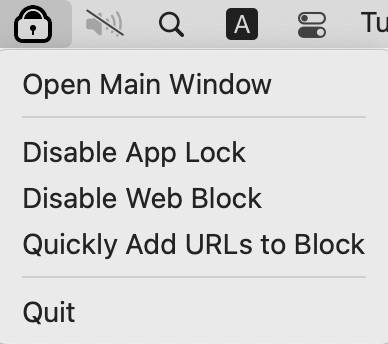
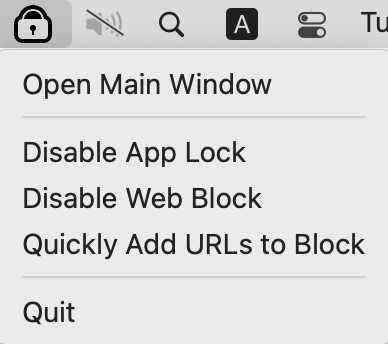
3. Click the lock icon on your Mac menu bar/Windows taskbar. Choose Open Main Window.
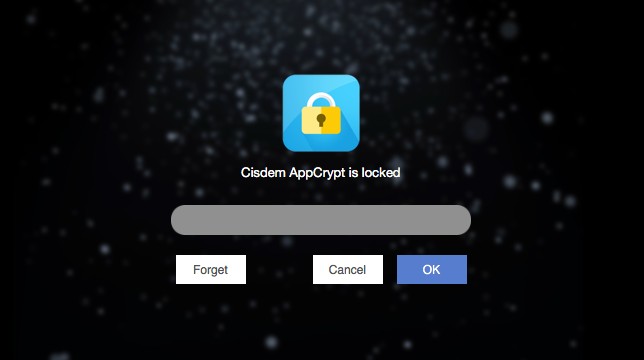
4. Enter the password to access the main window.
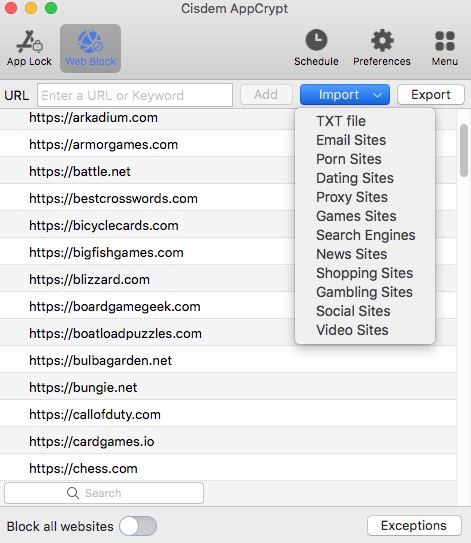
5. On Mac computer: Go to the Web Block tab. Enter chess.com into the URL field. Click Add.
Tips: On Windows computer, a window will pop up asking you to add extensions to different browsers that you want to apply the blocking to. Click Install next to the browser and add extension as prompts.
Then go back to the Web Block tab. Add chess.com to the block list.
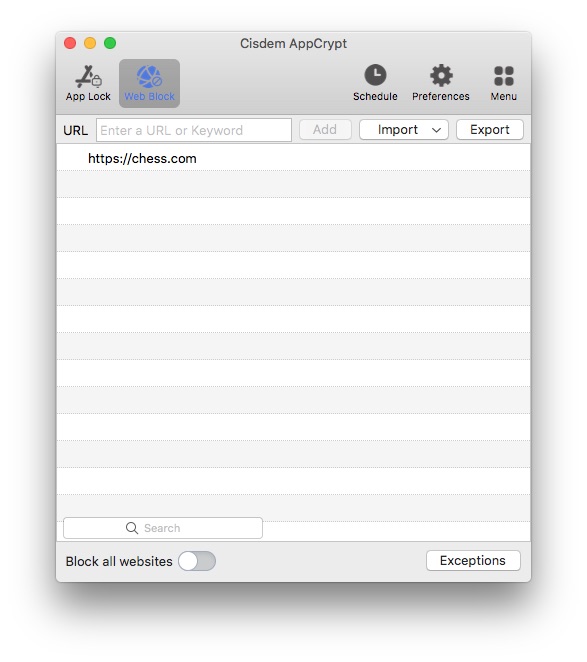
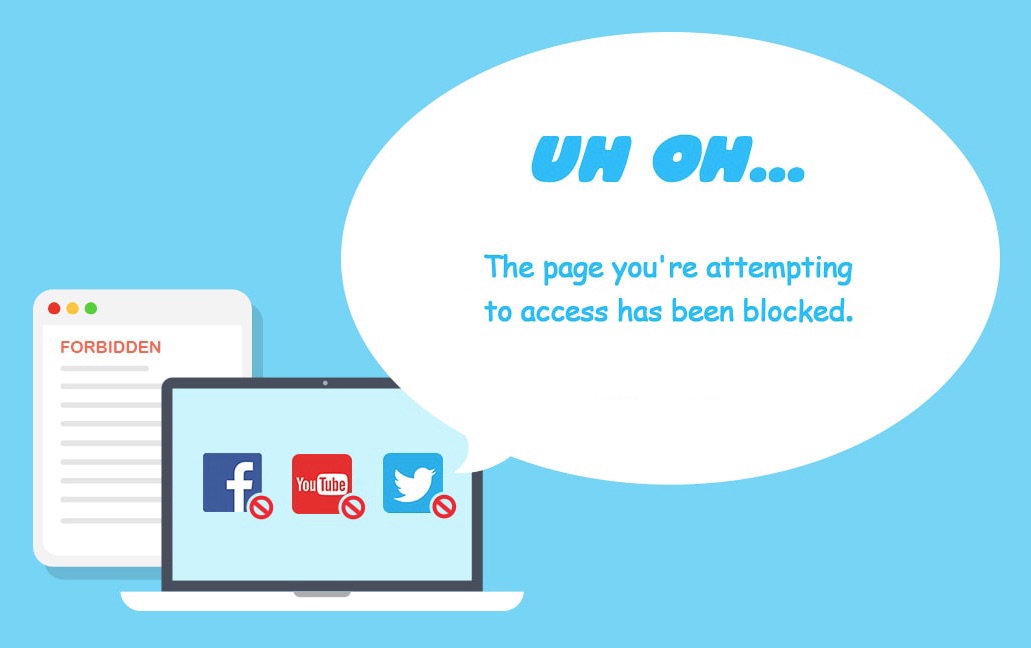
Now chess.com is blocked on your computer.
To unblock it, click the lock icon on the menu bar/taskbar. Then choose Disable Web Block or Quit to temporarily stop the blocking. Or you can access this tool then remove chess.com directly from the block list. All of these steps require the password.
Tips:
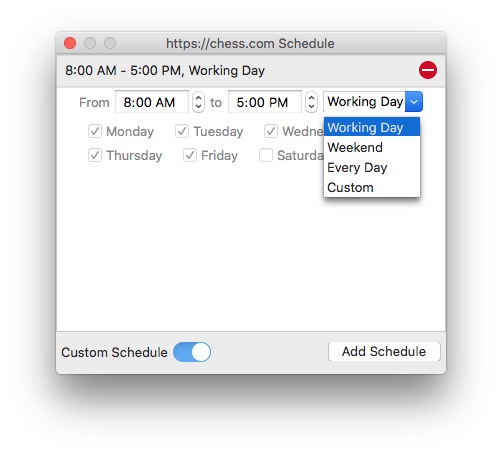
Block chess.com at certain times: Playing excessive amounts of chess is bad for both mental and physical health. It’s important to control the time spent on playing chess. Cisdem AppCrypt provides a Schedule feature that helps you to set time limits for chess.com and control your chess addiction. Go to the Web Block tab. Select chess.com from the block list. Click the clock icon next to it. Enable Custom Schedule. Then set the time you want to limit access to chess.com.
Block other popular games sites on computer: Many games sites are designed to be addictive, or distract us from work. You can block all popular games sites on computer easily using this tool. Go to the Web block tab. Click Import. Choose Games sites from the drop down menu. You can click the Schedule button on the top tool bar and then set a general schedule for all blocked sites in the block list.
on iPhone
Cisdem AppCrypt can also help you block chess.com on Safari, Chrome, and other browsers on iPhone easily.
1. Downlaod and install it from the App Store. Open it.

2. Go to the Web Block tab.
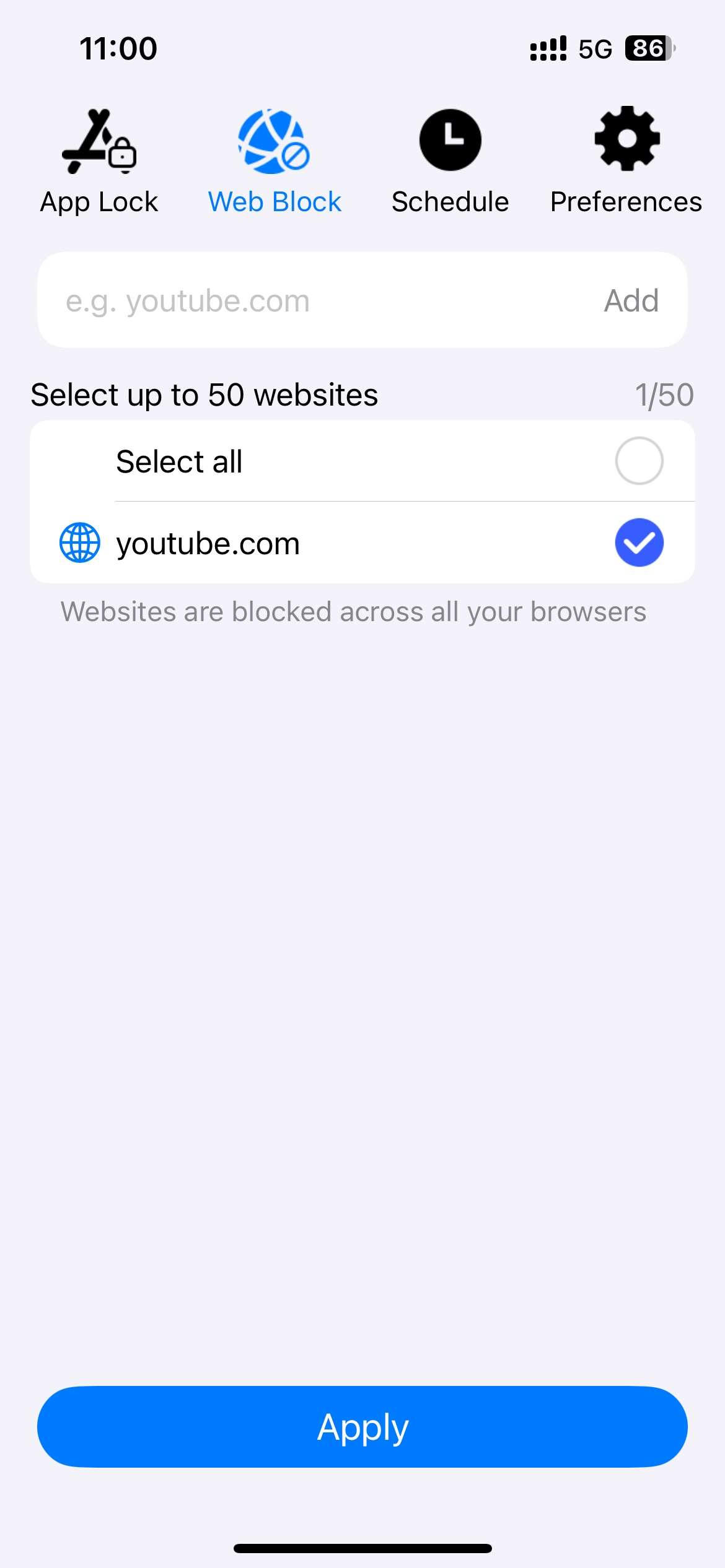
3. Enter chess.com into the URL field. Click Add.
4. Select the box next to chess.com. Click the Apply button.
Now chess.com is blocked on your iPhone.
It's recommeded to go to Preferences > Change Password to set a password, which can prevent others from changing your settings.
on Android
Android doesn’t provide a built-in web filtering. You can block chess.com on Chrome, Opera, Firefox, and other popular browsers on Android phone with the Android version of Cisdem AppCrypt.
1. Download and install Cisdem AppCrypt from the Google Play Store.

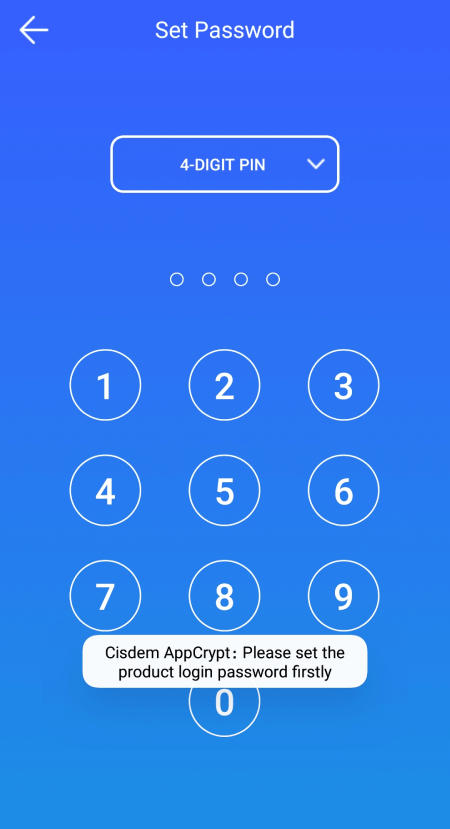
2. When you open it for the first time, set a PIN or pattern.
3. At the top of the screen, tap the Web Block tab.
4. In the Enter URL or keyword field, enter chess.com. Tap Add.
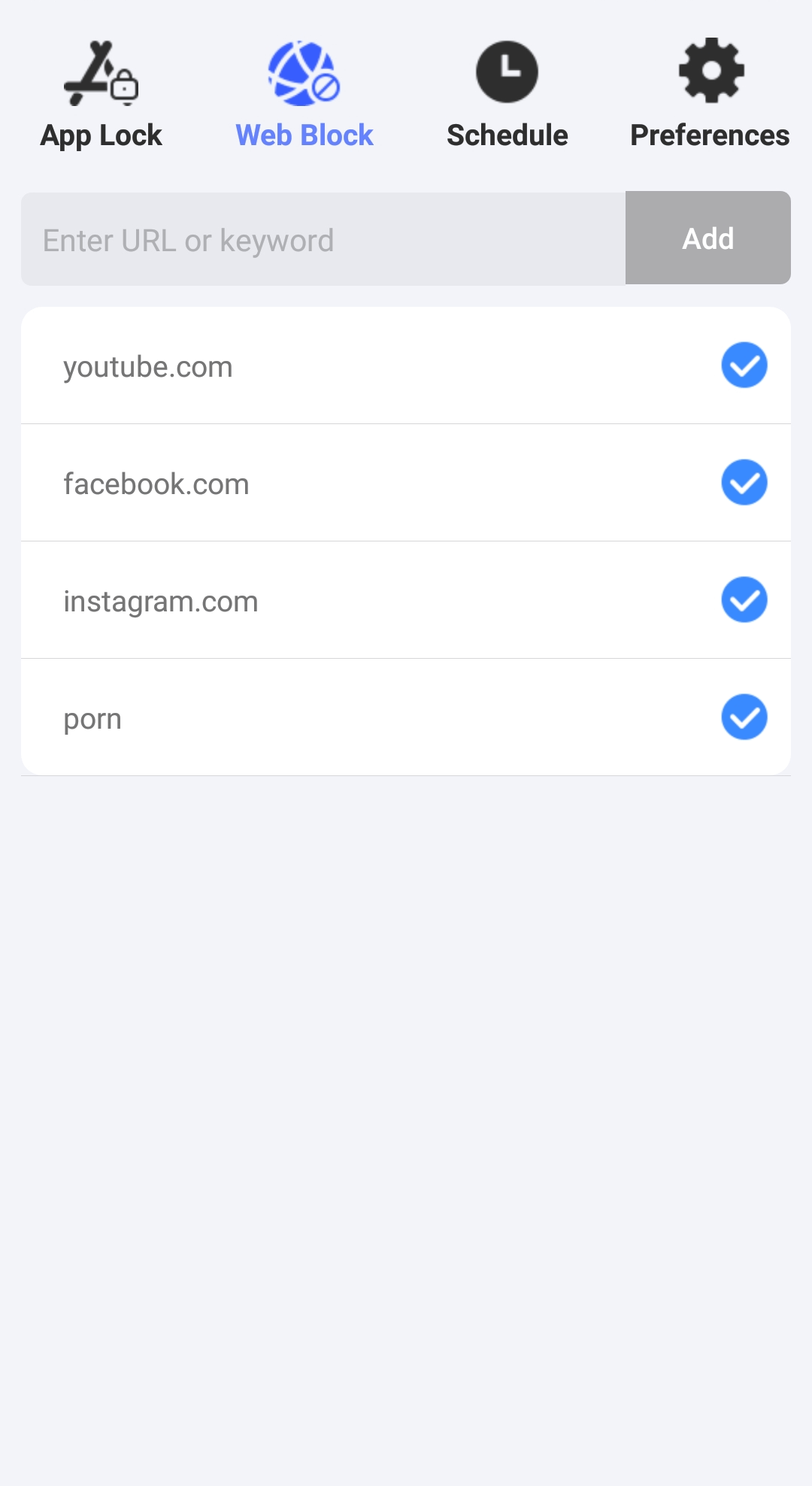
Now chess.com is blocked on your Android device. The blocking applies to Chrome, Samsung Internet, Opera, Firefox and other popular browsers. To unblock it, you can go to the Web Block tab and then turn off the blocking or remove it from the block list. Note that either action requires the PIN or pattern.
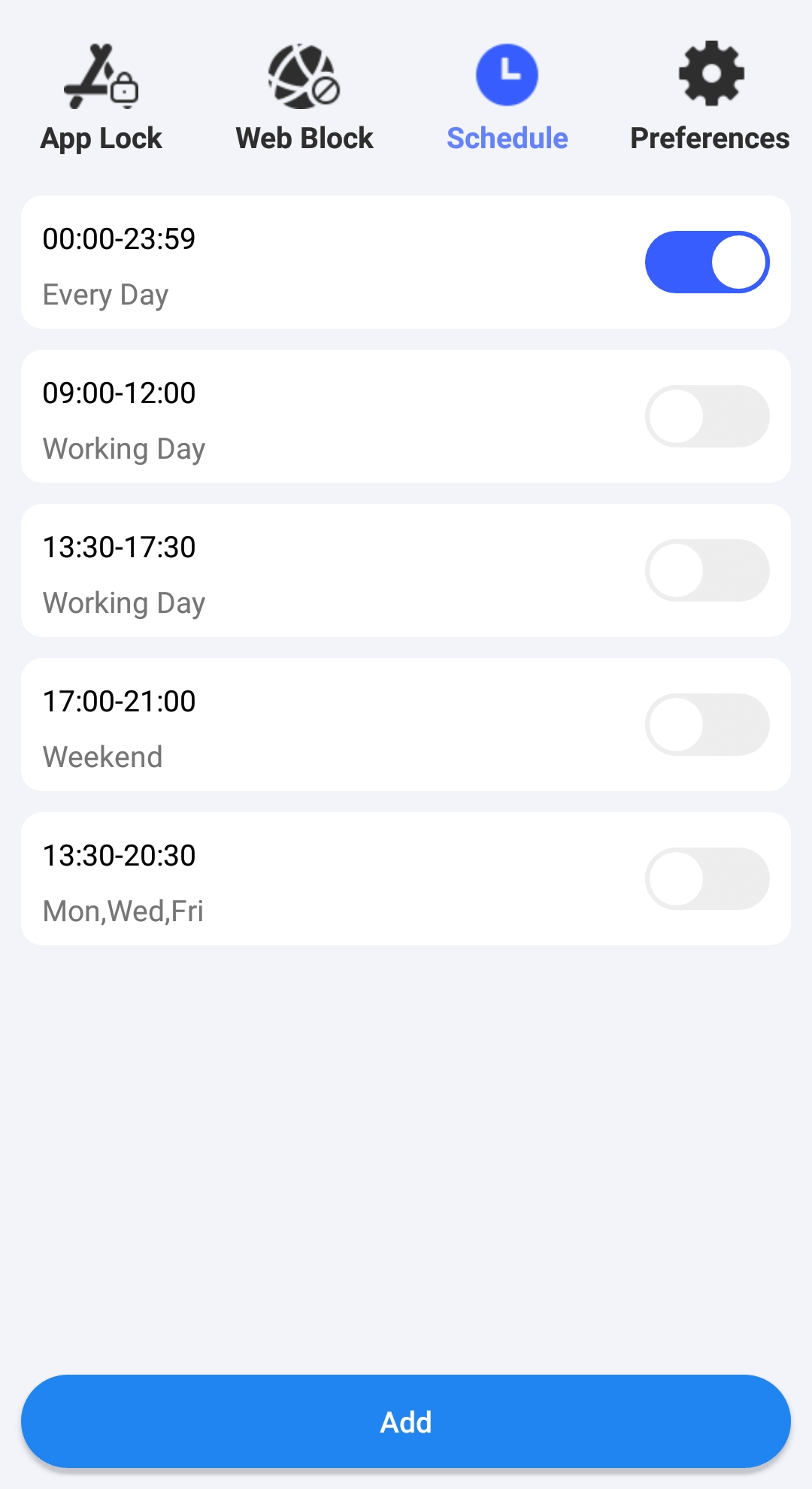
If you don't want to make the blocking permanent, you can schedule the blocking in the Schedule tab.
How to block chess.com by editing the hosts file?
Here is a way to block chess.com on Windows PC free-using hosts file. Hosts file is a text file used by operating systems to map domain names to IP addresses. You can block access to a specific website on your computer by editing the hosts file and mapping the domain name to your local IP. Below are steps:
1. Open Notepad on your PC and run as administrator.
2. Click File > Open.
3. Type “C:/Windows/System32/Drivers/etc/hosts” in the address bar. Press Enter.
4. Change the file type from Text Documents to All Files in the upper right of the window.
5. Double-click hosts to open it.
6. To block access to chess.com, append a line to the bottom of the file.
Enter 127.0.0.1 www.chess.com
Then 127.0.0.1 chess.com
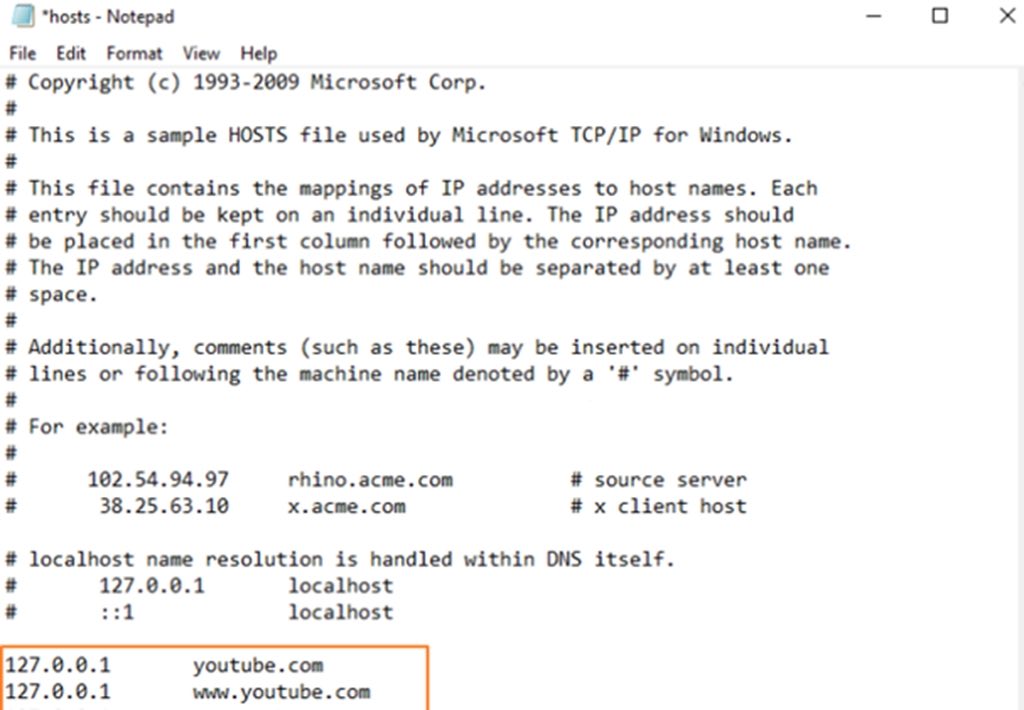
7. Click File > Save.
Then close Notepad and restart your browser. Chess.com will be blocked.
How to block chess.com with Screen Time?
Screen Time is a set of built-in settings on Apple devices that help monitor your app usage, control your screen time, limit access to adult websites, and more. To restrict access to chess.com via Screen Time, you first need to activate the Limit Adult Websites feature and then add chess.com to the Restricted list. But this may affect your normal use. If you don't mind this, follow these steps to block Chess on your Mac or iPhone using Screen Time:
On Mac
1. Open System Settings on your Mac.
2. Click Screen Time.
3. Scroll down the window. Click Content & Privacy. Turn it on.
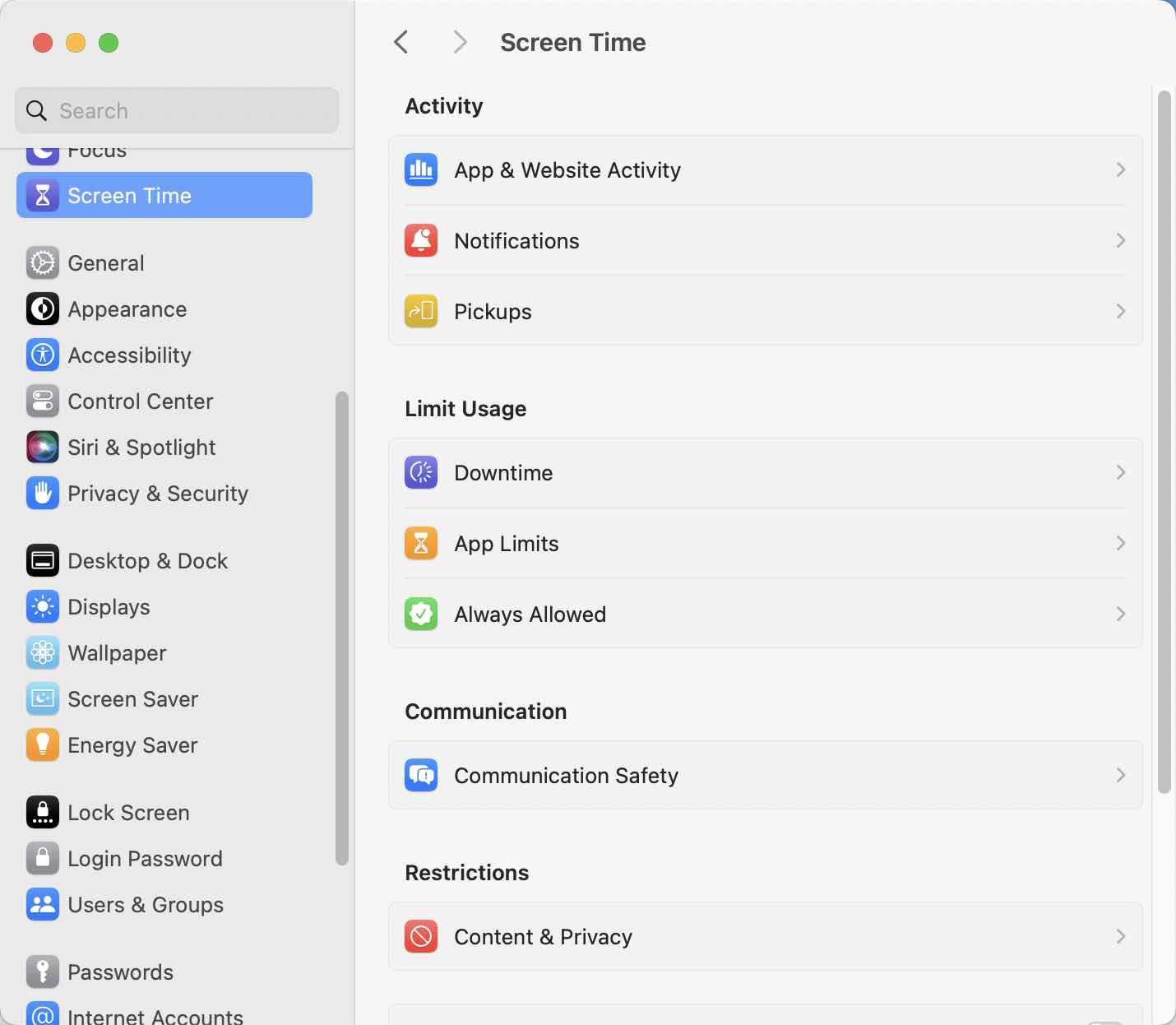
4. Select Web Content and choose Limit Adult Websites.
5. Click the Customize button.
6. Add chess.com to the Restricted list and click Done.
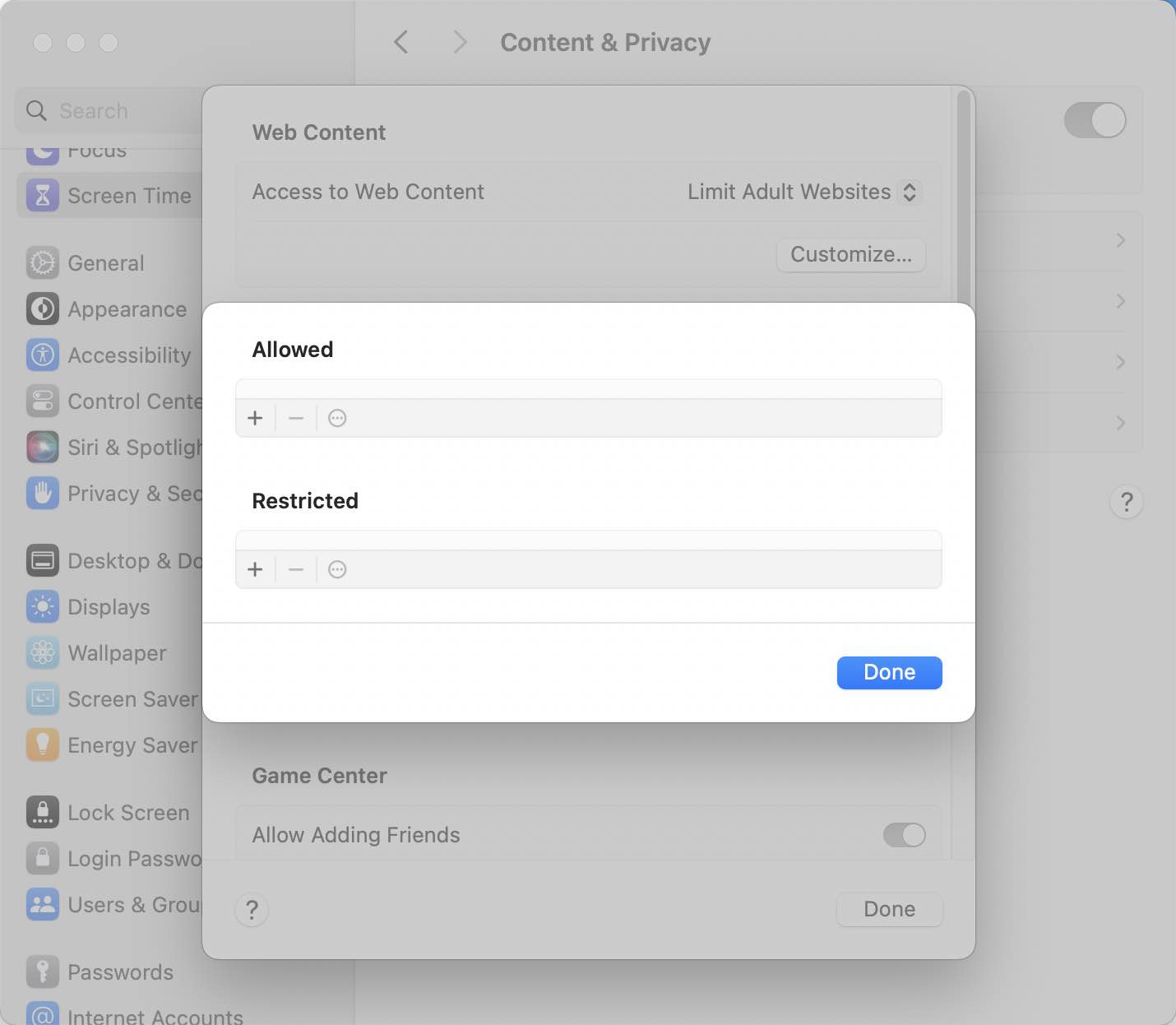
7. Click Done again to save your settings.
Now chess.com is blocked on Safari on your Mac.
On iPhone
1. Open your iPhone. Go to Settings.
2. Scroll down to find Screen Time. Open it.
3. Click Content & Privacy Restrictions.
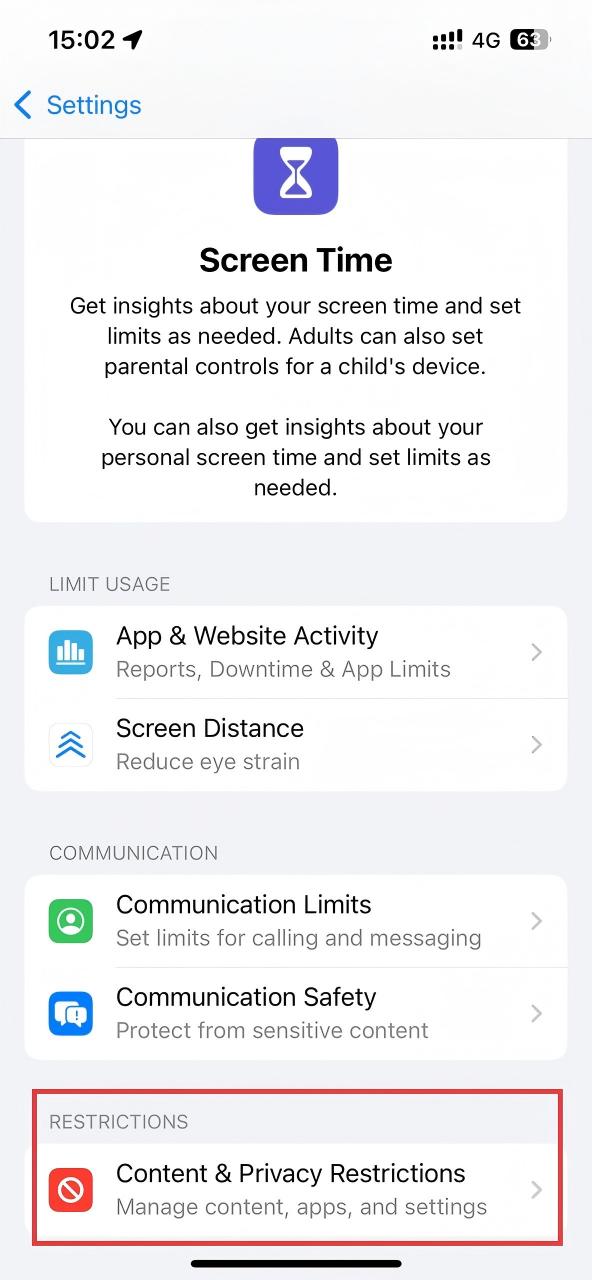
4. Turn on the feature.
5. In the next screen, click App Store, Media, Web, & Games.
6. Select Limit Adult Websites from the WEB CONTENT section.
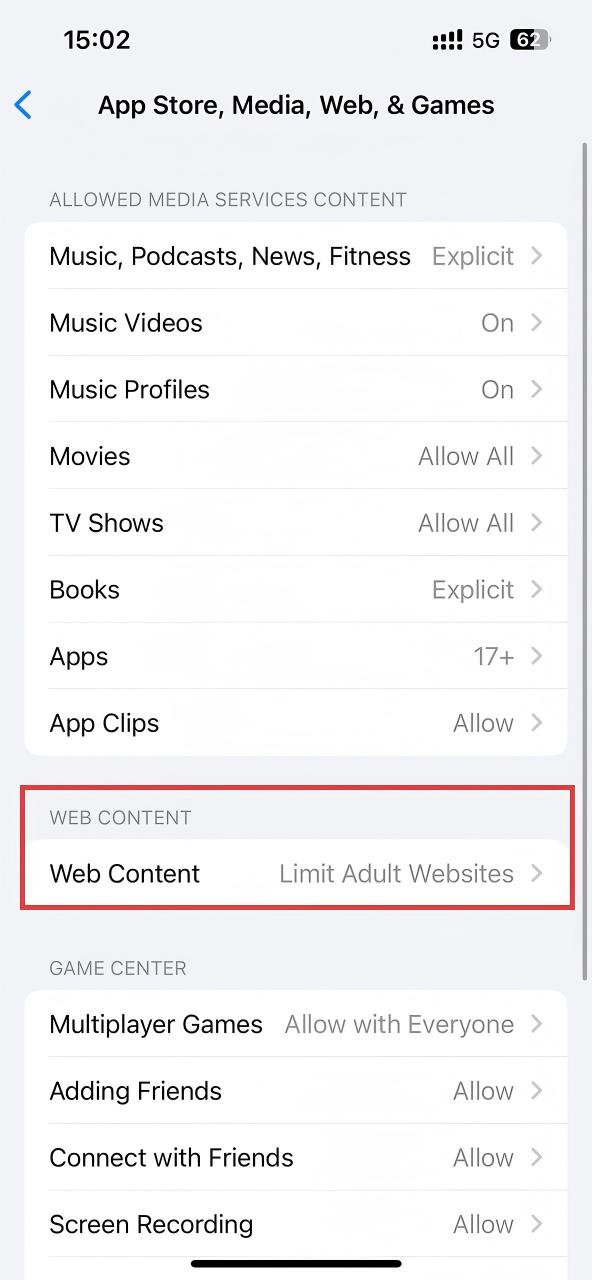
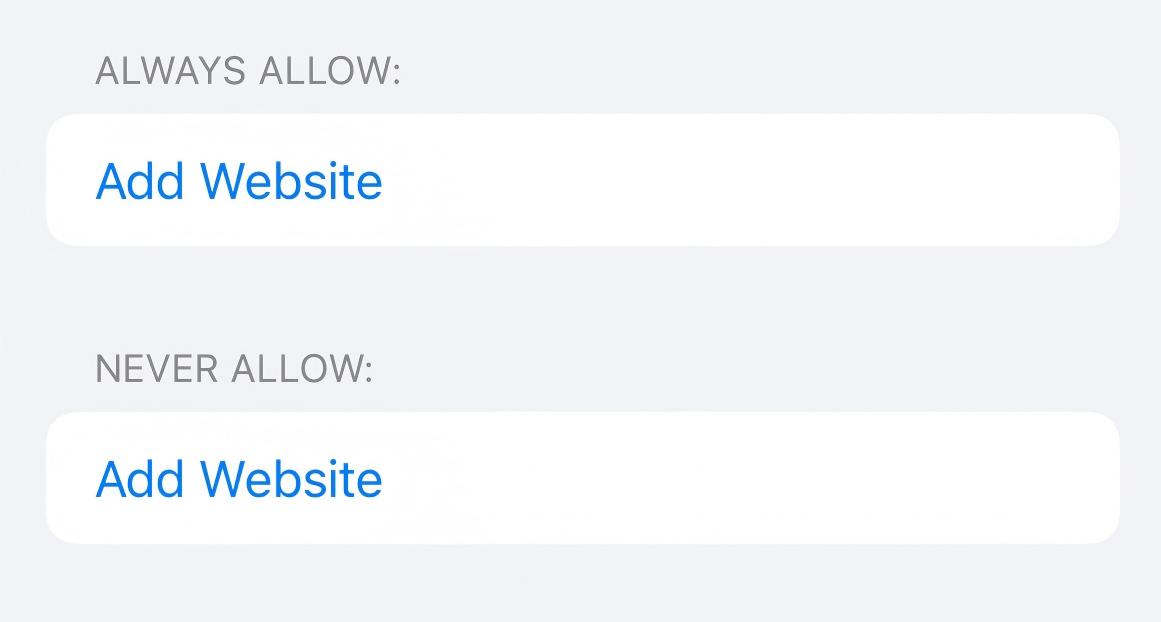
6. Then you can tap Add Websites under NEVER ALLOW. Add chess.com to the block list.
Tip:
Block Chess app on iPhone with Screen Time: Chess app is available on iPhone and Android phone. Some players like to play chess on the app. It is easier to forget about time when playing chess on mobile phones. Fortunately, you can set time limit for Chess app in Screen Time on your iPhone. Click Screen Time > App Limits. Click Add Limit. Then search for Chess app and select it. Click Add > Next. Set the usage time to 1 min for every day. Then enable “Block at End of Limit” at the bottom.
FAQs
Can children bypass the blocking?
It depends on the method you use. If you use Cisdem AppCrypt, you can protect the settings with password. This prevents children from bypassing the restrictions and accessing chess.com without the password.
However, if you rely on Screen Time or the hosts file, there may still be ways for children to bypass the blocking, especially if they are tech-savvy.
Is chess.com blocked by schools?
Yes, in many cases. Chess can be addictive and distracting during class. To prevent students from playing it in class, many schools blocked chess.com. However, students may still be able to access it by using a VPN or alternative URLs such as justdoinghomework.com, superhardalgebraproblems.com, and schoolschoolschool.com. So it's recommended to use Cisdem AppCrypt to block all these URLs with password.

Norah Hayes likes to share her tips on how to improve focus and stay motivated at work. She believes it is essential to eliminate all online distractions during work hours.

Ethan Long joined Cisdem in 2015 as a developer and now serves as the editorial advisor for Cisdem AppCrypt. He actively tests and uses Cisdem AppCrypt and other screen-time management tools to ensure AppCrypt meets its promises in real-world scenarios.