


How to Delete Duplicate Photos on iPhone Automatically Using 2 Methods
 3.9K
3.9K
 1
1


Key Takeaways
If you are using iOS 16 or later, a built-in method is available for helping you delete duplicate photos on your iPhone.
If you are using iOS 15 or earlier, or if you are looking for a reliable way to deal with duplicate and similar photos, you can use a third-party method.
Duplicate photos (exactly identical, regardless of their file names) can take up storage space and clutter your library, possibly making your photo browsing experience less enjoyable.
In this article, I will show you two methods for removing duplicate photos from your iPhone, covering iOS 9 or later.
 Cisdem Duplicate Finder
Remove All Duplicate Photos from iPhone for Free
- Automatically and accurately find duplicate photos as well as videos on iPhone
- Find similar photos too
- Display duplicate and similar photos for you to preview side by side
- Automatically select all but one file for deletion in each set of duplicates, enabling you to remove them all at once
Let you adjust selections manually or choose from rules (e.g., Select Newest) - Send deleted duplicates to the Recently Deleted album in Photos, making it easy to restore them
- Easy to use for everyone
- Compatible with iOS 15 or later


How to delete duplicate photos on iPhone using a built-in method
Applies to: iOS 16 or later
If your iPhone is running iOS 16 or later, you can use the duplicate detection feature in the Photos app.
Test Results
I tested this feature using my Photos app with nearly 10,000 photos, and it found 58 sets of duplicate and similar images. It did find duplicates. However, it missed many similar photos. (For example, it detected same photos of different sizes, most of which were created by editing, but missed alike photos I took in burst mode or from slightly different angles.) What’s more, the detection is delayed. It won’t detect my duplicates created within the past 2 months.
Below are steps on how to delete duplicate photos on iPhone with the help of this feature.
1. Open your iPhone. Open Photos.
2. Tap Albums at the bottom.
3. Scroll down to find Utilities. Tap Duplicates.
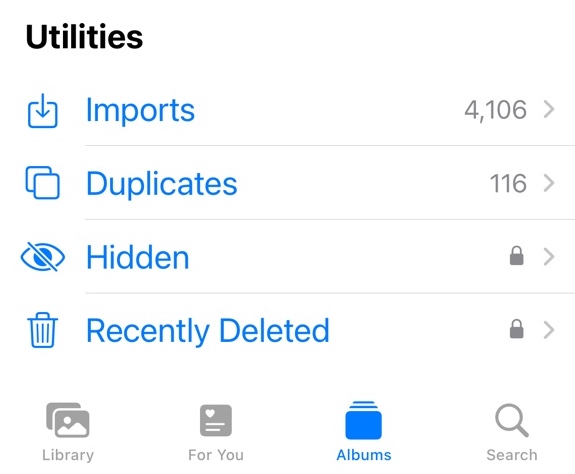
4. Now you can see all the duplicate photos and videos (along with similar photos) found on your iPhone. Tap the three-dot icon in the upper right corner to filter to only show photos. They are arranged chronologically, with the oldest at the top.
5. There are two removal options.
- Individually: If there are not many duplicate photos on your iPhone, you can manually check each duplicates. Then, click the Trash icon to delete the one you don’t want. Or, click the Merge button next to each set of duplicates you’d like to merge, letting the feature combine them into one. And the data (such as a caption) added to photos in this set will be combined into the kept photo.
- In bulk: You can also remove all duplicate photos at once by clicking Select in the upper right of the window. Then, click Select All. Click the Merge button at the bottom. This option deletes duplicates automatically with just these three clicks.
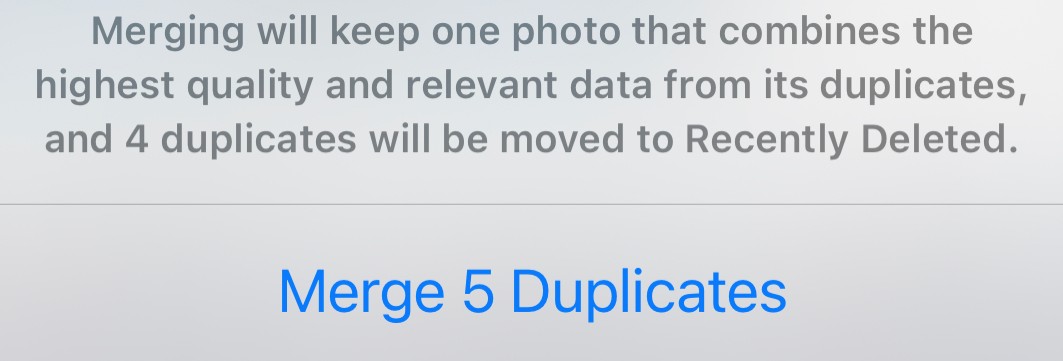
With either merging or deleting, the removed photos will go to the Recently Deleted album.
How to delete duplicate photos on iPhone using a third-party method
If you are using an earlier iOS version, if you are not a fan of Photos app's duplicate detection, or if you are looking for a more reliable and efficient method, you can consider the third-party one.
This part introduces 3 different third-party duplicate photo finders to help you delete duplicate photos on iPhone automatically. First, let’s check out a comparison of them so you can choose the one that best suits your needs.
| Remo Duplicate Photos Remover | CleanMy®Phone | Cisdem Duplicate Finder | |
|---|---|---|---|
| Find duplicate photos on iPhone | ✓ | ✓ | ✓ |
| Find similar photos on iPhone | ✓ | ✓ | ✓ |
| Adjust similarity threshold | ✗ | ✗ | ✓ |
| Built-in preview pane | ✓ | ✓ | ✓ |
| View images details | ✓ | ✓ | ✓ |
| Auto-select duplicates for deletion | ✓ | ✓ | ✓ |
| Mass select duplicates by time or file size | ✗ | ✗ | ✓ |
Use Remo Duplicate Photos Remover
Applies to: iOS 9.0 or later
Remo Duplicate Photos Remover is an app that helps find duplicate and similar photos in your iPhone's Photo library. Every time you think your iPhone photos need cleaning, you can use this tool to scan for duplicates instantly. If your library has too many photos, it may take longer to scan. But it returns more results than the built-in one.
Additionally, it allows you handle duplicates and similar photos separately, by providing a dedicated tab for each type. This improves reliability and efficiency.
Here’s how to use Remo Duplicate Photo Remover to scan and delete duplicate photos on iPhone:
1. Get this iPhone duplicate photo finder from the App Store. Install it.
2. Open it. Click the Scan button on the main window.
3. Wait for it to finish scanning. Or minimize it to let it scan in the background.
4. Once completed, you will be informed of the number of the duplicates that have been found and how much space they occupy. Tap OK.
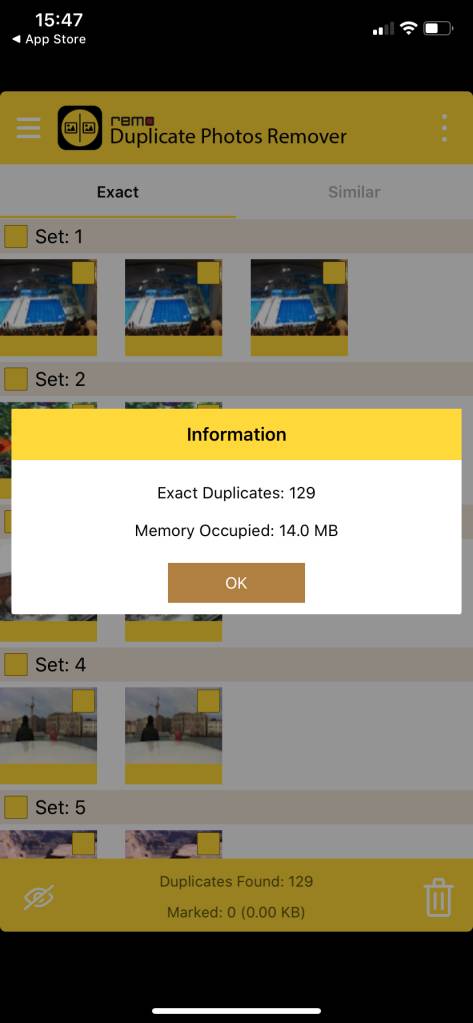
5. It automatically keeps one photo in each group of duplicates. Under the Exact tab, you can directly tap the Trash icon in the lower right corner to delete all duplicate pictures with one click.
6. Go to the Similar tab. Double-click a photo to get its details like file size, date and path. Then mark unwanted duplicates to delete.

You can also tap the 3-dot icon in the top right corner and tap Select All to mass select duplicates for deletion, which saves you from manually selecting.
Use CleanMy®Phone
Applies to: iOS 17 or later
After using iPhone for a long time, your photos library may be occupied by a lot of redundant pictures. Then some users who use iPhones with less storage space have 2 options: clear duplicates or pay for iCloud storage. CleanMy®Phone is an iPhone app that helps find duplicate photos, similar images, blurred images, and old screenshots on your iPhone. You can use it to free up some iPhone storage without purchasing extra storage space. Below are steps:
1. Download it from the App Store. Install it to your iPhone.
2. Open it. Go to the Declutter tab. Click Scan.
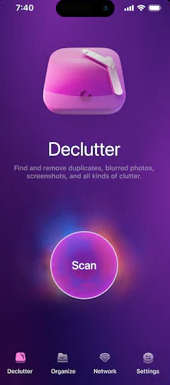
3. You can pause the scan and view found duplicates, or waiting until it scans all your photos.
4. Click Duplicates. This duplicate photo finder for iPhone will automatically keep the best picture and select other duplicate photos for you to delete.
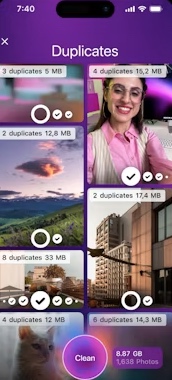
5. You can view each group of duplicate photos one by one and select pictures to delete by hand. Or click the Clean button to remove all your iPhone duplicate photos.
If there are not many duplicate photos on your iPhone, you can return to the previous window and select Screenshots, Blur, or Screen Recordings to free up more space.
Use Cisdem Duplicate Finder
Applies to: iOS 15 or later
Cisdem Duplicate Finder is completely free to use and a bit more powerful than the previous two apps.
It accurately detects duplicate photos and videos. It also has powerful similar photo detection. Why? Unlike Photo app's built-in detection and the two other third-party apps, Cisdem Duplicate Finder allows you to adjust the similarity threshold for comparing photos. This means that you can set it to find photos that are very similar or loosely similar.
In addition, with this app, you have more control over automatic selections.
1. Get the Cisdem app from the App Store. Open it.
2. Click Start Scan. (Optionally, before clicking Start Scan, go to Settings to adjust similar image detection based on your needs.)
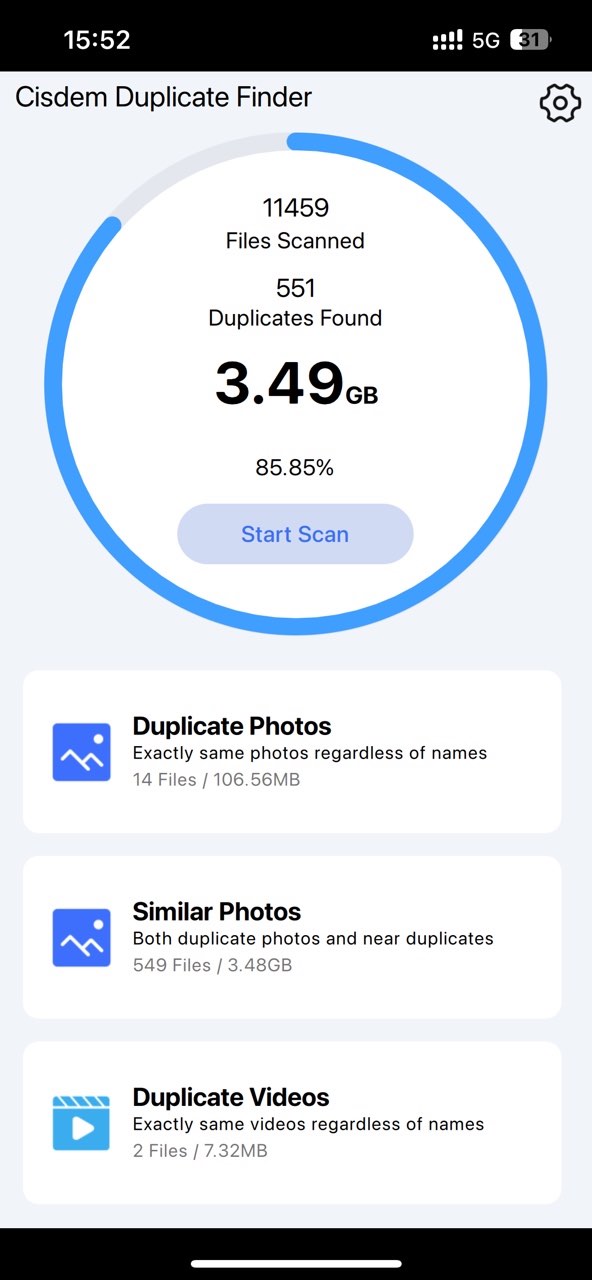
3. When the scan is complete, click Duplicate Photos.
4. The screen that appears will display all duplicate photos found on your iPhone. In each group, all but one item is automatically selected for removal. Use Selection rules or manual adjustments if needed. Click Clean to move all selected items to the Recently Deleted album in your Photos app.
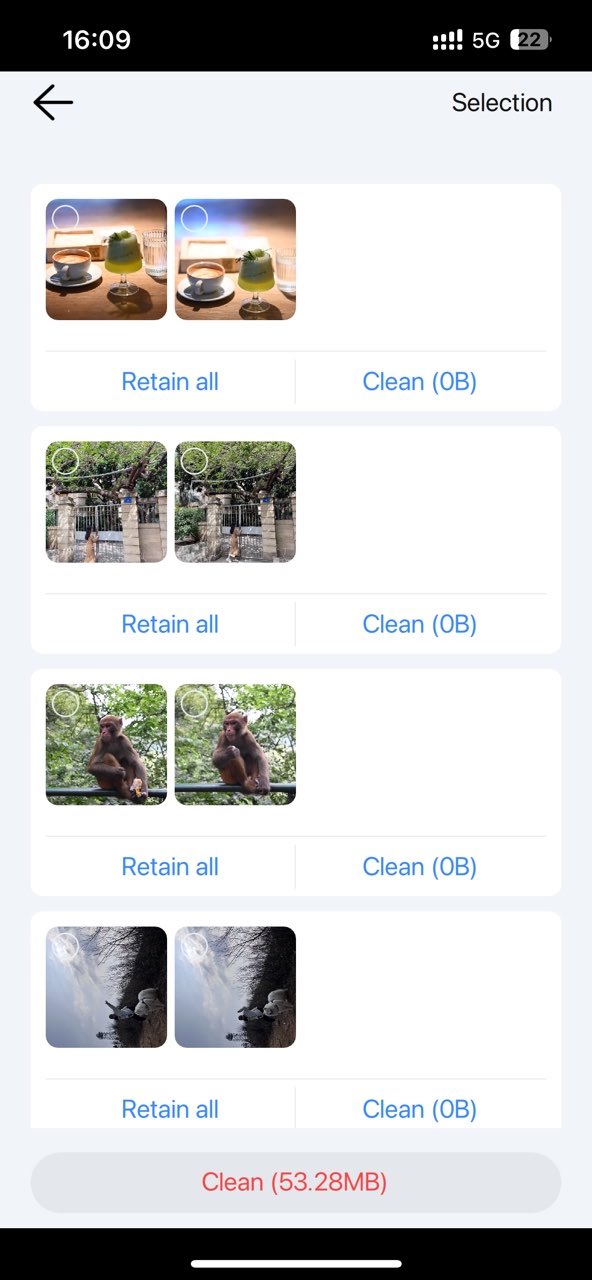
5. Return to the pervious screen and choose Similar Photos. Then, handle similar photos in a similar way.
Conclusion
Apple makes it easy to store, manage and access photos by providing users with the Photos app. But you may still have problems managing photos on your iPhone, such as having the duplicate photo problem. Luckily, Apple finally offers a built-in method for deleting duplicate photos on iPhone. There are also a third party method. By cleaning your iPhone from duplicate photos, you can free up space for new photos!

With a passion for tech and writing, Sarah joined Cisdem, where she focuses on creating articles about using utility tools to enhance file management and simplify contact management.

Adrian Li is Cisdem’s Chief Engineer and serves as the editorial advisor for Duplicate Finder and ContactsMate. His work and insights have been featured in leading tech publications such as Fossbytes, TUAW, Redmond Pie, SafetyDetectives, and BestForAndroid.
Christian Lutz
Very detailed tutorials, but I don’t want to update my iphone to ios 16 now. The second method is useful for me.