


Cisdem ContactsMate for Mac Advanced Guide
 99
99
 0
0


01 How to Merge Duplicate Contacts?
Duplicate contacts can make your contacts messy, and manually cleaning them up takes a lot of time. In this guide, we will walk you through how to manage and merge duplicate contacts using Cisdem ContactsMate.
Step 1 Scan duplicate name contacts
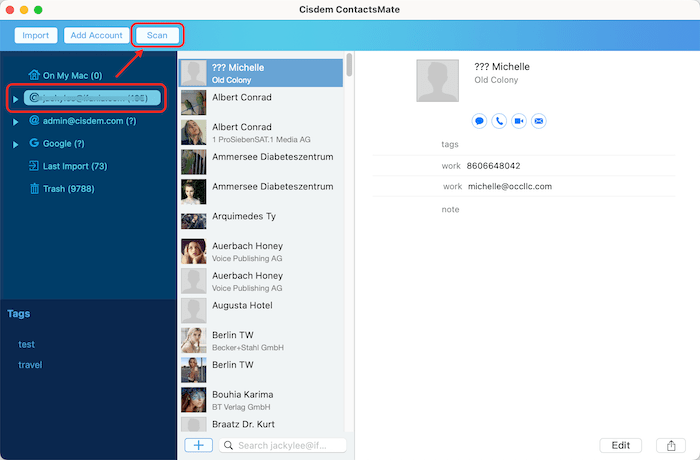
Highlight the target account on the left panel, click the Scan button to start scanning.
Step 2 view and fix duplicate contacts
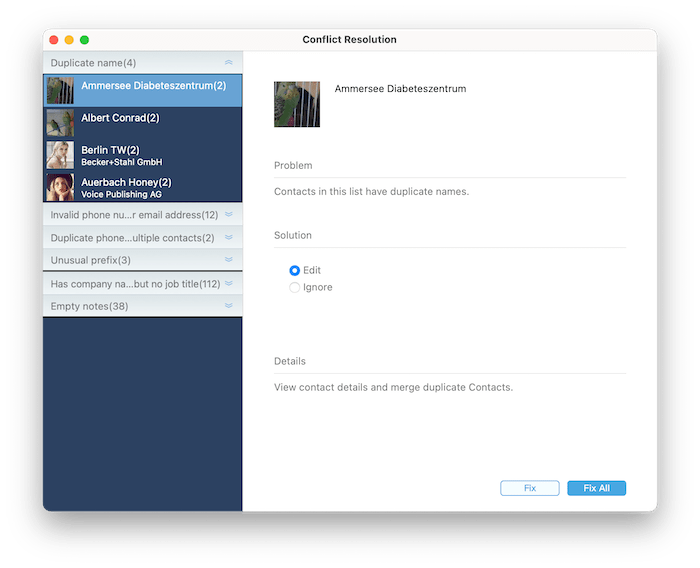
After the scan completes, unfold the conflict group “Duplicate name” on the left panel, choose Edit solution and click Fix All on the right side.
It will display all fields for the duplicate contacts in the following window, slide on  on the left lower corner, it will show you how does the merged contact will be. If you want to directly merge all the duplicate name contacts, tick the option
  and click OK, all the duplicate name contacts will be merged at once.
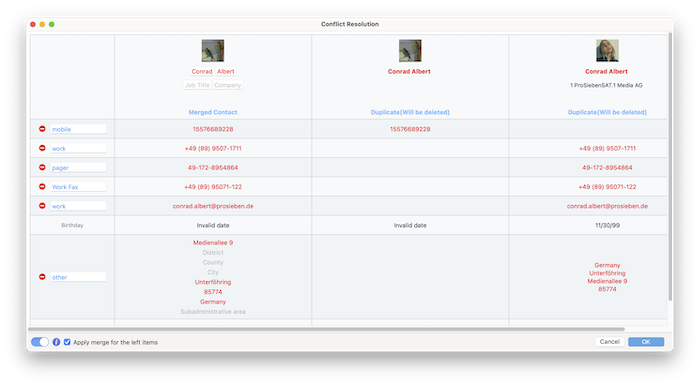
Please note that the merged contact is newly created, and the original duplicate name contacts will be removed to Trash. If you regret for deleting them, you can still put them back from Trash in ContactsMate.
02 How to Export and Import Contacts into Outlook?
Outlook only supports importing contacts from CSV files—but not all CSV formats are compatible. In this guide, we’ll show you how to export an Outlook-friendly CSV using Cisdem ContactsMate.
Part 1 Export CSV from ContactsMate
- Run Cisdem ContactsMate;
- Select the contacts you want to export, you can choose a group, an account or specific contacts;
- Right-click the selected contacts/group/account and choose Export;
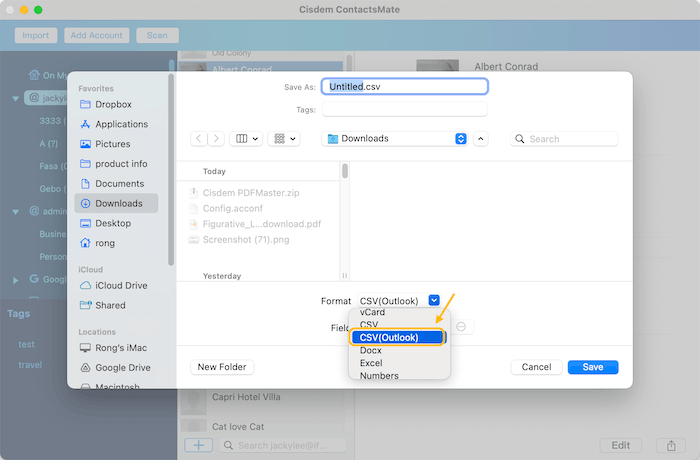
- Select the output format as CSV(Outlook), choose a location to save the exported CSV file.
Please note that you need to choose CSV(Outlook) instead of CSV.
Part 2 Import CSV into Outlook
1. Adjust CSV’s headers if needed
Outlook uses predefined fields, so to ensure a perfect match, you can manually adjust the column headers in the exported CSV file. If a column header doesn’t match exactly, its data may be imported into the Note field.
Below are the Supported Outlook Headers:
Name Fields: First Name, Middle Name, Last Name, Title Suffix, Nickname Given, Yomi, Surname Yomi
Email Fields: E-mail Address, E-mail 2 Address, E-mail 3 Address, Phone Fields: Home Phone, Home Phone 2, Business Phone , Business Phone 2, Mobile Phone, Car, Phone, Other Phone, Primary Phone, Pager
Fax Fields: Business Fax, Home Fax, Other Fax
Other Contact Fields: Company, Main Phone, Callback, Radio Phone, Telex TTY/TDD Phone, IMAddress
Company Fields: Job Title, Department, Company, Office Location, Manager's Name, Assistant's Name, Assistant's Phone, Company Yomi
Address Fields: Business Street, Business City, Business State, Business Postal Code, Business Country/Region, Home Street, Home City, Home State, Home Postal Code, Home Country/Region, Other Street, Other City, Other State, Other Postal Code, Other Country/Region
Other fields: Personal Web Page, Spouse, Schools, Hobby, Location, Web Page, Birthday, Anniversary, Notes
You can also download the Outlook CSV template from here
2. Import the CSV file into Outlook
Just click Manage Contacts> Import Contacts and choose the verified CSV file into Outlook.
In conclusion, exporting contacts as a CSV (Outlook) file with Cisdem ContactsMate ensures maximum compatibility and saves you from common import errors. By properly matching the CSV headers to Microsoft Outlook fields, you can achieve a smooth and accurate contact migration process.

Traci Gordon has worked as a tester in a software company for 8 years, she believes that the best software should be a tool that can help users accomplish what they need with the simplest steps.

Adrian Li is Cisdem’s Chief Engineer and serves as the editorial advisor for Duplicate Finder and ContactsMate. His work and insights have been featured in leading tech publications such as Fossbytes, TUAW, Redmond Pie, SafetyDetectives, and BestForAndroid.